Hosun
Inspiring
April 10, 2025
Answered

Change the height of text box

  • April 10, 2025
  • 1 reply
  • 1214 views

Hi,


To change the height of the text box, I type a number in H in Transform Panel. But the characters in the text box are also skewed.


Is there any way to change only the height of the text box with typing numbers in Transform Panel?


Hosun


Correct answer Brad @ Roaring Mouse

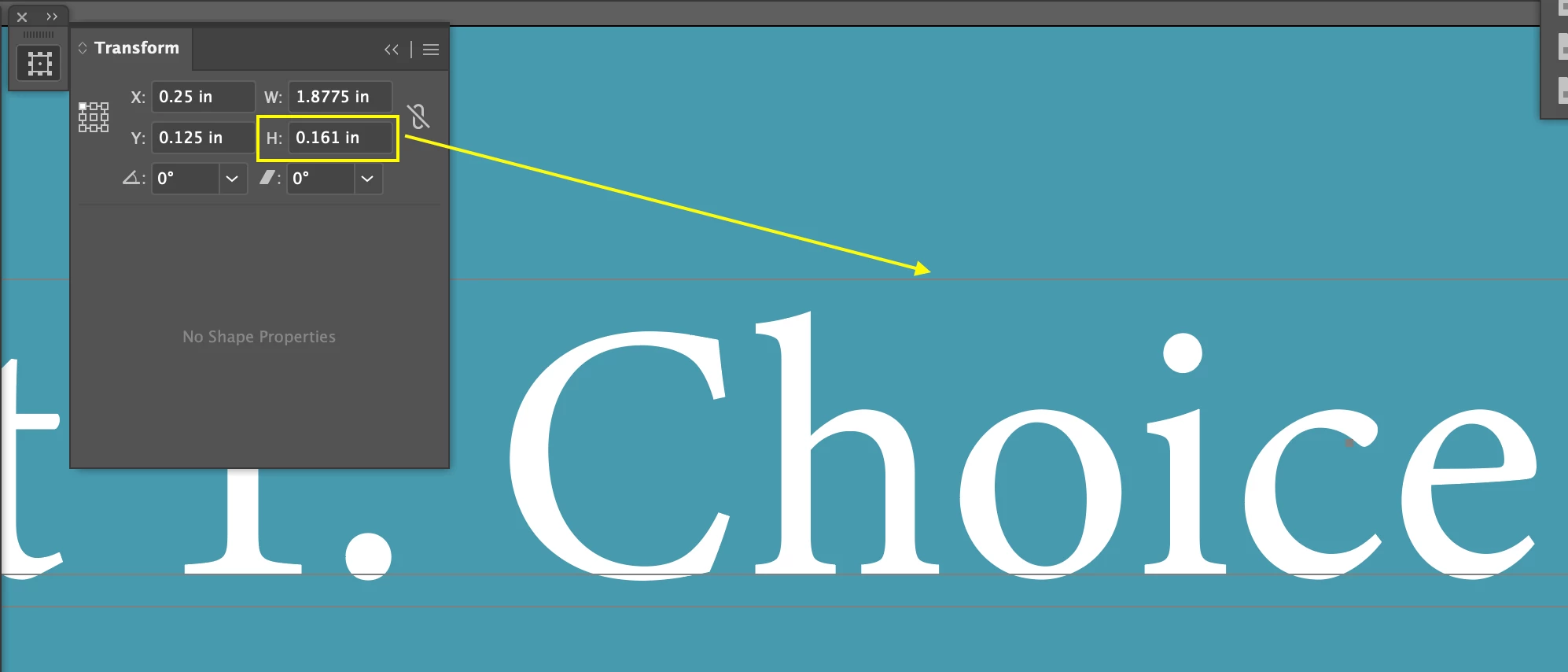
Now, it's working on Mac. It didn't work on iPhone (Screenshot 1).


I have another question.


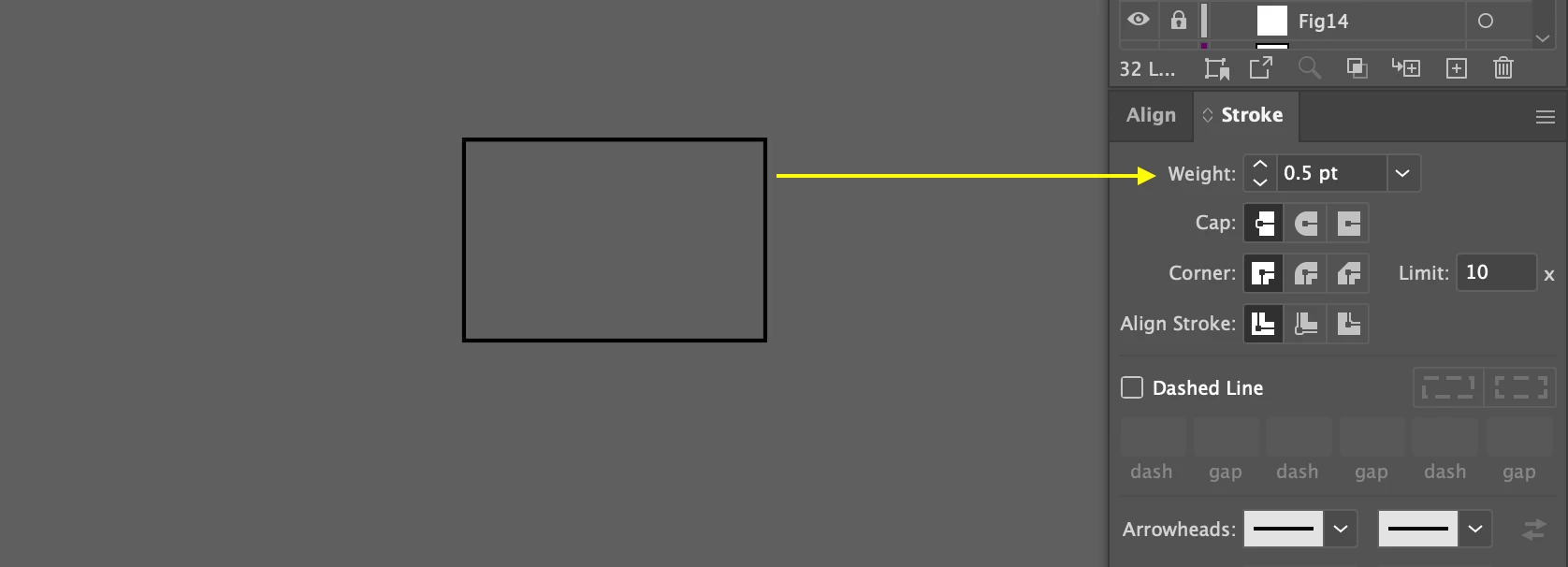
In Screenshot 2, the weight of the rectangle border is 0.5 pt.

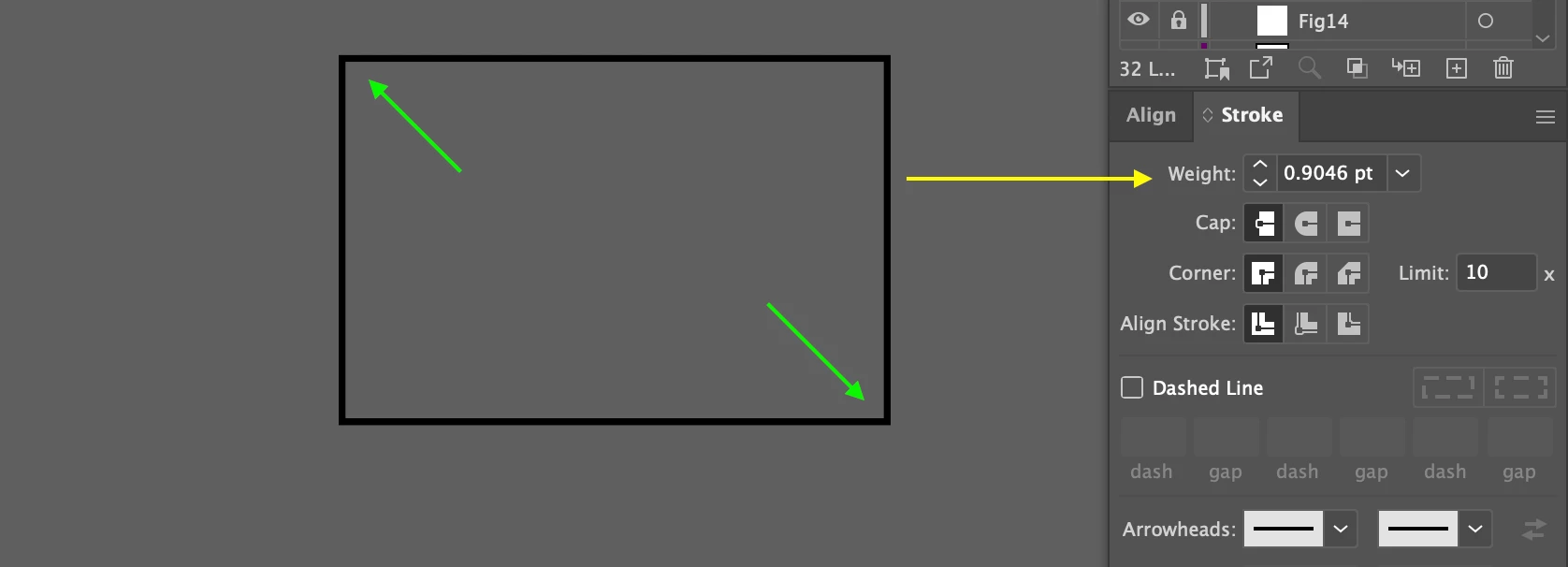
In Screenshot 3, it increses to 0.9046 pt, after the rectangle is enlarged.


Is there any way to keep 0.5 pt regardless of the change of the rectangle size?


Hosun



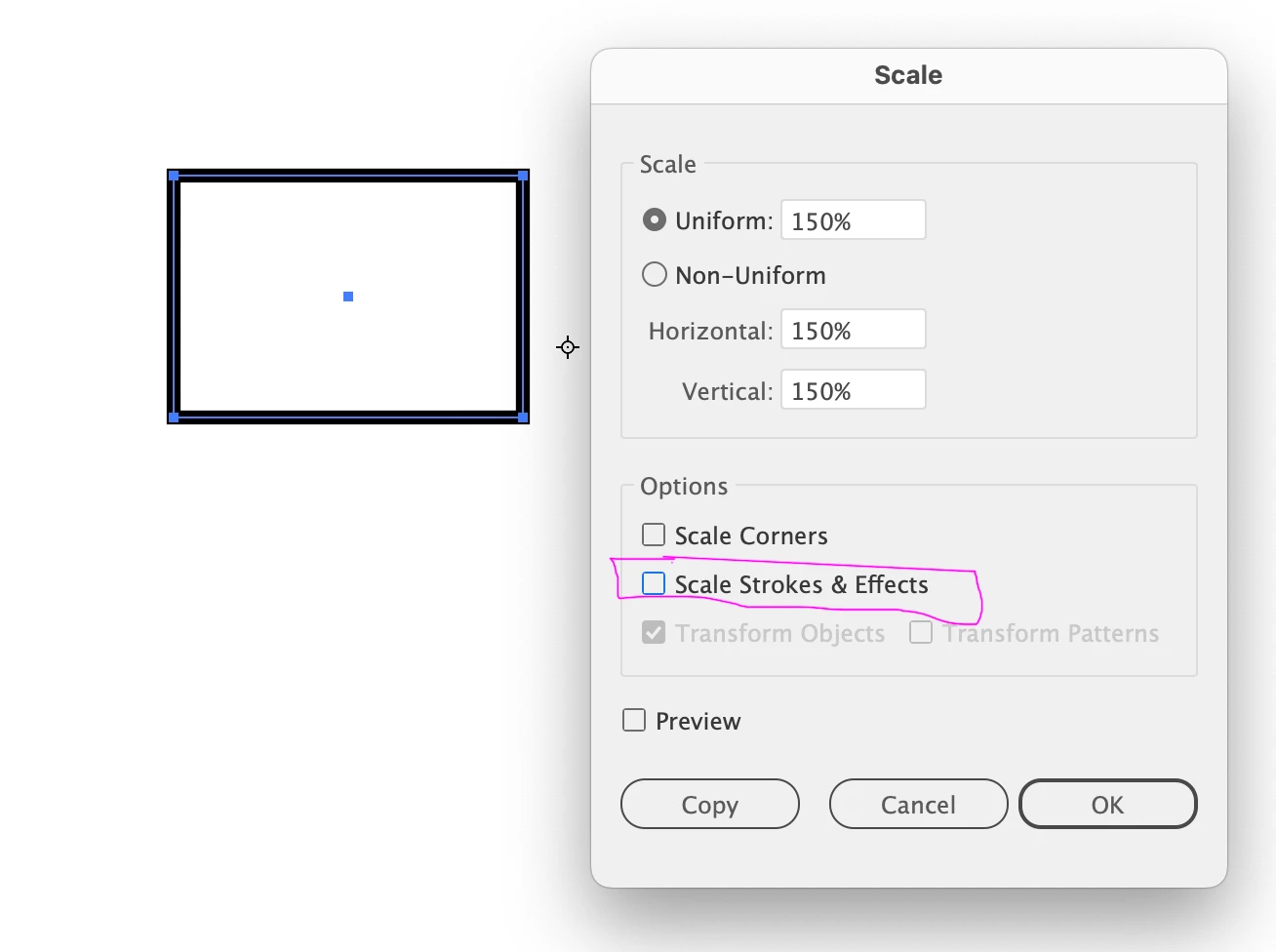
Yes, Turn off "Scale Stroke and Effects" in Preferences > General. Alternatively, if you use the Scale Tool, you can selectively turn this on/off on a case by case basis.


The more you get to know the program, you will learn what the best approach is for your purposes.

1 reply

Monika Gause
Community Expert
Community Expert
April 10, 2025

You might want to check out the real size options in the CHaracter panel (turn them on in the panel menu)
or

apply the effect > Path > Outline object

 Then turn on "Use preview bounds" in Preferences > General

Then scale

Hosun
HosunAuthor
Inspiring
April 10, 2025

Thank you very much for your reply.

Let me explain the question in more detail. 


In Screenshot 1, height is 0.161 in.

When I increase it to 0.3 in, the characters are also increased (Screenshot 2).


By typing a number in H in Transform Panel, I want to increase only the height of the text box, leaving the characters intact.  

Is there any way?


Hosun


Screenshot 1

Screenshot 2

Pariah Burke
Community Expert
Community Expert
April 11, 2025

It's because you're using a Point Type Object (you clicked with the Type Tool and started typing) rather than an Area Type Object (you dragged the Type Tool to describe the area for an actual text frame). Here's how to fix it:


  1.  Select your text object with the black arrow Selection Tool.
  2.  Go to Type > Convert to Area Type.
  3.  Now resize the height of your type object.


With Point Type Objects, resizing operations are resizing the type itself. Area Type Objects, when resized, will resize the area not the type inside that area.