



Contextual Task Bar in Illustrator 2025 - Quick Actions when you need them!
The Contextual Task Bar is a floating bar that provides the most relevant next actions for the object you select in the object's vicinity. The Contextual Task Bar ensures that your focus remains on the object you're working on.
You can move the Contextual Task Bar around to where you want it to be. You can move, reset, pin, or hide the bar via More options. To re-enable it, go to the Window menu > Contextual Task Bar.
|
|
Note: |
Contextual Task Bar is only available for Illustrator version 27.9 or later. |

Some Example Cases include:
Expand traced images with ease
|
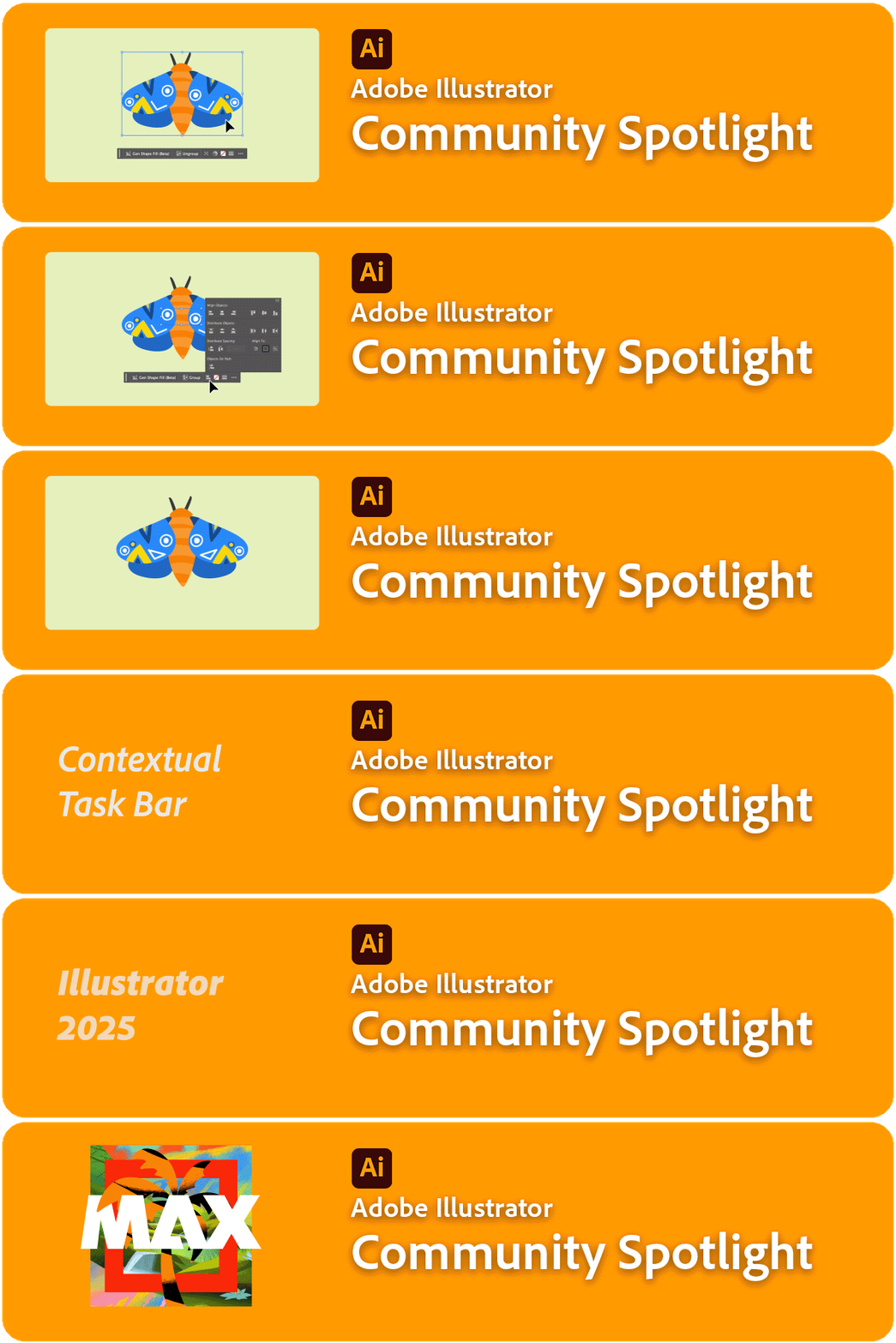
When you open a new document, the Contextual Task Bar provides quick access to essential tools and features. |
 |
Simplify, Smooth & Adjust Anchor Points
|
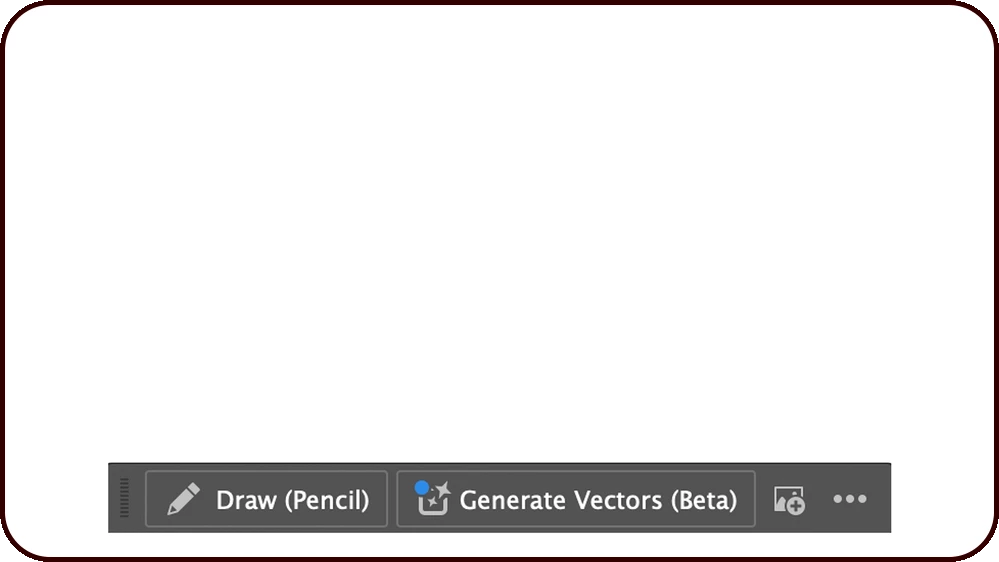
With the Direct Selection Tool, use the Simplify option to reduce the number of anchor points on a path and Smooth to refine its curvature. You can also Remove selected anchor points, Connect selected end points, Cut path at selected anchor points, and convert anchor points using options like Convert selected anchor points to corner |
|
Artboard tool
|
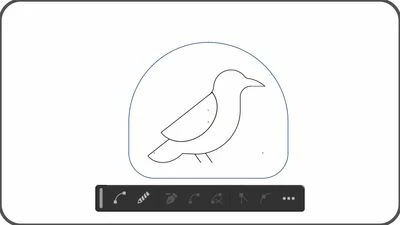
When using the Artboard tool, the Contextual Task Bar allows you to adjust the preset size, create a new artboard, duplicate it, and export it. |
 |
Selection tool
|
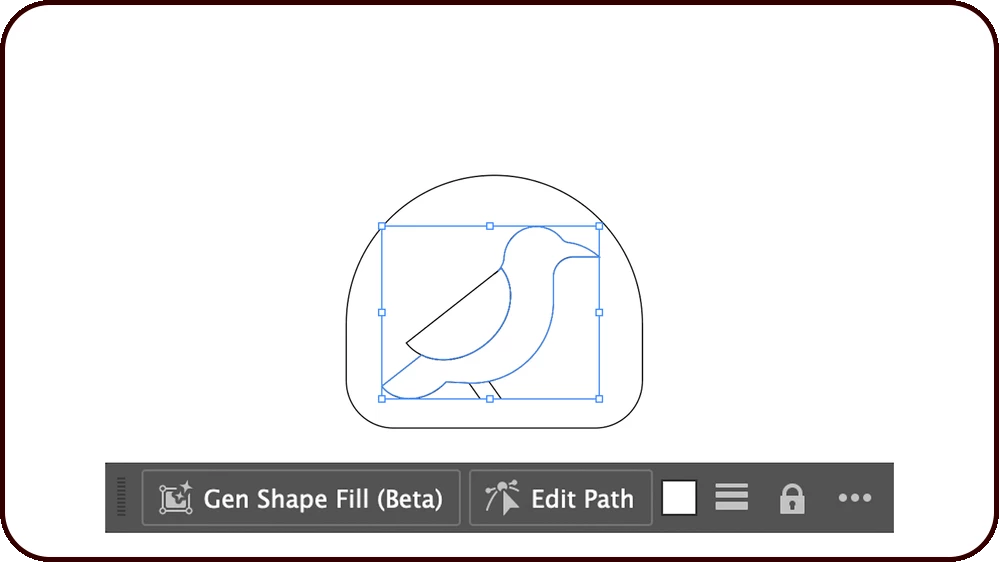
The Contextual Task Bar gives you various editing options when you use the Selection tool to select paths and shapes on the canvas. You can use Gen Shape Fill to fill your selection with vector graphics and Fill and Stroke to change the colors. |
 |
Shapes: Generate, Edit & Lock
|
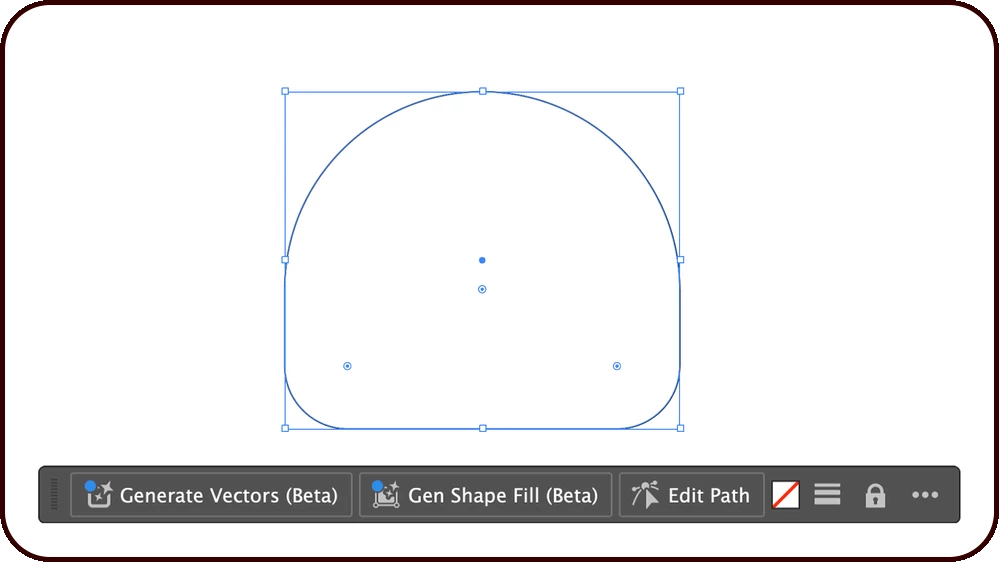
Use the Generate Vectors feature to brainstorm scenes, subjects, and icons. Switch to the Direct Selection tool with Edit Path to refine your design, and utilize Lock Object to safeguard against unintended modifications. |
 |
Open Path: Join & Edit
|
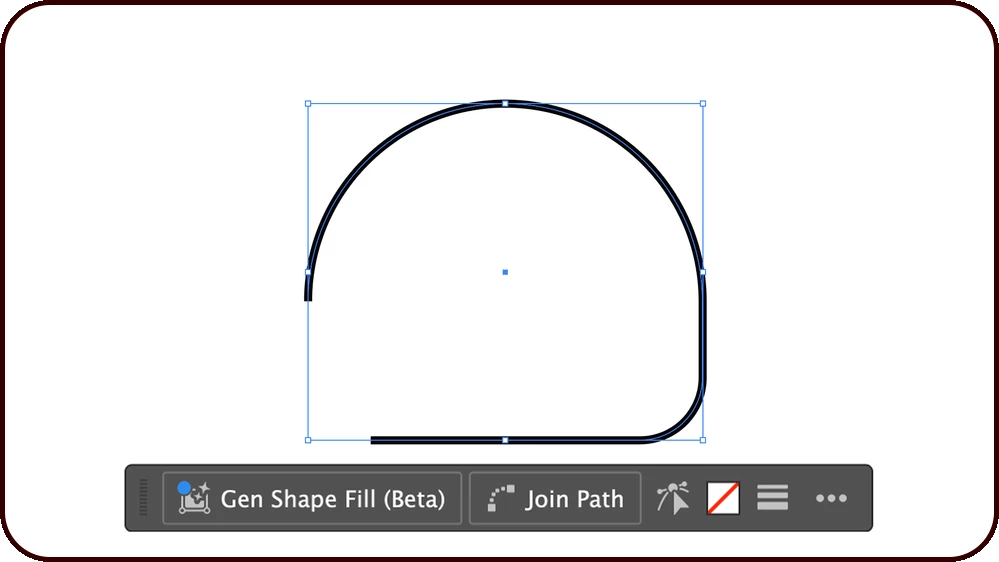
When you select an open path, you can use the Join Path feature to connect its ends and switch to the Direct Selection Tool to Edit Path and make precise adjustments to anchor points. |
 |
Organize, Align & Recolor
|
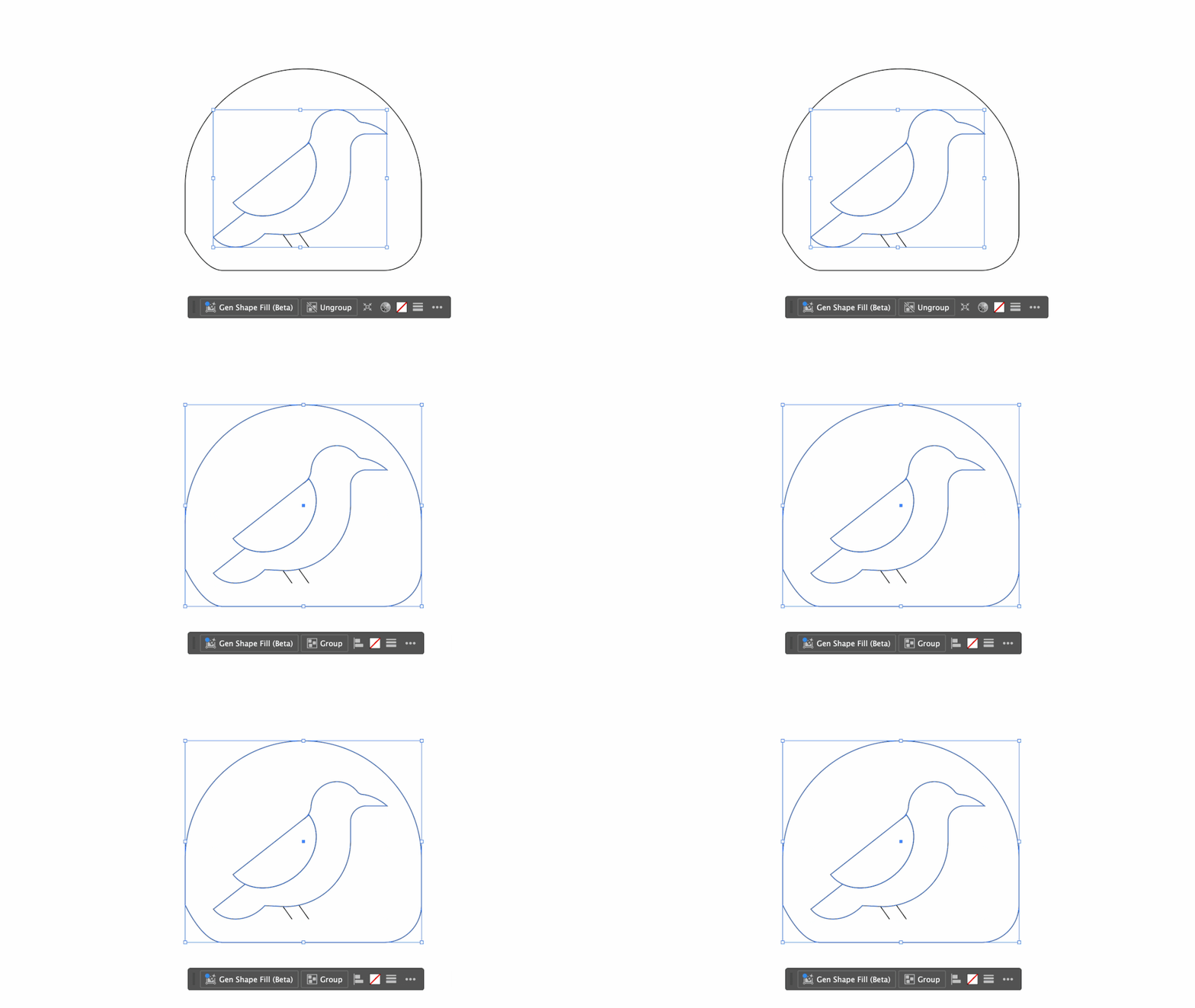
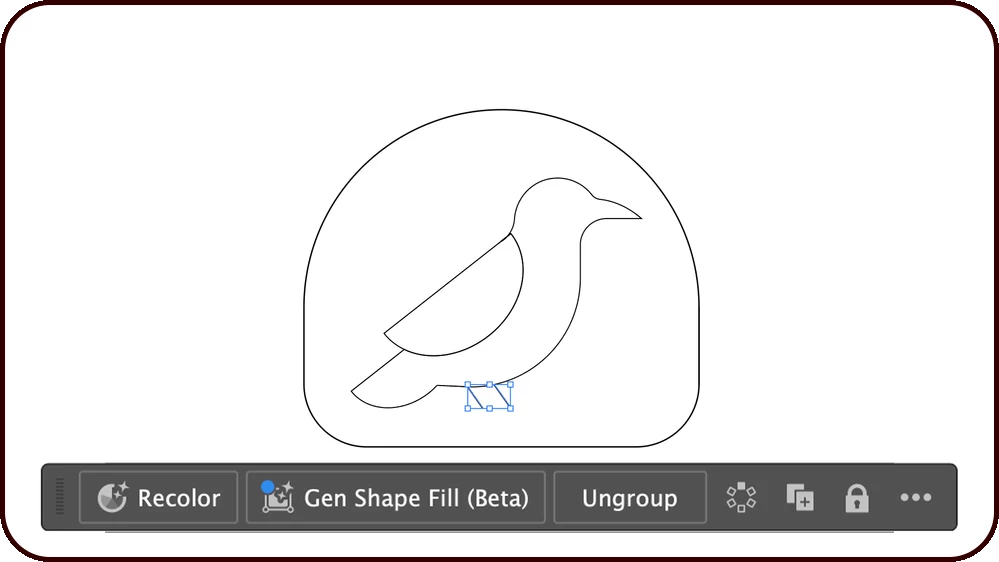
Use Group to combine multiple paths and shapes into a single unit for easier management and Align to arrange them precisely. For grouped shapes, use Ungroup to work on individual elements or Isolate group to edit them in isolation mode. Harmonize or refine the color scheme of your selection with the Recolor option, especially when dealing with elements of varying colors. |
 |
Repeat & Duplicate
|
Utilize the Repeat Object to create various repeating patterns with your grouped paths and shapes. Use the Duplicate Object to create additional copies as needed, enabling efficient design iterations and variations. |
 |
Compound Path: Edit & Release
|
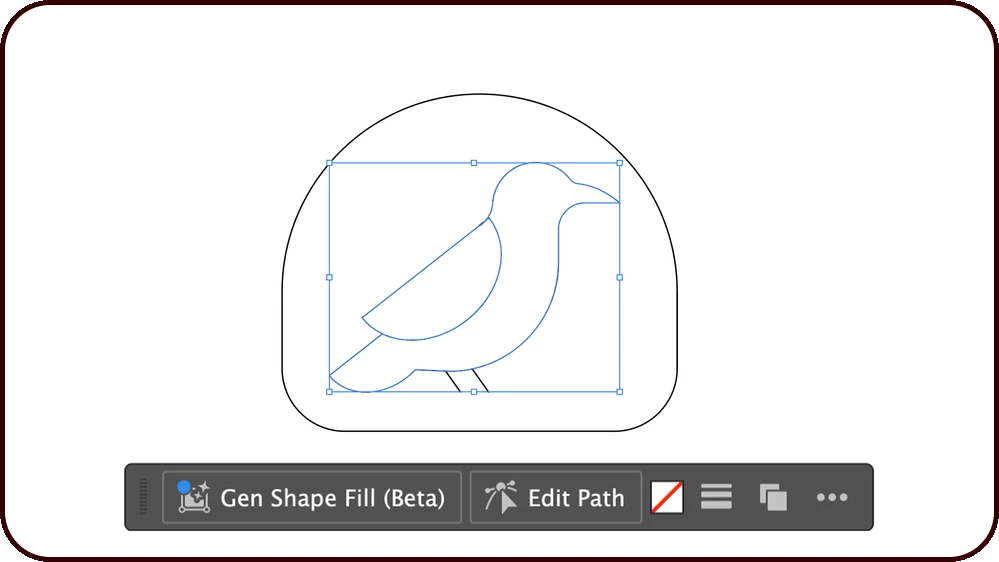
When you create a compound path and select it with the Selection tool, the Contextual Task Bar offers options such as Gen Shape Fill, Edit Path, Fill, and Stroke. Use Release to separate the shapes in the compound path. |
 |
Basic Shape Tools
|
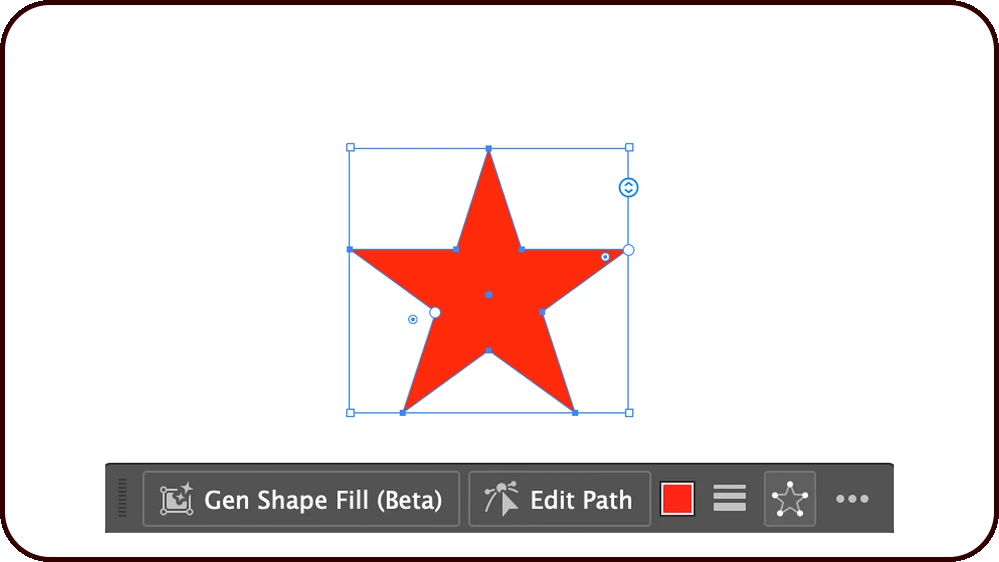
Adding shapes with the Rectangle, Ellipse, Polygon, and Star tools provides you with Contextual Task Bar options like Gen Shape Fill, Edit Path, Fill, and Stroke. You can also adjust the properties of each shape added to the canvas. |
 |
Text: Format & Convert
|
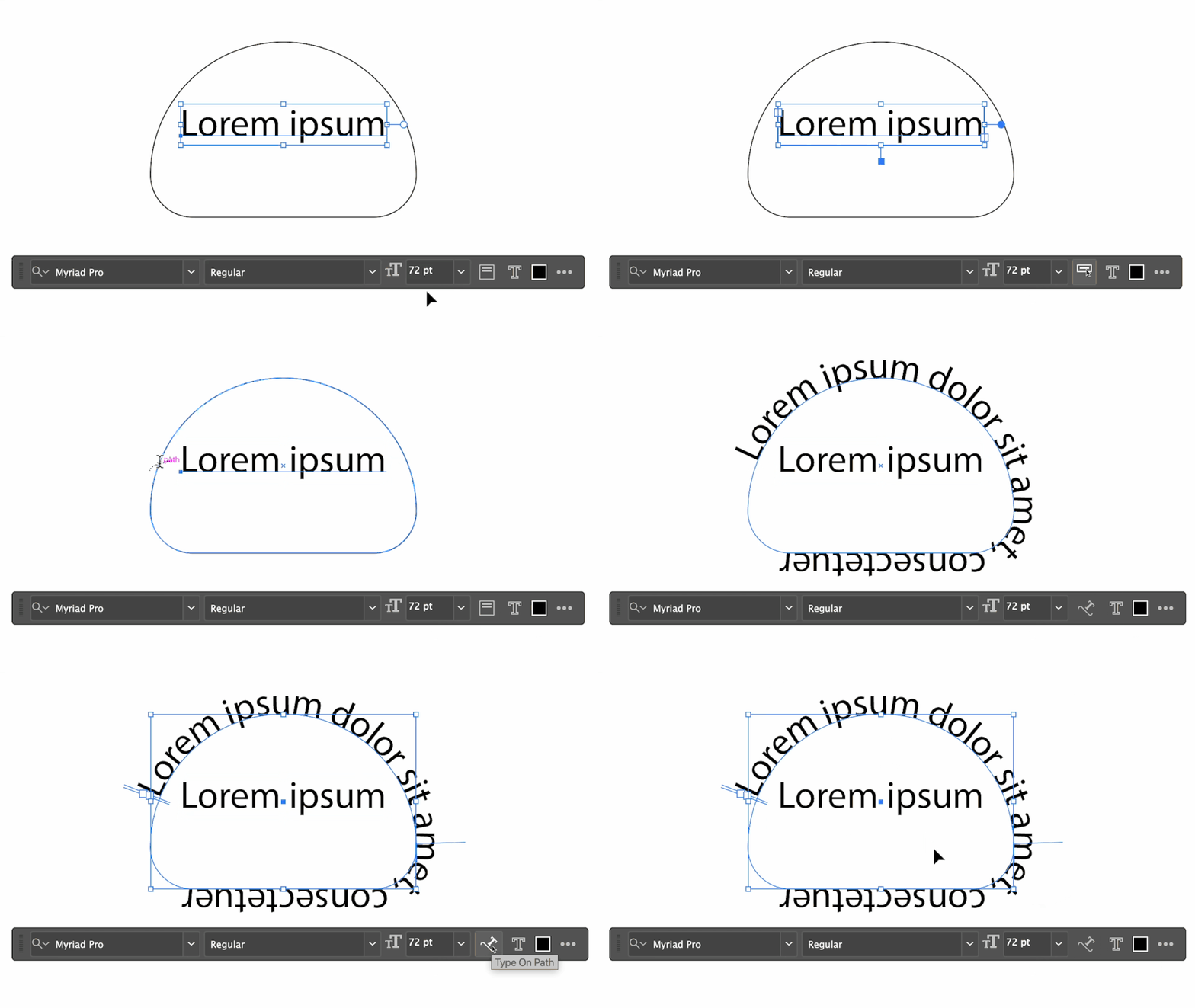
Using the Type tools to add text to your canvas gives you a range of formatting options in the Contextual Task Bar, including Set the Font family, Font style, Set the Font size, and Fill. When selecting text with the Selection tool, additional options are available based on the text type:
Additionally, you can Outline the text to work with it like other vector shapes. Bar hides, allowing you to adjust individual characters directly via onscreen widgets for more precise control. |
 |
Clipping Mask
|
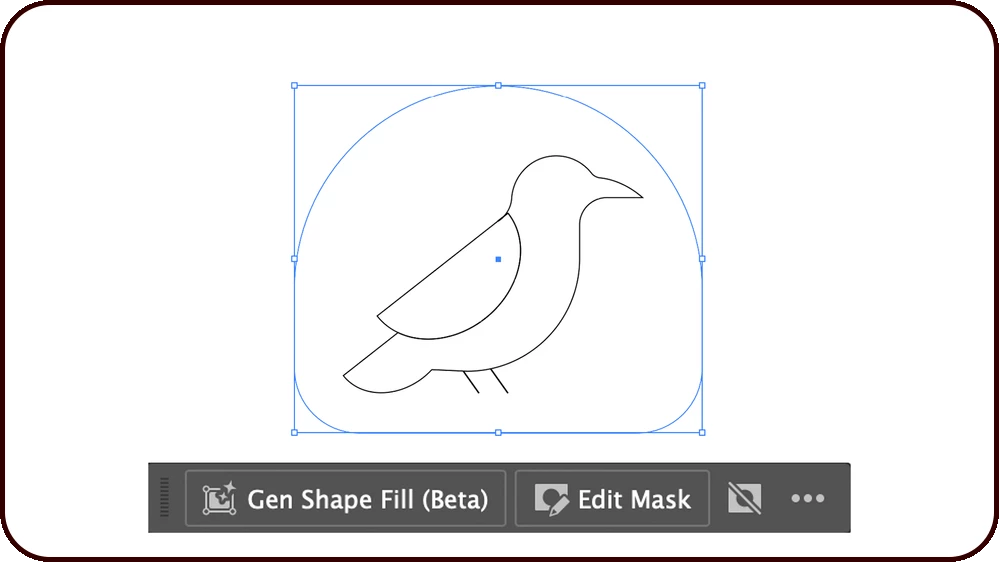
Creating a clipping mask with vector objects allows you to use the Edit Mask feature to edit in isolation mode and Release to remove the mask. You can also apply Gen Shape Fill within the mask. |
 |
Vectorize, Edit & Manage Links
|
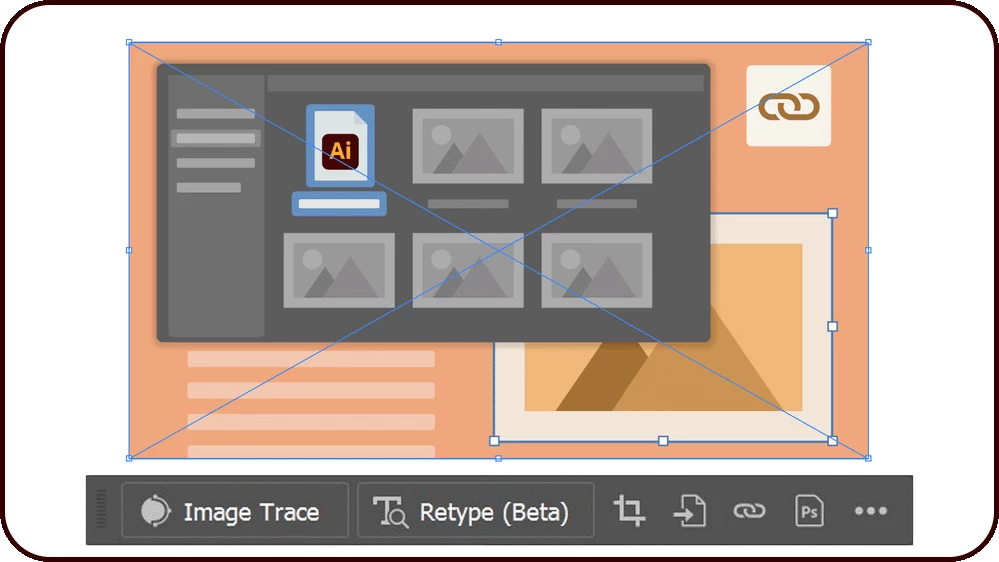
When selecting an image, the Contextual Task Bar provides options for both vector and raster workflows. Use Image Trace to vectorize, Retype to edit text within images, and Crop Image to remove unwanted sections. Based on whether an image is linked or embedded, you have further options:
|
 |
Images & Vectors
|
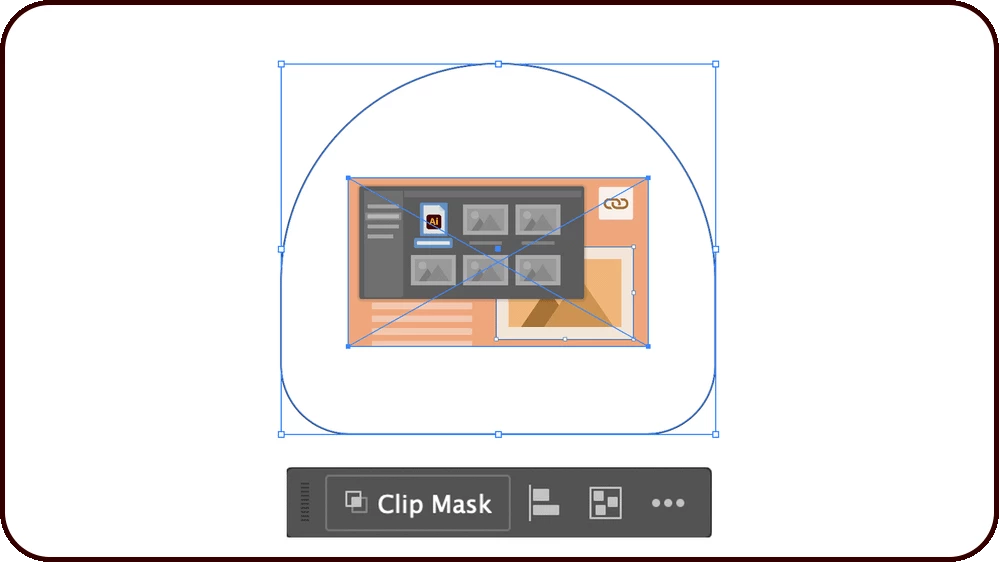
Selecting both images and vectors with the Selection tool reveals options like Clip Mask to create clipping masks, Align to arrange elements, and Group to manage them as a single unit. |
 |
Mockup: Create, Edit & Release
|
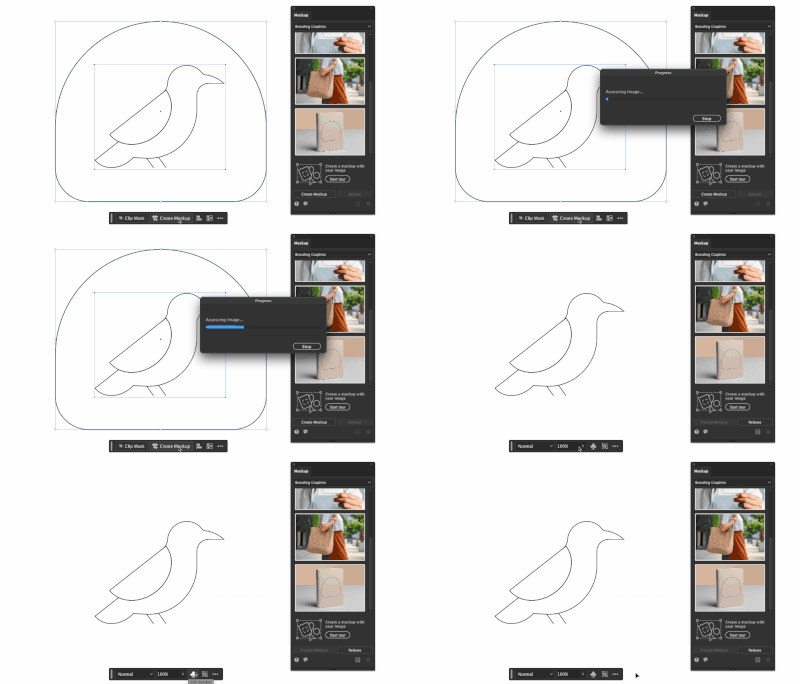
When selecting both an image and a vector together, you can use Create Mockup to fit the vector onto an object within the image, streamlining the mockup creation process. After creating the mockup, selecting the mockup group with the Selection Tool gives you options like Edit Content to modify the vector object and Release to separate the vector from the image. While editing the vector, you can also use Edit Symbol to adjust the corresponding symbol. |
 |
Tips and Other Menu Functionality
- Show Properties Panel
You can quickly switch to the Full Panel for the Quick Action you are working on to have access to more controls and features by choosing Show Properties Panel from the “More menu.”
- Hide bar
You can always hide the bar if you’d like to remove it completely or temporarily from the canvas. If you’d like to re-open the bar at any point, go to Window > Contextual Task Bar.
- Reset bar position
The context bar moves with you as you work on the canvas, keeping relevant tools at your fingertips. If you would like to reset the position, you can do so from the “More menu.”
- Pin Bar Position
You can pin the Contextual Task Bar to a fixed spot on your canvas, ensuring that it stays in place while you work. This allows you to keep your most-used tools consistently within reach. To pin the bar, simply select the option from the "More menu."
Known Limitations:
- When duplicating an object using the Contextual Task Bars, we cannot use the "Ctrl/Cmd + D" keys to duplicate our previous action.
We’d love to hear from you!
Try out the improved Contextual Task Bar feature in Illustrator 2025 version 29, and let us know your thoughts. Feel free to reach out if you have any questions or need more tips!
Have questions? Click 'Reply' below to ask.
Click 'Follow' below to bookmark this post for easy reference.
 AdChoices