Known Participant
March 22, 2021
Answered

Creating a relative shape/path around a group of irregular objects

  • March 22, 2021
  • 5 replies
  • 3429 views

Hi all,


I'm trying to find a method for automatically creating a single path around a group of objects.


Using Appearance > New Stroke > Convert to Shape I can get a basic path (see attachment 1), but I'm looking for something that stays a little more faithful to the shapes within the group (attachment 2).


Any tips or advice would be hugely appreciated.

Thanks in advance!

Correct answer pixxxelschubser

… but I'd be curious to hear your thoughts 🙂 Which effects do you think might work in this instance..?


By @mikes82936200

                                                                                            --> jump to quoted post


Sure.

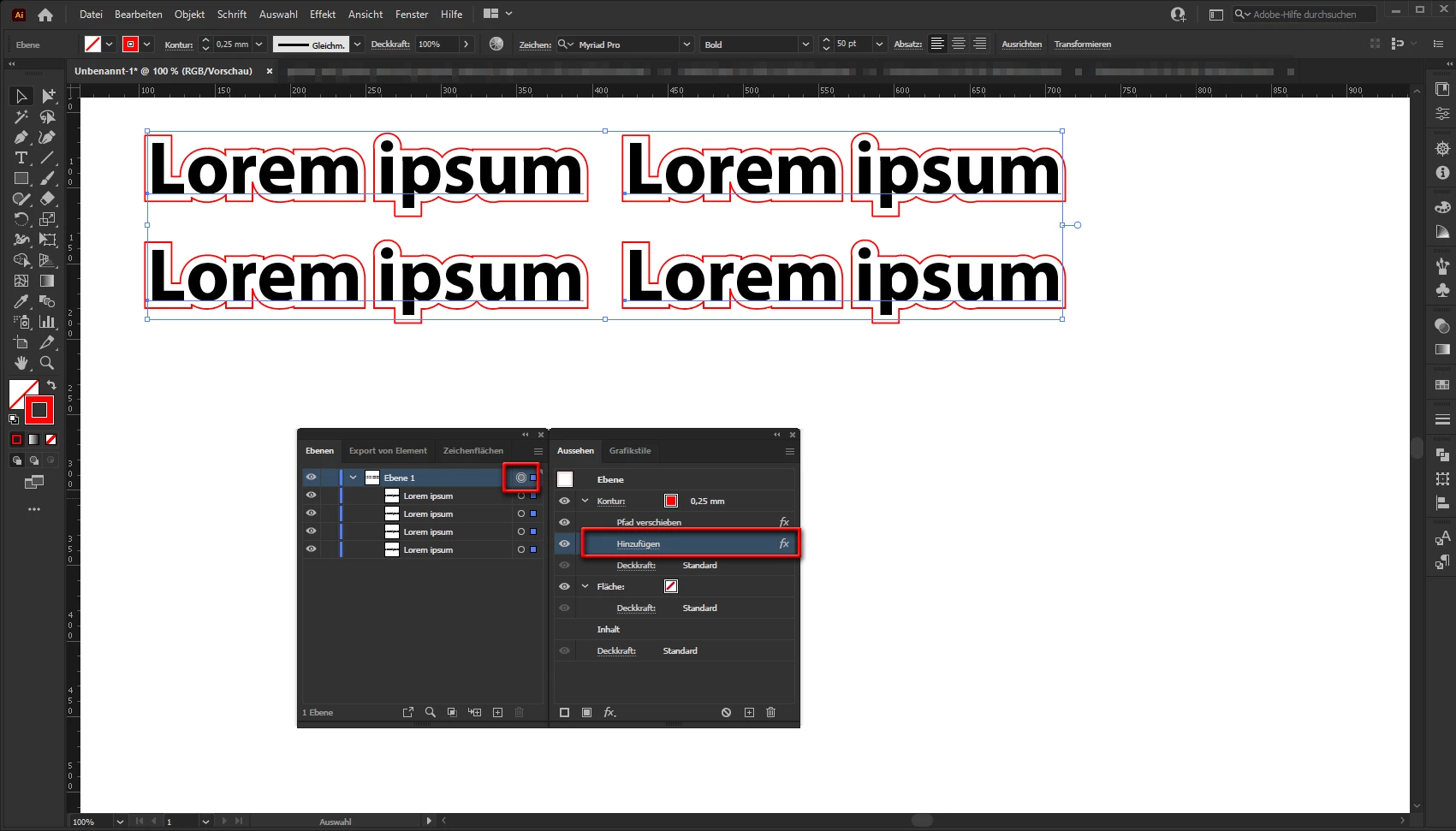
You can use effects on paths - or groups - or even on layers. Effects then affect all objects in this layer.


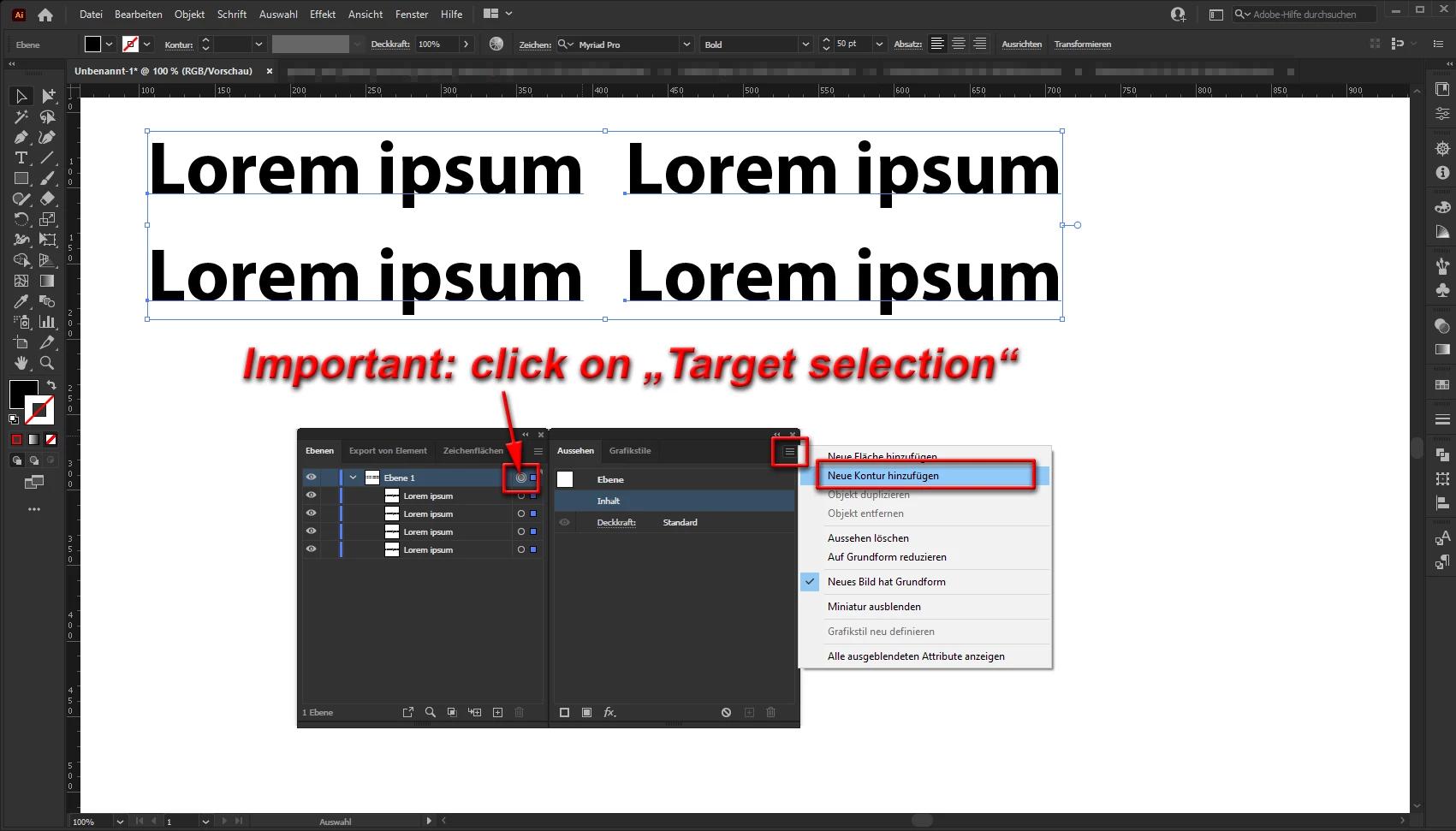
  • "Target selection" the layer, then add in Appearancs Panel a new stroke with desired values


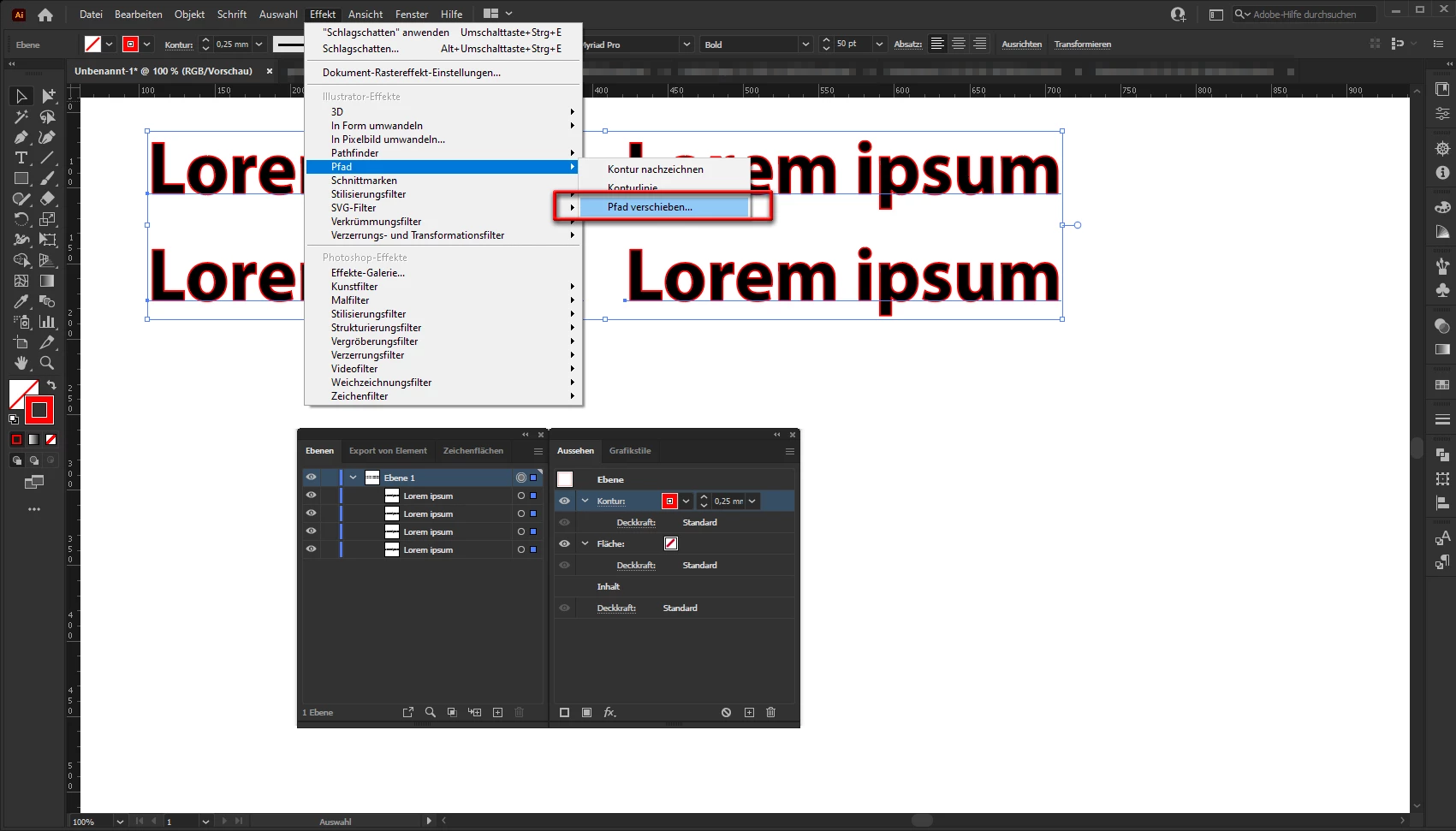
  • add effect: Offset Path


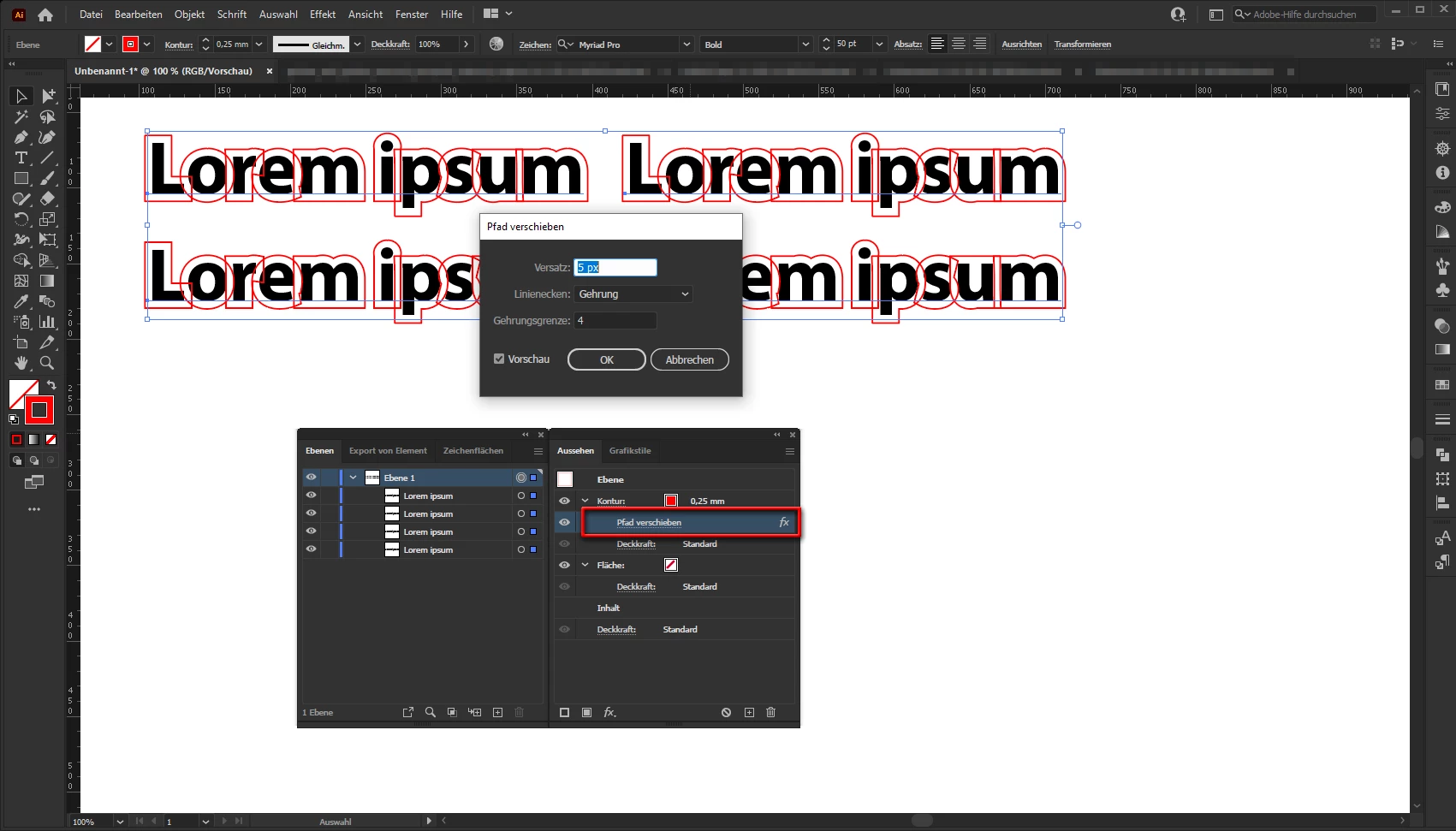
  • set the value for Offset Path


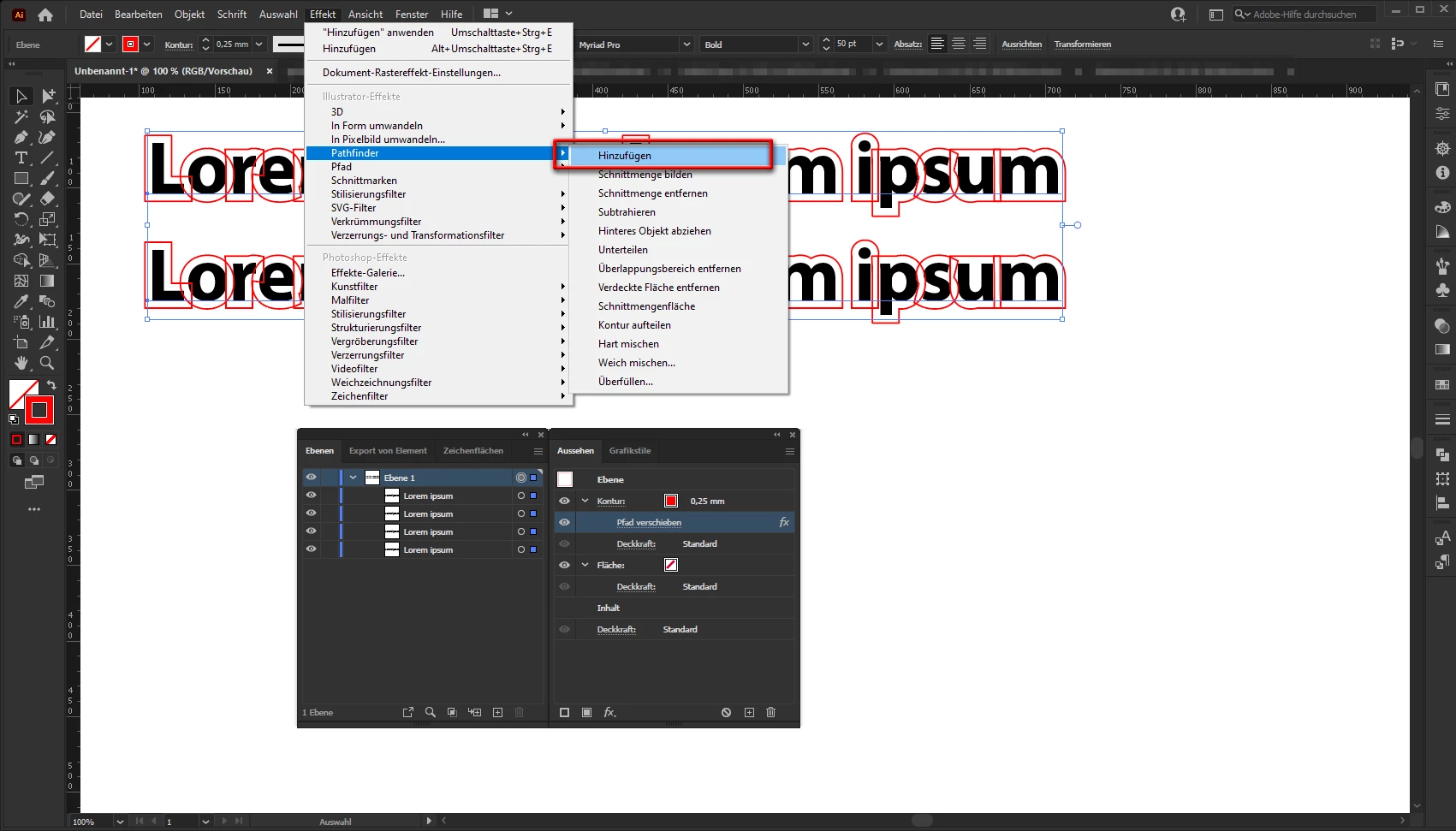
  • add new effect: Pathfinder --> Add


  • result


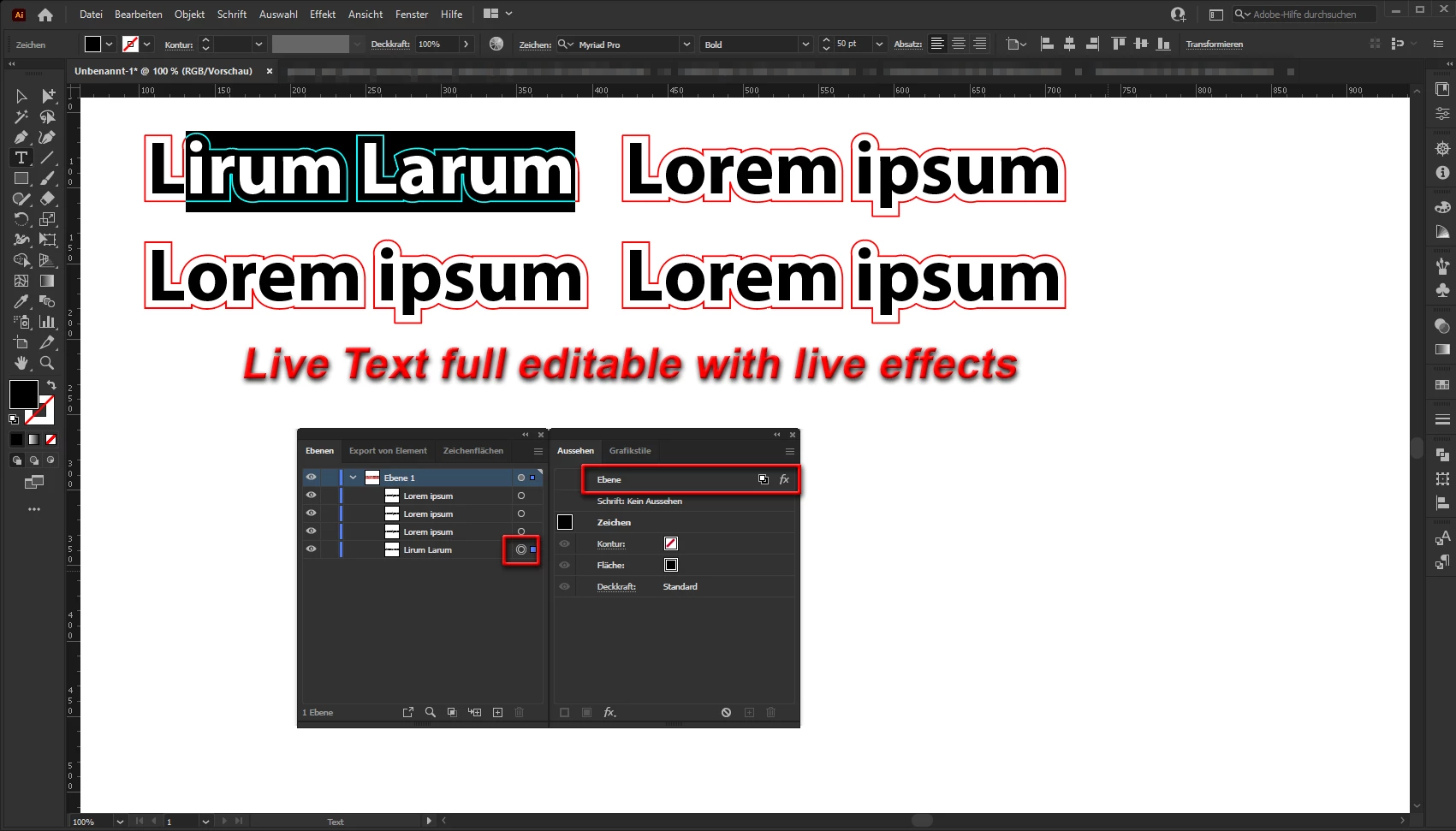
  • texts can still be fully edited - live effects automatically adapt to the new text

If you need real paths, you can use menu: Object --> Expand Appearance on layers level.

That's all.


If that works for you

Have fun

😉

5 replies

pixxxelschubser
Adobe Expert
March 23, 2021

Exactly. It always depends on what look you want to achieve in the end. And it is very important to pay attention to the order of the effects.

😉

pixxxelschubser
pixxxelschubserCorrect answer
Adobe Expert
March 23, 2021

… but I'd be curious to hear your thoughts 🙂 Which effects do you think might work in this instance..?


By @mikes82936200

                                                                                            --> jump to quoted post


Sure.

You can use effects on paths - or groups - or even on layers. Effects then affect all objects in this layer.


  • "Target selection" the layer, then add in Appearancs Panel a new stroke with desired values


  • add effect: Offset Path


  • set the value for Offset Path


  • add new effect: Pathfinder --> Add


  • result


  • texts can still be fully edited - live effects automatically adapt to the new text

If you need real paths, you can use menu: Object --> Expand Appearance on layers level.

That's all.


If that works for you

Have fun

😉

Adobe Expert
March 23, 2021

This is great, but it does still leave the inside lines, unless the offset is large enough to delete them.

But playing with this, I found that adding two pathfinder effects: Merge and Add, the center strokes go away. 

Either effect alone leaves them.


Adobe Expert
March 23, 2021

Here's what worked for me -

Group the text  - then use Add New Stroke in the Appearance panel. Select just the stroke and use Offset Path to set it up. At this point, it will not yet look the way you want. 

Then go to the Object menu and Expand Appearance. This will turn the offset stroke into a separate group. Chose the stroke group and use Object > Compound Path > Release. Once you have done that, use Pathfinder to join the parts and eliminate the inside strokes.


Known Participant
March 23, 2021

Thanks for your reply!


This method works nicely, but ideally I'm looking for something which will join all objects, even if they are separated. I might be using your method incorrectly, but I'm still getting two paths. I'm hoping to get something like the bottom example in the attached image...


Any suggestions...? 🙂

Adobe Expert
March 23, 2021

I think you would have to add the joining bit separately, and use pathfinder to merge it with your shapes.

pixxxelschubser
Adobe Expert
March 22, 2021

Hi @mikes82936200 

Do you need real paths?

Or only the appearance?


In the second case you can work with live text and effects to get this result.

Advantage: fully editable and the effects are live.

Known Participant
March 23, 2021

Thanks for your reply!

Ultimately I'd need real paths, but I'd be curious to hear your thoughts 🙂 Which effects do you think might work in this instance..?

femkeblanco
Brainiac
March 22, 2021

1. Select text and expand (object > expand), if not already expanded.
2. Select path and offset (object > path > offset path).
3. Select all paths and ungroup (Ctrl + Shift + G).
4. Select and unite offset paths only (window > pathfinder > unite).
5. Assign stroke color and no fill to united path.

Known Participant
March 23, 2021

Many thanks for your reply!


The offset path method is suitable, but only for single words/objects (my fault, I should have specifed in the original post).


Ideally I'm looking for something which will create a single box arounds all the elements as a convert to shape would, and without paths inside the objects (highlighted in red in the new attachment).


Hope this makes sense. I'm not sure whether this is within the capabilities of Illustrator, but thought I'd reach out to see what you guys think.