
Participant
June 24, 2019
Question

Creating Partially Hollow Shape

  • June 24, 2019
  • 4 replies
  • 3339 views

Hello,

I'm fairly new to Illustrator, and I'm currently trying to make a shape that is partially hollow/distressed. I've gotten as far as making the shape that I want to apply this effect to, however I'm clueless as to where I should start in making this effect. I'm trying to make it so it still has a solid outline/border while the inside is hollow/distressed. Hoping for the end result to look something like this:
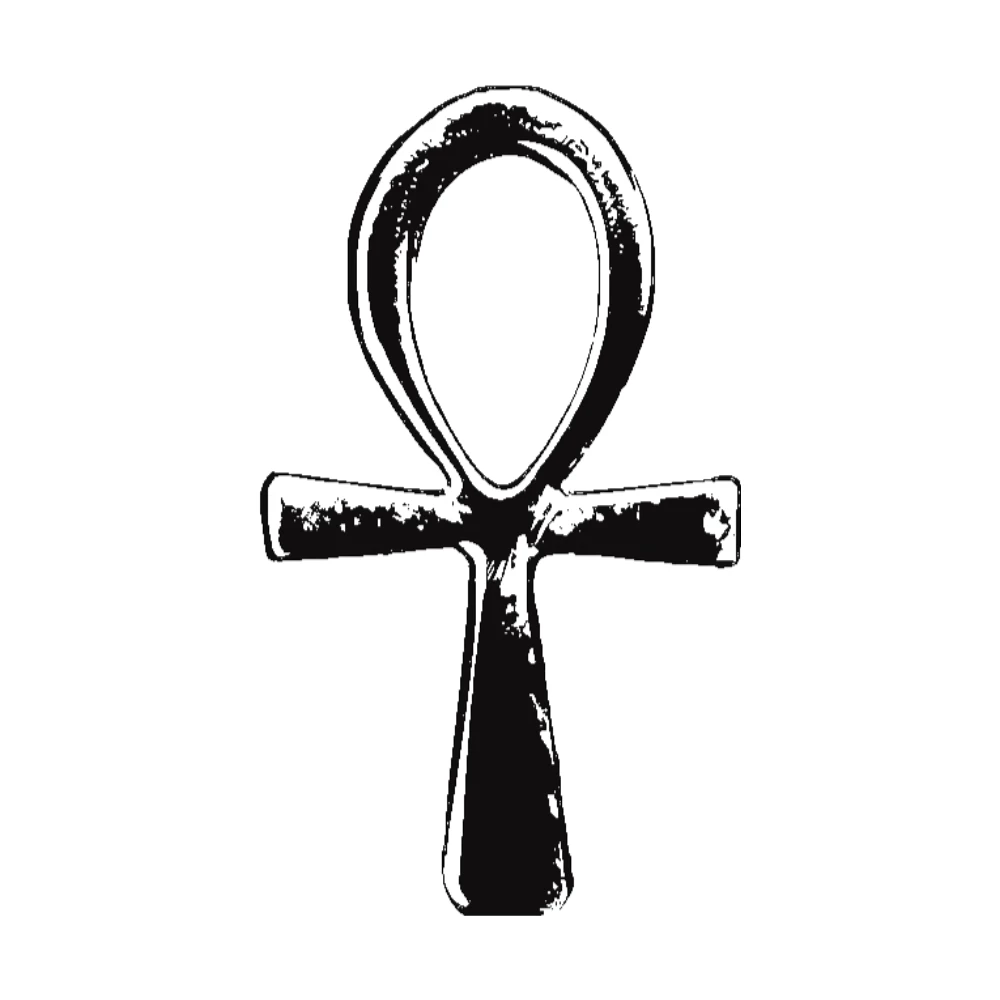
If anyone knows how to accomplish this, I would greatly appreciate any assistance you could give me. Thanks!

This topic has been closed for replies.

4 replies

Ray Yorkshire
Participating Frequently
June 24, 2019

Shading is a lot easier in a pixel based program.

In illustrator you can use the Draw Inside mode and a suitable brush, (takes some practice) maybe chalk or

these free brushes and slowly build the shaded areas up

8 Free Stipple Shading Brushes for Adobe Illustrator

Ton Frederiks
Community Expert
Community Expert
June 24, 2019

Maybe create a copy of the compound path and choose Draw Inside (icon at the lower end of the toolbos).

Use a brush (Artistic / Grunge) to paint the distressed texture.

ceyhun_akgun
Legend
June 24, 2019

You can increase the texture in Photoshop. If you want to render vectorel, you can use the TRACE function by importing it from Photoshop into Adobe Illustrator.

Graphic Designer Educator / PrePress Consultant
Scott Falkner
Community Expert
Community Expert
June 24, 2019

I am assuming this is vectors.If so then you probably have a path for the outside of Jessica’s key (nerd!) and one for the inside. Copy those paths, or create them if this is a raster image. With both paths selected, and nothing else. go to Object > Compound Path > Make.

You now have the basic outline of your ankh with a hollow centre. You could fill this with black and place it behind the rest of the illustrator and you'll probably be done. If the ankh is a raster image and not vectors you have a little more work to do.

Position the ankh outline with the image. Make sure the outline is on top. Now select the outline and the image and go to Object > Clipping Path > Make. The image is now clipped by the ankh outline. Turn on the transparency grid (View > Show Transparency Grid) so see what is transparent.

joshm404Author
Participant
June 24, 2019

I think you misunderstood; I'm trying to replicate that effect where the inside is partially hollowed/worn out, on a different shape. That image is just one I used as a reference for what I'm trying to achieve, it's a stock photo I found on the internet around a year ago. I'm trying to accomplish the same effect as that image on a vector shape. Apologies if I didn't make that clear.

Also got no idea what you mean by Jessica's key, sorry guessing it's a joke I'm not nerdy enough to understand.

Jacob Bugge
Community Expert
Community Expert
June 24, 2019

Josh,

I'm trying to accomplish the same effect as that image on a vector shape.

Then just do what Scott said, which applies to any (partially) hollow vector shape.

Concerning the distressed effect, you have to decide whether you wish to have just a flat appearance based upon a random distressed effect, in which case the easy way is the Clipping Mask Scott mentioned based on a large(r) object with the effect applied (a rectangle or whatever).

In the sample case shown with the ankh/Jessica's key, the distress clearly follows the shape and gives it depth. That appearance requires a customized distress effect.