


Creating two gradients on the same object, or apply stoke around two different objects.
- May 17, 2022
- 3 replies
- 555 views
I am creating this flame as a part of a logo that I am designing. I have only used illustrator for a few weeks, and am still trying to get the fundamentals down. My first issue was getting this curved object split directly down the middle, so I could apply different gradients to each side of the flame. In the end, I pain stakingly created two seperate objects next to each other to fit together to look like one object with two gradients on each side.
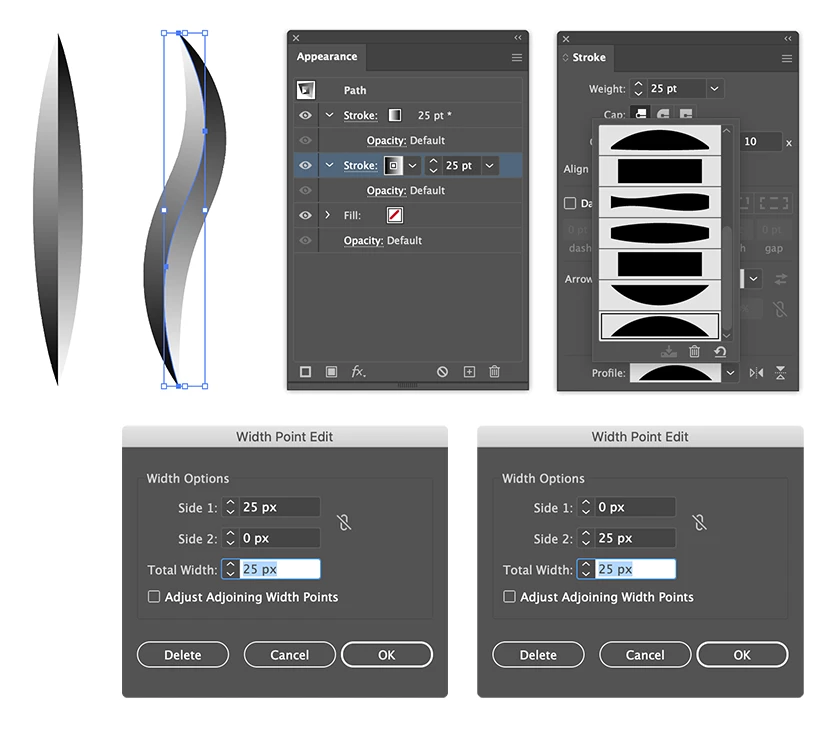
To do this, I used the curvature tool to make a curved line, used the width tool to expand it to get the shape I wanted, then converted it to an object. Next, I used the curvature tool again to split the object in half, used the pathfinder to make an outline, then cleaned up each object. I applied gradients to each object, which essensially gave me the look I wanted.
I now want to apply a stroke around the entire flame, but the problem is, it's two seperate objects, so the stroke goes down through the middle, which I don't want. If I use the shape builder to make the two objects into one, it blends my two gradients together.
If anyone knows how I can achieve the desired result, or knows of a video tutorial I could watch, I would appreciate the help. If anyone knows how I can easily split a curved object down the center, that would also save me a ton of time.
 AdChoices