
Participant
September 5, 2020
Answered

Crop tool leaves large white edges

  • September 5, 2020
  • 4 replies
  • 5407 views

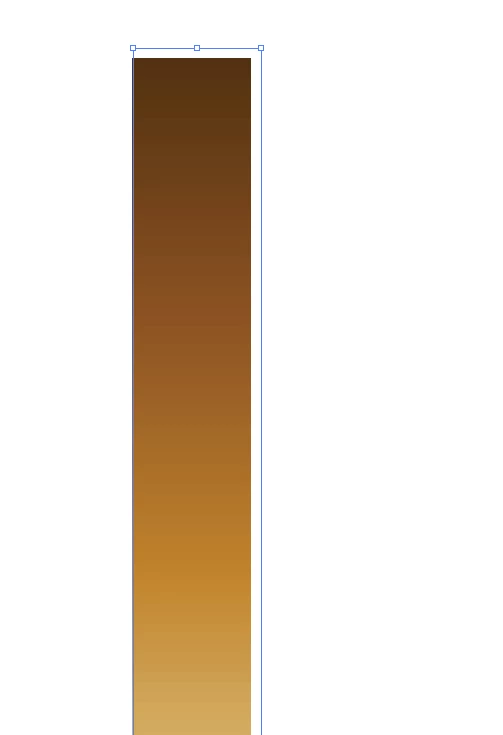
I am trying to crop a simple rectangle using the Illustrator crop tool and I cannot crop it to the size I want without getting a white border appearing on at least one edge. If I try to crop out the white border it just appears again. I think the issue was already brought up elsewhere, but has not been properly addressed or resolved. See here:
https://community.adobe.com/t5/illustrator/last-update-broke-crop-image/m-p/11412389?page=1#M243315

and here:
https://community.adobe.com/t5/illustrator/appearing-white-line-when-using-crop-image/m-p/9016209?page=1#M49480


I am using Illustrator 2020 24.2.3 but this seems to have been an issue in previous versions as well. What is going on?
Correct answer Met1

Use a clipping mask.

4 replies

Participant
February 6, 2025

Possibly Feather has a 1x instead of 0 on the crop tool setting.   I had the same issue with photoshop, and it was due to feather at 1x instead of 0.

Preran
Legend
February 15, 2023

Hi Matt,


We will check with the product team about this issue, but in the meanwhile, can you try the following and let us know?


Adjust artboard size: It's possible that the white edges you're seeing are simply the result of your Artboard being larger than the cropped image. To adjust the Artboard size, go to the Artboard tool and click and drag the edges of the Artboard to match the size of your image.


Adjust crop settings:  In the control panel at the top of the screen, select "Crop Image" and then adjust the values in the "Width" and "Height" fields to match the size of your image.


Check image resolution: If the resolution of your image is too low, it can result in white edges appearing when the image is cropped. To check the resolution of your image, select it with the Selection tool and then go to Object > Image Trace > Make. In the Image Trace panel, you'll be able to see the resolution of the image. If it's too low, try re-importing the image with a higher resolution


Use Clipping Mask instead: If none of the above solutions work, you could try using a Clipping Mask instead of the Crop tool. With the image and a shape that you want to use as a mask selected, go to Object > Clipping Mask > Make to create a mask. This will allow you to adjust the mask as needed to achieve the desired result without leaving white edges.


Thanks,

Preran

Ton Frederiks
Community Expert
Community Expert
February 16, 2023

Preran, I believe the resolution of the image will result in the additional pixel. When you have 2 images, one with a resolution of a multiple of 72 ppi, like 288 and another with 300 ppi, the one with the multiple 72 ppi will not get the additional pixel, while the one with 150 or 300 ppi will almost always get one after cropping.

Preran
Legend
February 18, 2023

Thank you, Tom. This is valuable information. I wasn't aware of this.

Participant
February 15, 2023

Did this issue get solved? It still occurs after few years (2023 February now). Would be great to find out any workarounds at least if not a solution.

Thanks!

Anshul_Saini
Community Manager
Community Manager
February 16, 2023

Hi @Em2841840093n2,


I'm sorry to hear that you're still experiencing this issue. I understand how frustrating it can be to encounter a problem that doesn't seem to have a clear solution.


I tried to replicate the issue on my end, but I wasn't able to reproduce it. However, I would be happy to try and help you find a workaround or a solution.


Would you mind sharing the file you trying to crop and a screen recording demonstrating the issue? It would also be helpful to know what operating system and version of Illustrator you are using.


I hope we can find a solution together. Looking forward to hearing back from you.


Best,

Anshul Saini

Participant
February 16, 2023

Hi @Anshul_Saini, thanks for replying!

I can perhaps explain how it occurs to me and you can tell me if you can spot the culprit of this issue. So this always happens when I just paste an image into Illustrator - it can just be a screenshot or something copied from the clipboard (plain 'paste' function as opposed to placing the linked file directly). In Illustrator I then resize that pasted image to fit my figure (e.g. scientific figure for journal publication). When I zoom into it to facilitate the alignment I can see that it created that white edge around the figure, or only from one or two sides of it, which does not let me align it nicely anymore. I could share an example file, but this happens to me EVERY time in this "copy-paste" and resizing scenario, hence should be relatively easy to reproduce. Otherwise, I can share a file with the next reply. Perhaps I should not be pasting images into Illustrator at all? I do that mainly to speed things up when I need to prepare a quick scientific figure for work, but would be great to not have to waste time 'fighting' these white edges.. 

Ton Frederiks
Community Expert
Community Expert
September 5, 2020

What are you trying to crop, a linked or placed image?

What is the zoomlevel you are using in your image?

Participant
September 5, 2020

It's an image copied out of a placed PDF after embedding. I am working at around 300% zoom.

Ton Frederiks
Community Expert
Community Expert
September 5, 2020

The issues you relinked were about a single visible white pixel, what you show looks like more.