


Participant
March 13, 2017
Question

Divide tool not working

  • March 13, 2017
  • 3 replies
  • 4893 views

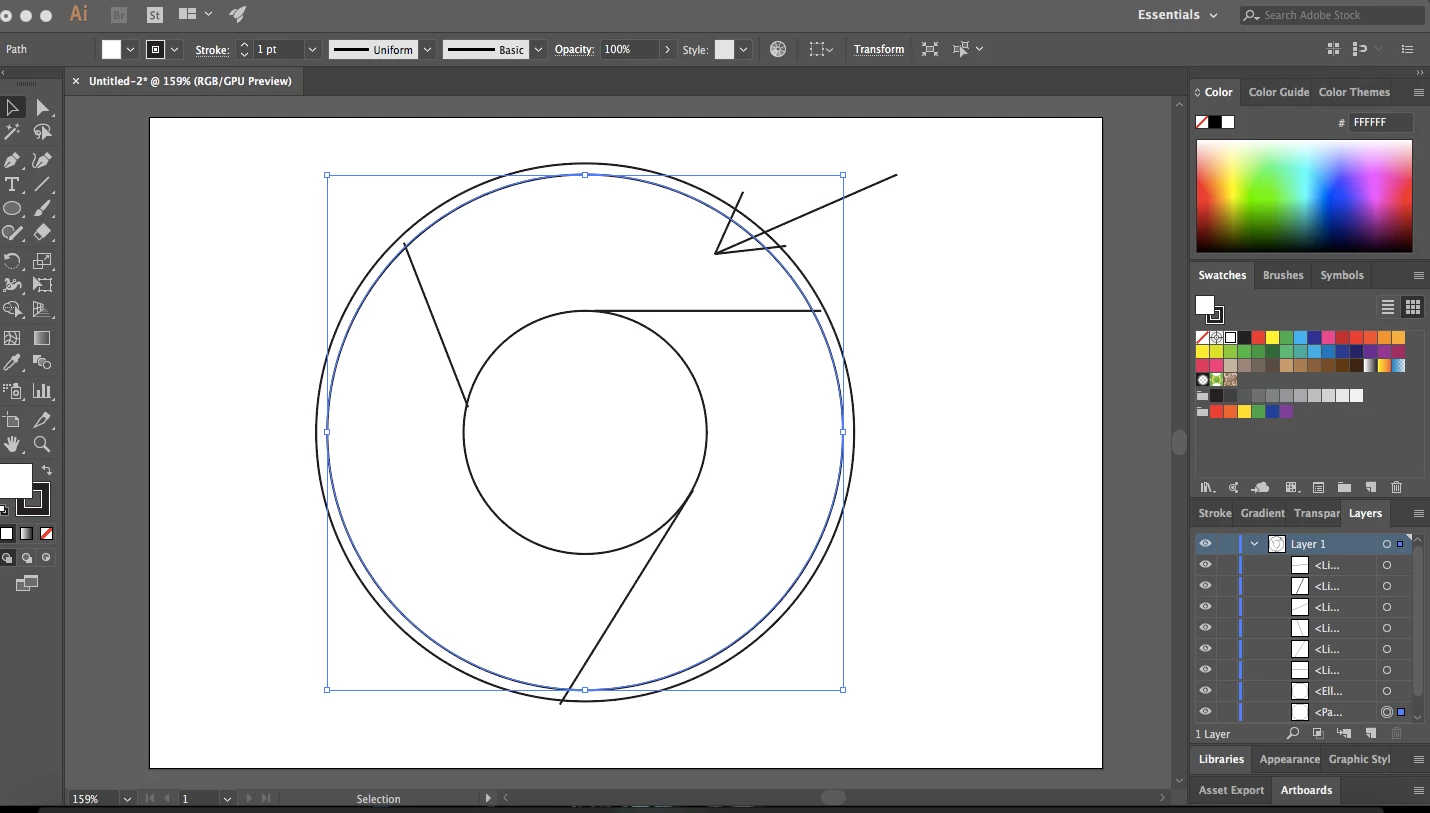
I am trying to make a google chrome logo for practice in illustrator CC Also necessary to mention that I'm a beginner. My divide tool is not working as I expected.  Every time I try to select that portion (marked with an arrow) either with the direct selection tool or otherwise the whole circle gets selected and I want to select that portion only to start to color it.

Any help would be appreciated!
This topic has been closed for replies.

3 replies

Myra Ferguson
Community Expert
Community Expert
March 13, 2017

I find the Shape Builder Tool to be much more intuitive than Pathfinder. You might try using it to divide your shape. Select all the parts with the Selection Tool (V). Then select the Shape Builder Tool (Shift + M). Hover over areas that you'd like to become distinct shapes (right now you have concentric circles with lines overlapping at various parts). Click to make a highlighted area a new shape. You can also drag across areas to add to the shape. If you want to remove part of a shape, you can Alt + drag (PC) or Option + drag (Mac) to subtract. Here's more info on the Shape Builder Tool How to create shapes using the Shape Builder tool in Illustrator

jane-e
Community Expert
Community Expert
March 13, 2017

One thing I am seeing is that you have a Path selected, and the selection anchor points are on the circle, not a wedge. That's why the circle is getting the fill.

I also see that out of the three lines, one crosses both circles (the bottom one). Two cross one circle and go only halfway into the next.

Open your layers panel to see what you have, and post a screen shot if you want to.

Be sure you select all objects when you use Pathfinder > Divide.

Or, alternatively, use Live Paint. Select all objects first.

shubham19Author
Participant
March 13, 2017

Hey! Thanks for your comment! Can you please explain the line "the selection anchor points are on the circle, not a wedge.". Also, I have rectified the three lines to connect the inner circle only. However, does it make any difference? Can you please step by step guide me as to how I can select that single inner box which I marked! That would be really helpful for me as I am fairly new to this!

Monika Gause
Community Expert
Community Expert
March 13, 2017

Select all and use the live paint tool.

Please read about it in the documentation.

It's all there. All the step by step guides you need:

Live Paint | Adobe Illustrator CC tutorials

After expanding you will be able to select your "wedge"

Monika Gause
Community Expert
Community Expert
March 13, 2017

Select all and use live paint.

Read the introductory pages of the documentation, so that you know how vector graphic works.