


geoffreyp37178285
Known Participant
March 1, 2024
Answered

Exporting or Saving an Artboard with different dimenions

  • March 1, 2024
  • 3 replies
  • 1433 views

I am on a Mac, with Illustrator 28.2


I have a file with multiple artboards. Some of them are intended to be thumbnail views of the main artwork. I would like to save them as PDFs as say US legal size, but they are saved at the full poster size. I can't see a way to change the saved size. Ican't see an easy way to change the size using export-as. I have tried using Mac Preview and Adobet Reader Pro as well but can't see how to change the dimensions of a PDF.


Any ideas?
 

This topic has been closed for replies.
Correct answer Rene Andritsch
The file size is 218mb


In any case I gave up and used Preview

Cheers
Geoff

Sent from my iPhone

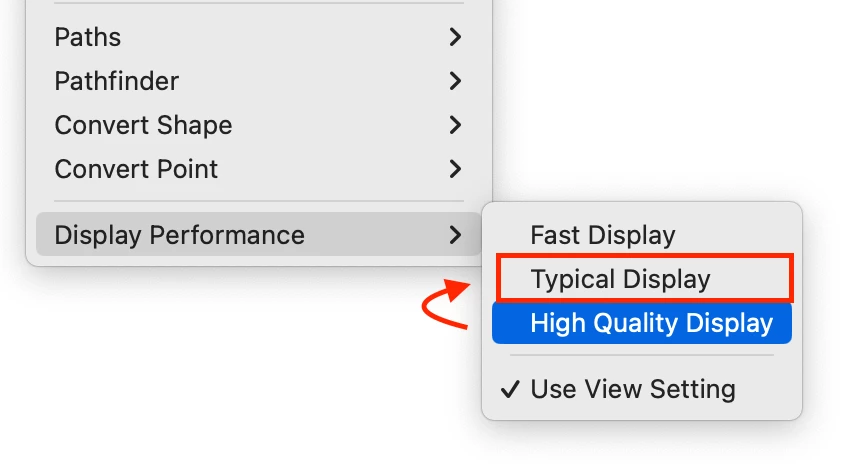
Ah ok, I thought more of the dimensions. As you said they were big posters. 218 MB is not shockingly big but maybe InDesign tried to render the Previews at “Best Quality” which might have slowed it down. Most important thing you got it done in some sort of way. If you have to do it again give it another try in InDesign with theses settings (in the Object Menu):

I think it would be the fastest workflow for now. Hopefully the Illustrator feature to scale content with artboards comes back at some point.

3 replies

Kurt Gold
Community Expert
Community Expert
March 2, 2024

In Acrobat you can scale pages to custom sizes with a preflight operation.


In Illustrator you may do it with the Artboard tool while the Scale Content with Artboard option is turned on in the preferences.

geoffreyp37178285
Known Participant
March 2, 2024

Thanks.
"Scale Content with Artboard option is turned on in the preferences"

where is that? I've looked and searched online but can't find it.


Also, I'd prefer a solution where I don't have to copy the artwork. It is likely to change after review by the printers, which means I have to repeat that operation. I'd rather multiple views onto the same artwork, each view scaled.

Rene Andritsch
Community Expert
Community Expert
March 2, 2024

@geoffreyp37178285 if it doesn’t have to be a PDF you can use the “Asset Export” Panel. In the JPG or PNG settings you can specify a width or height. The only thing you have to do before pulling your artwork into the panel is to group it (maybe also make sure you have a rectangle the size of the Artboard in the background that is grouped with your artwork).

Ton Frederiks
Community Expert
Community Expert
March 2, 2024

You can change the artboards to whatever size you want.

Make a copy of your file.

Click Rearrange Artboards (icon lower left in the Artboards panel)

Set a large space between them so that they will not overlap when a new page size is chosen.

Double click the page icon for an artboard in the Artboards panel and select or specify a page size (I did it from the center).

Repeat for all artboards.


Rene Andritsch
Community Expert
Community Expert
March 2, 2024

As a workaround you could place all your posters in InDesign where you have pages that are the sizes of your intended output and then export a PDF from InDesign.