Participating Frequently
November 21, 2023
Question

Exporting PNG files with a specific resolution (pixels PPI) from Illustrator

  • November 21, 2023
  • 1 reply
  • 3635 views

Hi, 


Here is a question regarding exporting files from illustrator in a specific resolution (pixels and ppi).


1. I choose to create a "New File" in Illustrator. 

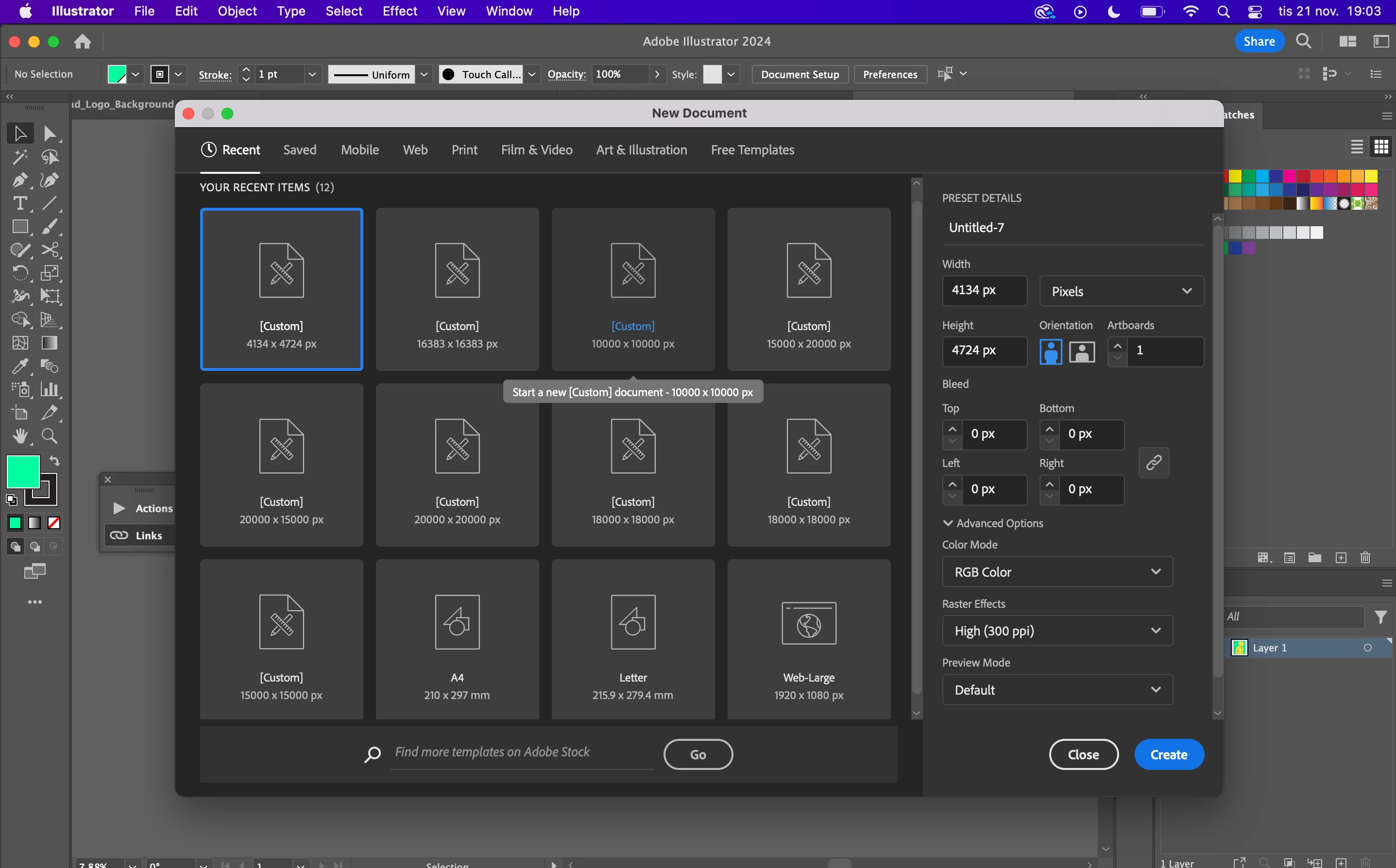
2. I choose the resolution in pixels (in this case 4134 x 4724).

3. I choose Raster Effect "high" (300 ppi). 

4. I Create a artwork and want to export is as a PNG. 

5. I click "Export" in Files and "Export As" as PNG. 

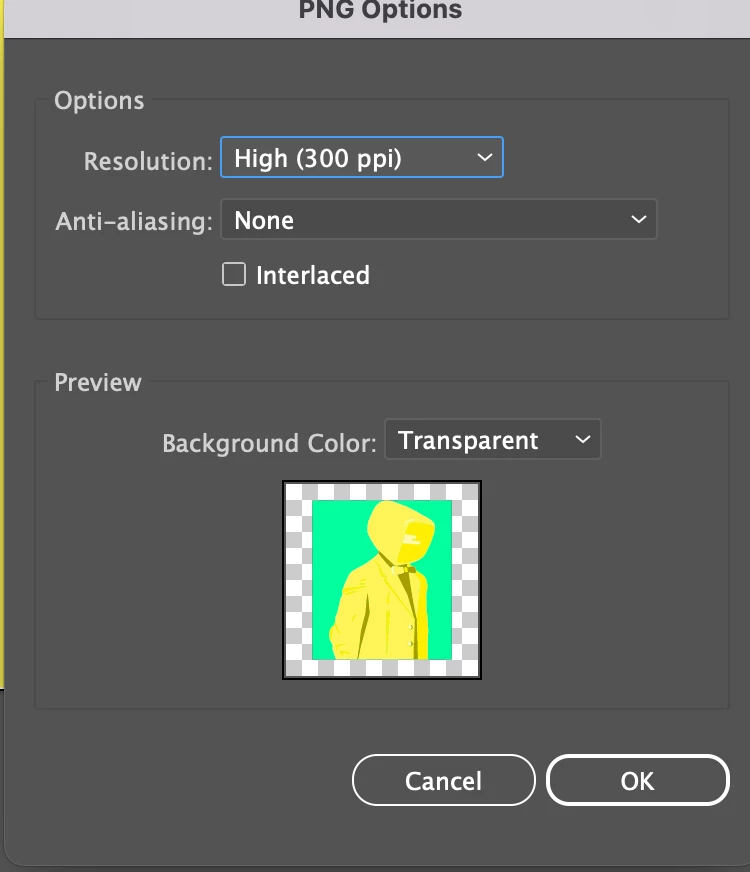
6. I choose to export resolution "High" (300ppi) the same raster effect I used when I created the file. 

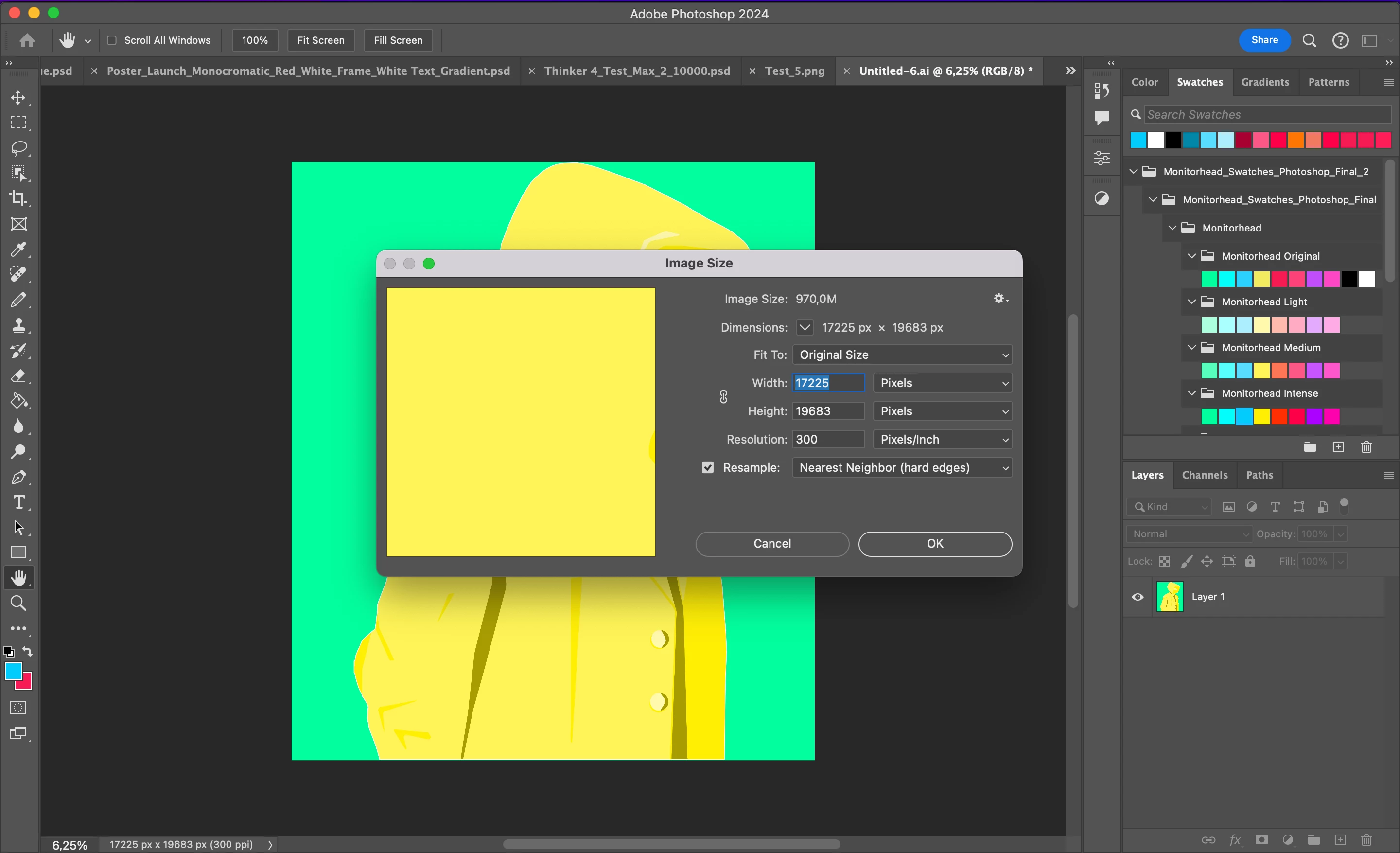
7. The file that is exported png file that is created has gone from 4134 x 4724 to 17225 x 19683 pixels. That is rougly the same ratio as between 72 (ppi) and 300 (ppi) which is 4.16666667 times the pixels. 


Why is this? Shouldnt the file be 300 ppi and 4134 x 4724? is ppi 72 some sort of default in illustrator and if I choose higher ppi it will increase the pixels equally. I would really need to understand the dynamics here since I want to create files in illustrator that I want to export to photoshop and I want them to have a specific resolution i pixels and ppi when I open them in photoshop. Now when I open the file it will have the right ppi (300) biut it will have 4,16x the pixels (17225 x 19683). 
 

/Dejan


This topic has been closed for replies.

1 reply

Ton Frederiks
Community Expert
Community Expert
November 21, 2023

Illustrator is a vector application and is resolution independent.

What you see for resolution is for raster effects.

Because pixels do not have a fixed size, Illustrator will assume that a pixel has a size of 1/72 of an inch, just like points.

If you export at a resolution of 72 ppi you get the exact amount of pixels you have specified for the size in pixels/points.

If you increase the resolution on export Illustrator will add additional pixels so that the dimensions stay the same but the amount of pixels in an inch will be increased to fit in the same space.

You can check that by placing the image back into the file that created it. Whatever the resolution you used for exporting, they will all have the same dimensions.

So export at 72 ppi to keep the amount of pixels. If you want to have that amount of pixels, but change resolution, use Image Size in Photoshop (or Apple's Preview) to set the resolution without resampling.

Participating Frequently
November 21, 2023

Thanks for clarifying!


When I create a new file in illustrator what is the difference in creating 72 ppi or 300 ppi for raster effects when I will export in 72 ppi? Does it make any difference? Should I always create 72 ppi and why is there an option for 300 ppi in that case? Is this for something else than exporting PNG for example?


The second thing is that when i open the file in Photoshop it will have the right pixels but it will be in 72 ppi and I want it to be in 300 ppi. If I go to image size and change resolution to 300 ppi from 72 it will also increas the pixels by roughly 4x and I´m back at square 1 with a document that is 4x higher in pixels than I initially was out for. 


Sorry for all the confusion and many thanks for the help 🙂


/Dejan


Participating Frequently
November 21, 2023

I can change the resolution to 300 ppi and then change back the pixels to the initial resolution manually that was 4x lower (from 17225 x 19683 to 4134 x 4724 pixels). Will this affect the quality? Then I will have a file that is 300 ppi and 4134 x 4724 in pixels, but as mentioned will this affect the quality of the picture?