


New Participant
March 6, 2017
Question

Extra Lines Being Created With Pathfinder Divide Tool

  • March 6, 2017
  • 3 replies
  • 4282 views

Hello Everyone.

I'm trying to use the pathfinder divide tool in order to intersect the lines I've created so I can fill them in with a gradient. Here is a photo of the lines before they have had the divide tool used on them:
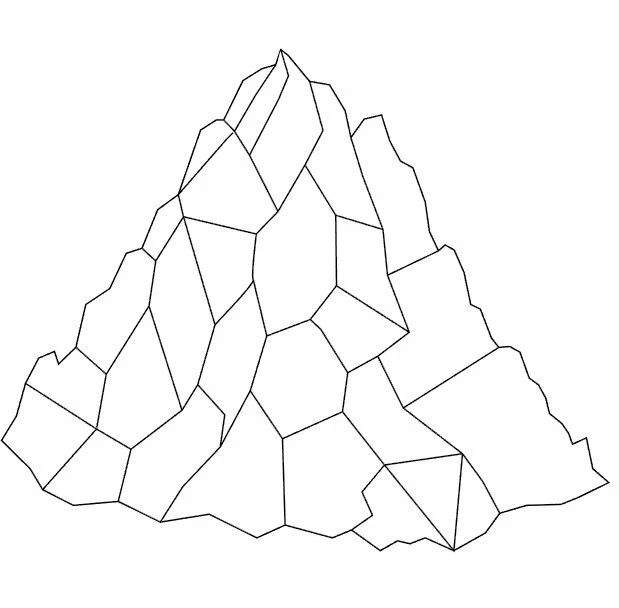
I used the pen tool to create this.

After selecting all of the lines and using the divide tool lots of extra lines are added. This is not what I want. Here is a photo of this:
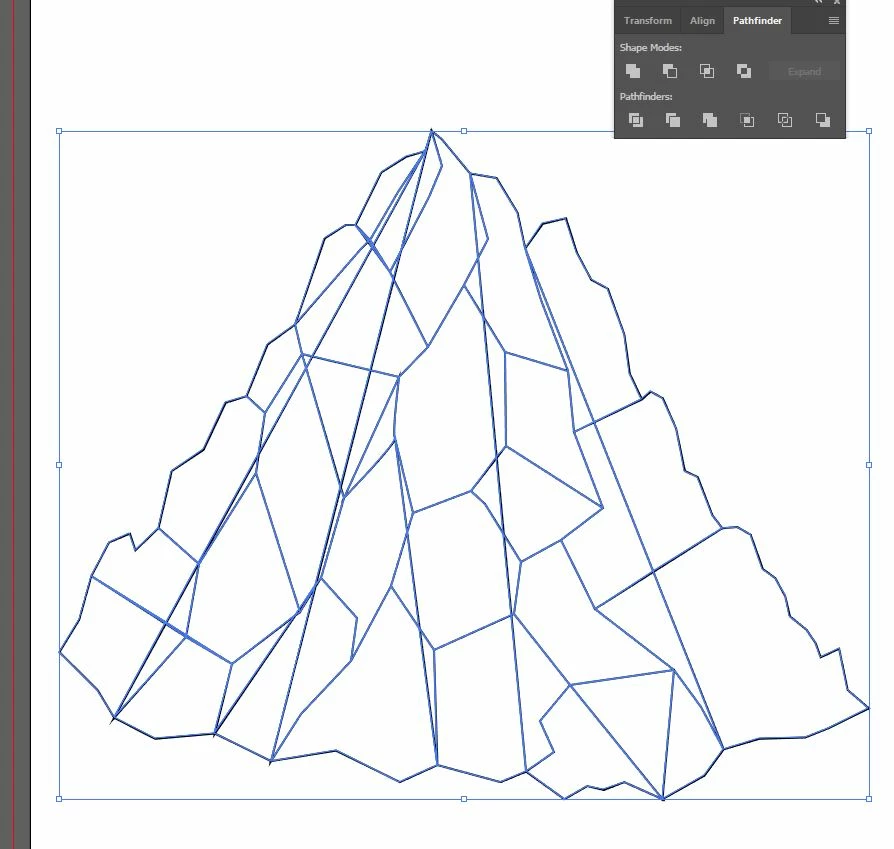
Any help on how I could resolve this would be greatly appreciated.

Many thanks for looking.

This topic has been closed for replies.

3 replies

Cactus Cowboy
Inspiring
March 7, 2017

I'm using CS6 a version below yours and all I did was release the clipping mask and deleted the background then use the live paint tool. this is the result.

Monika Gause
Community Expert
March 6, 2017

Use live paint for this. Or the shapebuilder tool.

New Participant
March 6, 2017

Hello Monika.

I'm having trouble using the shape-builder tool on the file i linked above, I watched a tutorial and it seems great as it allows me to merge the shapes I've created. But when i select the tool it just has a circle with a line through it under the cursor kind of like a stop sign and wont let me select anything.


Many thanks for your reply!

Ray Yorkshire
Participating Frequently
March 6, 2017

That circle is the locked symbol

you can investigate to see what's locked in the layers panel. or just  Object > Unlock all.

Then Select all and use the shape builder tool, to click on each shape , then each shape will have its own borders, you might need to un group afterwards

Community Expert
March 6, 2017

I think it's because of the lines that don't intersect.

What I should do is this:

Draw the outline first, and then draw the lines inside (make sure they go outside the outline --> the lines outside will be cutoff.

I hope this works for you!

New Participant
March 6, 2017

Hello Rob De Winter, thanks very much for your reply!

I've tried your suggestion and it seems to be giving me a different issue of lines disappearing.

Here's a screenshot for your inspection:

Monika Gause
Community Expert
May 12, 2020

I followed the directions for the Live Paint link you provided:


Create a Live Paint group
  • Select one or more paths, compound paths, or both.
  • Do one of the following:
    • Choose Object > Live Paint > Make.

    • Select the Live Paint Bucket tool 


      and click the selected object.

    After doing so, unless I fill the object with color using the Live Paint 'Bucket tool, I cannot select the object with the Direct Selection tool.  Please advise.  And, did you download the file from the link I provided so you can test it yourself?


Found the file in your other thread.

I assume it's the fill rule that is applied to the paths.

If you select all the paths and set the fill rule to Non-Zero instead of Even-Odd, then "Divide" does not close the paths.