




Generate stunning color themes using text prompts with Generative Recolor
- June 13, 2023
- 6 replies
- 7653 views
Introducing Generative Recolor: Effortlessly Transform Artwork with AI Magic
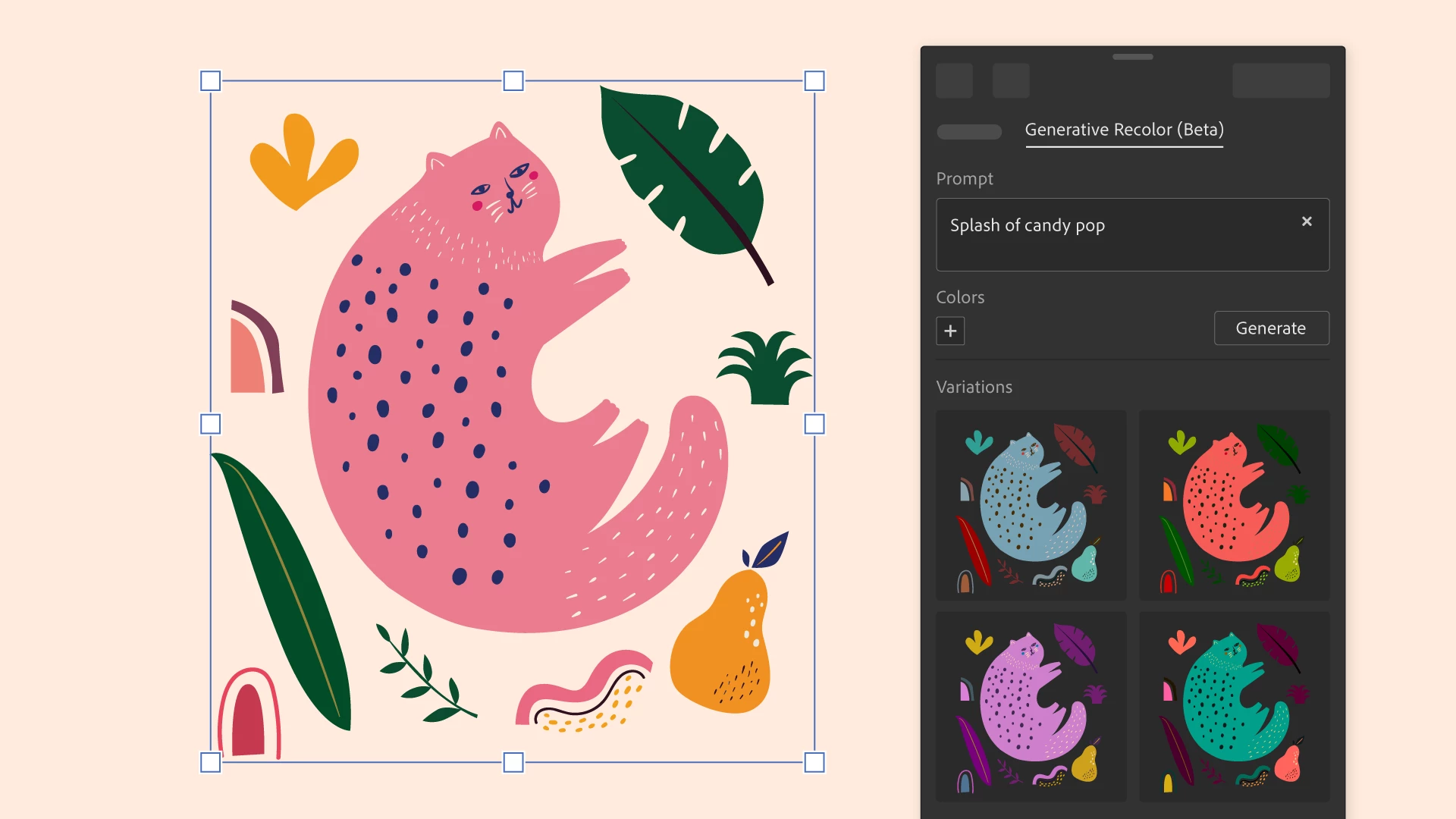
Unlock the power of Generative Recolor in Illustrator on the desktop!
With the advanced capabilities of Adobe Firefly, the new family of creative, generative AI models, you can now create captivating color themes and palettes for your artwork in a flash.
Simply describe your desired color theme or palette using plain text, and watch as Illustrator generates multiple variations within seconds. Preview the options in real-time and choose the perfect fit for your artwork.
|
|
How to Use Generative Recolor in Illustrator?
- Select your artwork and navigate to the Properties panel, then select Recolor in the Quick Actions section.
- Switch to the Generative Recolor tab.
- In the Prompt field, describe your desired color theme or palette such as "Midnight Blue", "Yellow, Red, Green," "Rustic Autumn Harvest," "Tropical Paradise Escape," or "Bold and Vibrant Fiesta," and so on.
- Select Generate to get different variations.
- Hover over the variations to preview them on the artboard, and choose the ideal one.
To preserve the colors, simply choose "New color group," located at the bottom of the Generative Recolor tab.
Refine and Personalize
You have the option to refine the output by adding up to five base colors along with the text prompt. You can further fine-tune the colors by switching to the Recolor tab.
Unleash your creativity and explore the endless possibilities with Generative Recolor.
Try it now and let your artwork shine with stunning color transformations!
Note: Some features are available in Illustrator on the desktop for development, testing, and feedback.
Before you begin...
Before you start exploring the possibilities of transforming your artwork, it's important to understand the following limitations of Generative Recolor:
- An internet connection is required for the feature to function.
- A colored artwork is necessary to initiate the recoloring process.
- Generative Recolor can only be applied to vector artwork.
We value your input and invite you to actively participate in shaping the future of Generative Recolor. Join the conversation to provide feedback, report bugs, and share your suggestions for new features. Your valuable insights will help us create a more focused and impactful experience. Engage with us in this thread, and let your voice be heard!
Thanks,
Srishti
 AdChoices