


integralm41212501
Known Participant
July 28, 2022
Answered

Hide part of an object behind another - while is in front.

  • July 28, 2022
  • 3 replies
  • 6946 views

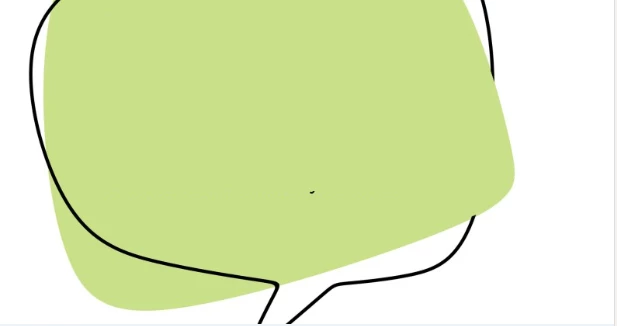
Hi - Can anyone suggest how to recreate something like this in illustrator?

A frame with an object partly in front and partly behind.
 

This topic has been closed for replies.
Correct answer SJRiegel

with the object selected, hover over the point you want to delete - you should see a small minus sign next to the cursor. Click once to delete the point.

3 replies

Community Expert
July 28, 2022

I would do this with an Opacity Mask in the Transparency Pallet

Copy the star and Paste in Place to locate it directly over the existing one, and above the black rectangle.

Change the color of the second star to black.

Delete the points of the black star that you want to have under the box. Select box and black star, and click Make Mask in the Transparency Pallet. (Make sure that Clip and Invert Mask are not checked)


integralm41212501
Known Participant
July 29, 2022

Hi,

How do I delete points on the black star ... your second image?

Debra

SJRiegelCorrect answer
Community Expert
July 29, 2022

with the object selected, hover over the point you want to delete - you should see a small minus sign next to the cursor. Click once to delete the point.

Jacob Bugge
Community Expert
July 28, 2022

integralm,


A common way is to cut either object in two (or more for more switches), such as the black stroked path (if it is stroked) at the top right and the bottom right, and then move the intermediate part of it behind the pale green one, you can drag that part down in the epxanded Layer in the Layers panel or select it and Ctrl/Cmd+C+F+X+B to get it to the bottom of the stacking order. This way is often used in Celtic knots and the like.


Or you can cut the rightmost corner off the pale green path and move it behind the black path.


integralm41212501
Known Participant
July 28, 2022

Hey Jacob ...

I will play around with this, but I think this may be outside my current skill level.

thanks

Debra

Jacob Bugge
Community Expert
July 28, 2022

Debra,


It is quite simple. As far as I can see, you have a stroked black path.


In your star sample, you can choose which points to have behind the black stroke, and for each of them you can:


Click the stroked path with the Scissors Tool on both sides of the point, then select the new short path and hold Ctrl/Cmd while you press C then F then X then F.


With this you ought to have separate short black paths in front of the desired points of the star, and it looks as if they are just parts of a continuous black path.


If you wish, you can copy the original black path in front of itself (Ctrl/Cme+C+F) and lock the original, then work on the copy. With this you have a full/continuous black path behind the one you have cut up.


Inspiring
July 28, 2022

There are a few different ways, but try select all > Pathfinder > Divide.  Then, delete the element ( Black stroke over Green Fill ).

integralm41212501
Known Participant
July 28, 2022

Hi .. and thanks


I can get as far as pathfinder, divide, and then I'm not sure what to do.


What would I delete so that some of the points of the star are behind the black stroke?


In the image below, the areas of the star inside the rectangle have the black stroke outline and the outline of the rectangle is no longer continuous.


integralm41212501
Known Participant
July 29, 2022

If not already mentioned, what will help you is if you change your outline stroke to a shape. Select it and go Object > Path > Outline Stroke, so it becomes a filled shape. This will make the Divide function better


Hi Brad ..that worked!

thank you

Debra
