


Participant
November 13, 2021
Question

Hiding sections of layers around text and outside of shapes

  • November 13, 2021
  • 4 replies
  • 890 views

Hello Guys,


Sorry for the noob question im fairly new to the application, ive been hunting around for answers but I cant seem to find what im looking for.


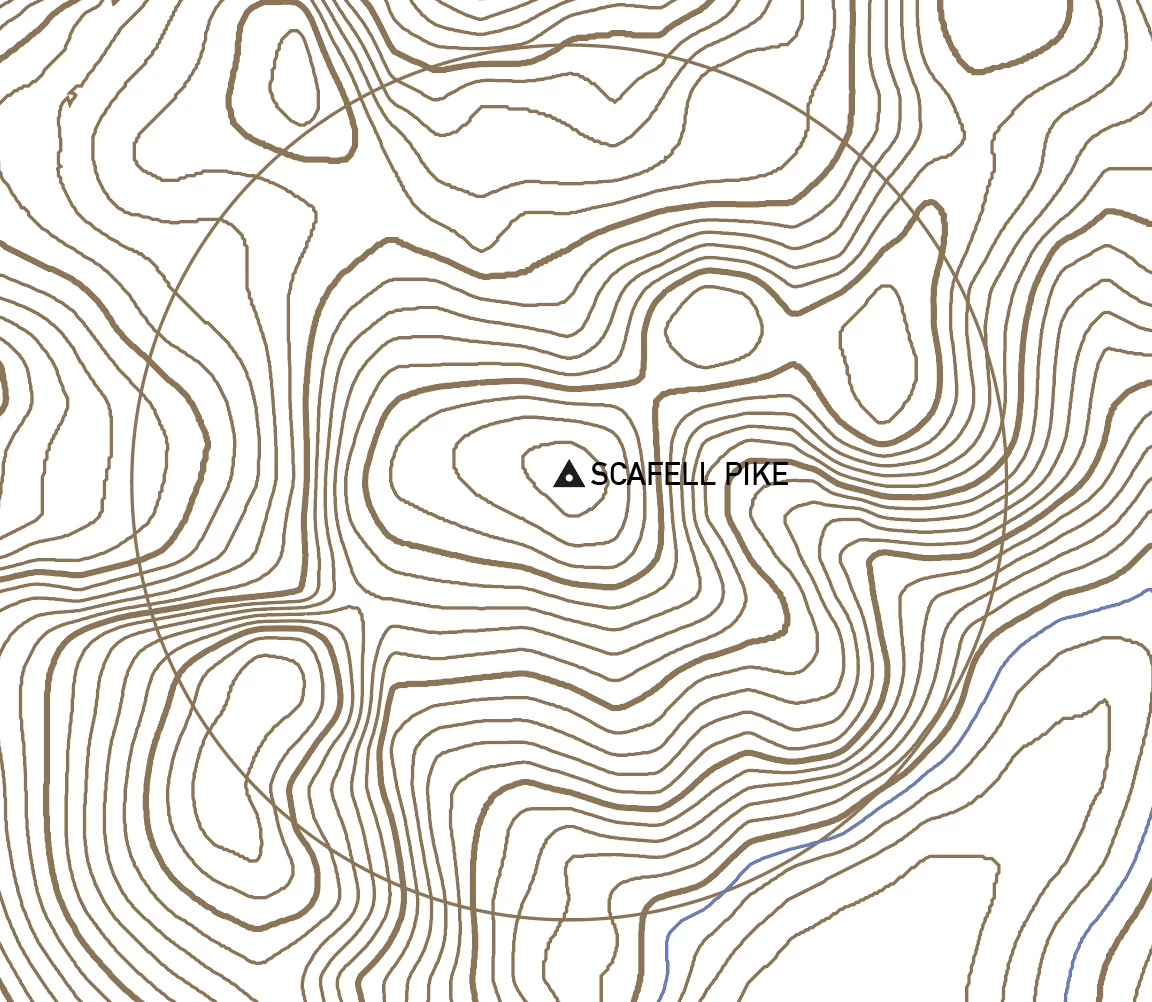
Below is an image of a contour map, I have 2 questions:


1.) I have added to text to illitstrate a particular peak on the map, however the the contour lines make the text hard to see. Is there a way I can add some form of stroke around the text that will hide the lays below it? Essentially any secition of line that passes under the text will stop a 2mm above the text and continue 2mm below the text.


2.) How would I go about cropping any sections of layers that fall outside of the circle? 


Thanks

Craig
 

This topic has been closed for replies.

4 replies

Jacob Bugge
Community Expert
Community Expert
November 13, 2021

Aperture,


Based on a different interpretation of 1) you can add a white fill in the Appearance panel and drag it beneath the Characters, then (with only that selected) use the Convert to Shape Effect with a Rectangle and Extra Width and Height of 2 mm.


Kurt Gold
Community Expert
Community Expert
November 13, 2021

Mountain climbing in the real Netherlands.


Mount Scenery


Ton Frederiks
Community Expert
Community Expert
November 13, 2021

Much better! 🙂

Kurt Gold
Community Expert
Community Expert
November 13, 2021

Mountain climbing in the Netherlands.


Vaalserberg


Ton Frederiks
Community Expert
Community Expert
November 13, 2021

Mount Scenery on the island of Saba, which is in the Caribbean part of the Netherlands, replaced Vaalserberg as the highest point in the Netherlands.

Ton Frederiks
Community Expert
Community Expert
November 13, 2021

1 To add a stroke around (and behind) your text; select the text with the selection arrow, add a new (white) stroke in the Appearance panel and drag it there below the characters.

2 Select the map and the circle above it and choose Object > Clipping Mask > Make