New Participant
November 16, 2015
Answered

How can I create a simple donut chart in Illustrator CC?

  • November 16, 2015
  • 4 replies
  • 36634 views

Hello, I wanted to create a simple donut chart in illustrator. (image attached).

Methods I have tried:

1. Creating a circle, adding color to the stroke, and then trying to put another shape on top and then using the pathfinder (minus/divide). It simply moves the stroke around the rectangle shape.

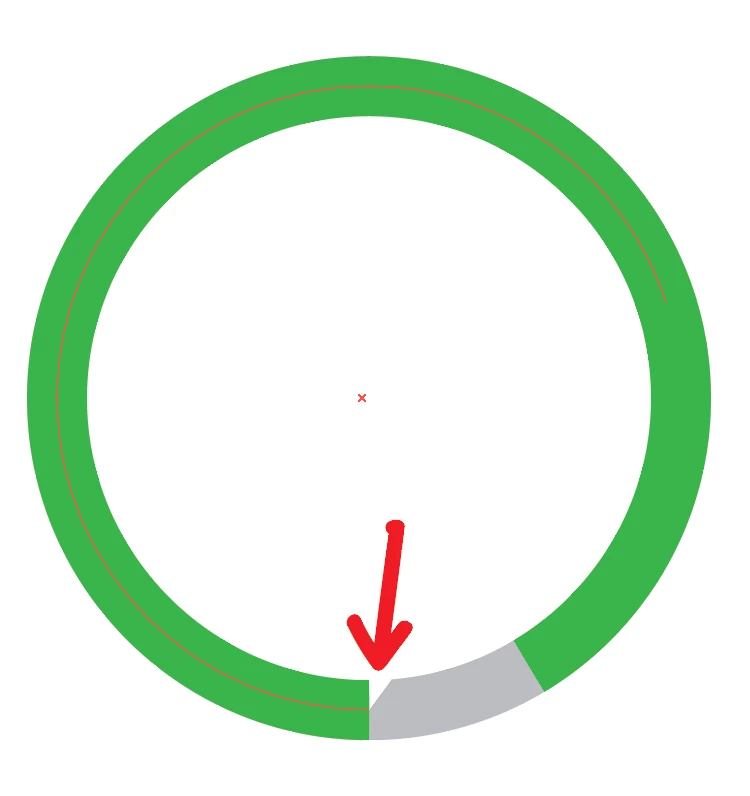
2. Creating a circle and using the scissors. - this almost gets me there, except it creates a little white space the I don't know how to remove. (image attached).

3. I then tried to create a pie chart, thinking I could easily add a white circle over it and merge/divide/minus them. I had a hard time exactly aligning the two, the align feature didn't work exactly, so I manually tried to align them, and while close, they weren't perfect.

Is there an easy way to create a simple two color donut chart?
This topic has been closed for replies.
Correct answer Jacob Bugge

Ron,

I believe 2) is the simplest way, but you seem to have a green Stroke and a white Fill for the selected path (and also a white fill for the other paths), and I believe you see a snippet of that fill on top of the grey stroke where the arrow points.

You should set the Fill to None (from the start, before cutting the circle). I believe that will solve the issue.

Obviously, you should set the stroke Weight to get the right width of the doughnut.

4 replies

shannonh22930547
New Participant
May 17, 2019

To make a donut chart in Illustrator, use the Pie Graph tool, select the Stacked option, make sure First Row in Front is checked.

In your Graph Data, add a row at the top with no value - this will create the hole in the middle of your donut. Add the values you want to display for your chart in the second row.

New Participant
February 18, 2020

So easy this way.  Thank you.

sishamIAGD
Adobe Expert
November 17, 2015

I find the easiest way to create simple, accurate doughnut charts is to add it to a gradient within the stroke. If you give the gradient hard edge colors and apply to the stroke you will get the result you are looking for.

Here is a quick video to show you how easy it really is:

(Right click+Alt and drag to create other gradient sliders)

Hope this helps.

ron1972Author
New Participant
November 17, 2015

Thanks! I didn't know how to create the hard edge gradient - this is awesome. Wish I could give two correct answers! I will be using this technique in the future!

sishamIAGD
Adobe Expert
November 17, 2015

Glad to help.

I find this the fastest and most accurate way of doing a small number of sections, say up to 4-5 but if you go above that you would be best using the pie chart tool and then expanding it, then laying a circle over the top of the chart and then using the pathfinder tool to divide.

All the best.

Ton Frederiks
Adobe Expert
November 17, 2015

Maybe the little white space is cause by GPU rendering.

Switching between GPU and CPU rendering may solve this: Cmd E (Mac), Ctrl E (Win)

Ton Frederiks
Adobe Expert
November 17, 2015

Forget my suggestion about the GPU rendering, I tried it and it does not make a difference.

Jacob's way (setting the fill to None) should help.

Jacob Bugge
Jacob BuggeCorrect answer
Adobe Expert
November 16, 2015

Ron,

I believe 2) is the simplest way, but you seem to have a green Stroke and a white Fill for the selected path (and also a white fill for the other paths), and I believe you see a snippet of that fill on top of the grey stroke where the arrow points.

You should set the Fill to None (from the start, before cutting the circle). I believe that will solve the issue.

Obviously, you should set the stroke Weight to get the right width of the doughnut.

ron1972Author
New Participant
November 17, 2015

Thanks!!! I removed the fill setting and it worked perfect. I had overlooked the fill setting. Thank you!!!

Jacob Bugge
Adobe Expert
November 17, 2015

For my part you are welcome, Ron.