
Known Participant
May 12, 2023
Resuelto

How can I get vibrant, almost neon colors to print?

  • May 12, 2023
  • 3 respuestas
  • 10416 visualizaciones

I'm creating abstract art in Illustrator with a color mode of RGB and the profile Adobe RGB (1998) and am testing with giclee printing. Some of my very saturated and bright colors come out okay to well, with an almost close match. However, the hot colors, such as pinks and bright-to-dark blue and purple gradients do not.


I know that printers have a more limited color gamut, but want to know how I can get as close to the digital color gamut as possible.


Is there a way I can select alternative colors to get the same dramatic effect?

Or, are there settings in Illustrator I can use to help print that gamut range?

Or, is there a way to tweak them in Photoshop?


I haven't been able to find any current information and really need to find solutions for my art prints.


Thanks!
Mejor respuesta de chrisg11235813

Thanks, Mike. Ultimately, it sounds like I need to do a lot of test prints with my printer.


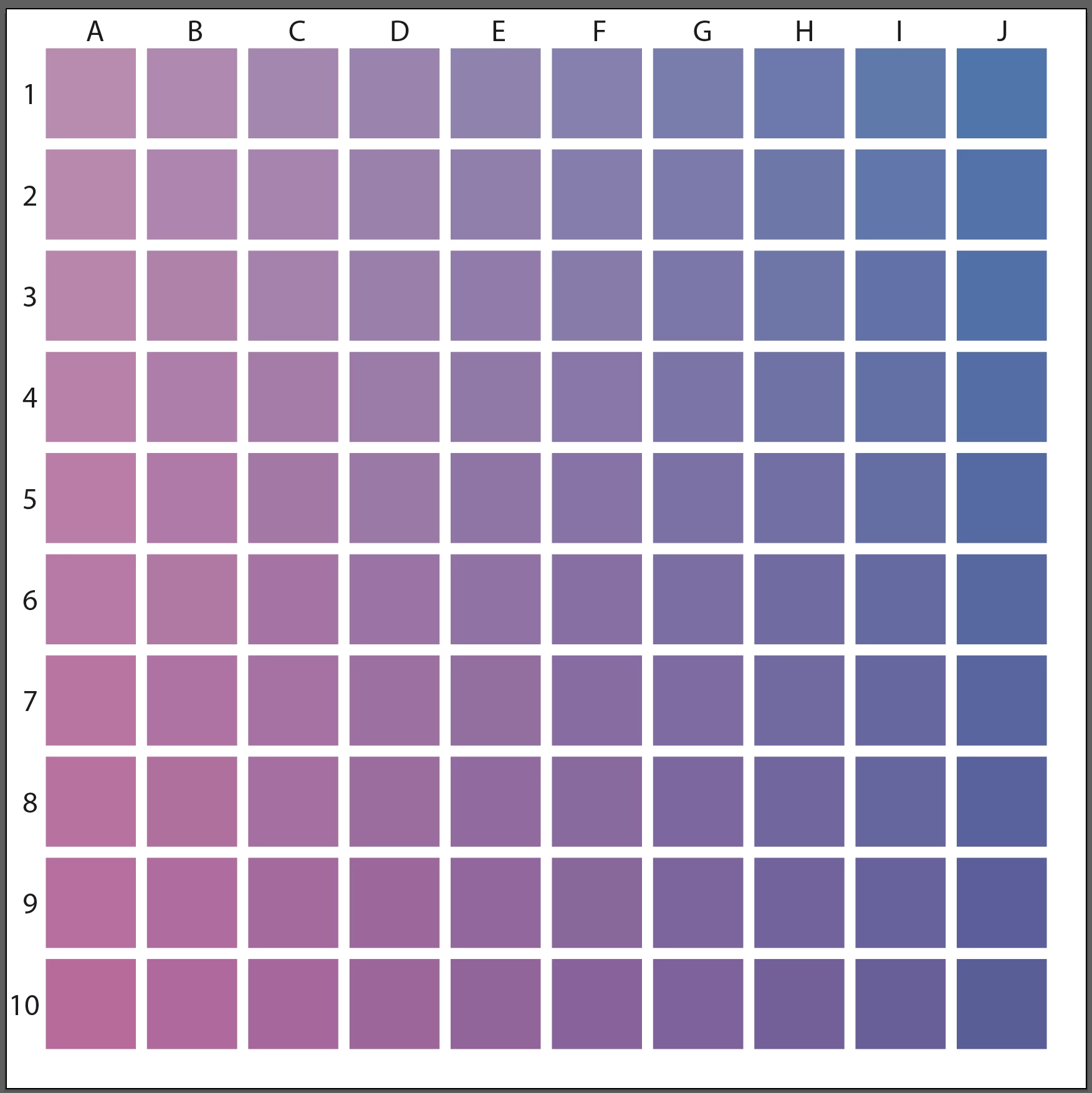
If you are doing test-prints, I would suggest doing a grid of swatches. You'll get more colours and you can keep it as a guide for the future.

Pick 2 Colours to test, in this case I have added Magenta going down and Cyan to the Right. In your case you would use RGB instead of CMYK colours.  Keep the Test Print and the actual File so you can figure out what the colour formula was in the file.  Something like this:

3 respuestas

Inspiring
May 20, 2023

You are correct about submitting RGB files for that print provider.  You mention Rendering Intent ( Perceptual ).  Another item to try is instead of AdobeRGB, assign or apply ProPhotoRGB as an option.  You could send your vendor one file of each RGB color space, but maintain the Perceptial Tendering Intent.  While you may never totally match fluorescent type brightness, you can get reasonably close. Your print vendor can also experiment on their end, but as far as file prep goes, you have ( and are on the path ) to finding out, through experimentation and the inherent limitations, what will ultimately become a viable workflow for your project.  Good luck!

KD11Autor
Known Participant
May 21, 2023

Thanks. I read about how ProPhotoRGB can potentially help the print output. The primary printer I plan on using does request files with an Adobe RGB (1998) profile, and they are not local so I can't work with a technician directly. However, I may test that with a local printer I've also sourced.

Mike_Gondek10189183
Community Expert
Community Expert
May 22, 2023

Yes Giclee is one of the few print methods that use RGB. Best to consult your printer with his question, but compare to the spex Mockinbird Press suggests and RGB IEC61966-2.1


https://www.mockingbirdpressuk.com/artwork-requirements/#:~:text=The%20best%20colour%20profile%20to,as%20the%20regular%20CMYK%20inks.


This printer suggests 16-bit color

https://www.theartofprint.co.uk/help/

chrisg11235813
Participating Frequently
May 18, 2023

Sometimes a Printer's RIP software has a "PANTONE look-up table" built into it. In a lot of cases it recreates a much more vibrant representation of the colour than simply using the CMYK values -- BUT, if you don't already have the swatches loaded into your Adobe software, you'll have to do some digging around the interweb to find them. PANTONE dosn't want anyone freeloading of standardized colour pallets, that would defeat the purpose of standardizing.

Talk to your printer, if they are knowledagable they might have some ideas -- you might have to do a bunch of colour samples to pick the best colour.

KD11Autor
Known Participant
May 18, 2023

The printer I'm mainly using does not use the Pantone color system, so, unfortunately, I can't use those colors. When I inquired about this, the printer sent me information on using their ICC Profles. I haven't worked with these before, so have a bit of a learning curve.

Community Expert
May 12, 2023

Is the type of printer you're using equipped with any extra ink colors, such as Light Cyan or Light Magenta? Printers that have additional colors can offer gamut ranges that extend a bit beyond the usual limits of CMYK. No printer can fully match the RGB gamut range. It's just not possible (especially in the greens, blues and purples). In order to get predictable colors displayed on screen you would need to use an ICC profile specific to the printer along with having your monitor properly calibrated. The type of print media being used also matters; smoother more glossy substrates will allow colors to pop more while media that has more "tooth" to it will mute colors.

KD11Autor
Known Participant
May 12, 2023

Hi Bobby,

I send my files online to printer who then makes giclee prints. While there are more inks with giclee, there are still limitations, My laptop calibration is set to Adobe RGB (1198) profile, and I've used the ICC profiles for soft proofing. That said, what I'd like to know is if there are other ways I can work with colors to create a similar dynamic effect especially with bright-to-dark gradients or make adjustment in Photoshop. For example, one printer adjusted a setting to "Perceptual" and that produced a better result in the print. I see that I can set that in the TIF files in Photoshop. I'm also testing on different papers. Any manual and technical adjustments that I can make before sending to the printer is what I'd like to learn. Thanks

KD11Autor
Known Participant
May 18, 2023
quote

The bottom line for my art creation method seems to start my Illustrator file with the ICC profile, or make a copy with that profile.

By @KD11


That works if the image will only ever be reproduced on a printer of that gamut. Converting an image to a specific output profile limits flexibility for future printing methods that might print more or different colors. The more future-proof practice is to keep the original in a wide RGB color gamut, but while you are working, enable soft-proofing to preview the gamut of the target printer+ink+paper combination. In this way you simulate the target printing conditions as you work, and without irrevocably restricting the document colors to that gamut. Keeping the original wide RGB gamut keeps your option open: For example, if 5 years from now a new printer reproduces wider colors, you can simply adjust or re-intensify the colors because they were not permanently clipped to an arbitrary small gamut. It will still be possible to print a reproduction of the original work closer to the original colors. You would simply change the soft-proof simulation to the profile for the new printer, and then see if the document colors need updating and by how much.


quote

From there, it sounds that the method is to manually adjust colors to create the desired look-and-feel while remaining in the printable color gamut. I have to say, this is another big additional task when creating a lot of artwork in Illustrator.

By @KD11


Yes. Artists and designers do not have to worry about this if the most important medium for the artwork is the one it was created in. For example, if you are an oil painter, and if how the original painting looks on the wall is much more important than how its colors reproduce in print, then you paint with whatever vibrant saturated pigments you want, and let other people worry about hammering the colors to fit into a print reproduction gamut. But…if you are an oil painter and you consider the print reproductions to be as important or more important than how the original painting looks on the wall (for example, maybe it was commissioned for a book cover), then you have to research and test which colors to paint with so that it looks just as good in a print reproduction. It’s all a matter of priorities: If print reproduction is vitally important, you work to make it look good in print, even if it restricts your color gamut.


Even before digital, if a designer was hired to do work that was primarily for print reproduction, they would probably build their color palette from CMYK swatch books because how those color values reproduce was known. If the art director says they paid extra to set up one more ink to reproduce an especially vivid brand color precisely with a spot ink, then the designer knew they could also use the color of that one spot ink. Although brighter pigments and dyes existed, that was not something they could take advantage of if they were to fulfill the requirement that it has to reproduce as expected under the job’s printing conditions.


So yes, it is an additional task to restrict that gamut, but if your or someone else requires that the colors look good under the gamut of those printing conditions, then working within that gamut is non-negotiable, it is a job requirement, as it was even before digital. Nothing new or extraordinary here.


quote

Do you have any other suggestions on how to best approach this? I ususally start creating in the iPad and further rework files on my laptop cloud app, following with much back and forth.

By @KD11


You ask a very important question by bringing the iPad into this. Because earlier I said one recommended solution is to soft-proof through the printing conditions so you can see what it’s going to look like, and I do that on my computer display. But the problem with the iPad is that no Adobe apps currently support soft-proofing on it. Soft-proofing is currently rare in iPad apps, partly because of limited support for customized color management on iPad OS.


If you have both an iPad and a profiled or calibrated desktop display, then at least you can start working on the iPad, open it on your computer and soft-proof, adjust the overall color palette until it works in the soft proof, open it on the iPad and continue using that same color palette that was adjusted on the computer through a soft proof. Using Illustrator Cloud Documents can make this a little easier, because the same cloud document can be opened on iPad or computer in one click from the Home screen with changes syncing automatically.


This might get a bit technical, but just to make it clear what is going on when you edit on an iPad or other Apple display, because Apple displays use the P3 wide color gamut: You have set a document to the Adobe RGB color gamut, are previewing the colors on a display with the P3 color gamut (about the same size as, but different 3D color gamut coverage than Adobe RGB), for reproduction within the much more restricted gamut of a specific combination of printer, ink, and paper. So yes, it is a bit of a game to thread the work’s colors through that series of gamuts. But those who learn how, get fewer nasty/expensive surprises doing cross-media color reproduction.


Thank you, Conrad. I have a better understanding on what I need to learn. You know this area so well and I'm wondering if you have a class or how-to videos on these methods–you're a natural instructor. I need to learn about this more deeply and as quickly as possible. Do you teach this or know of online classes I can take?