


How do I make a simple hatch pattern (for fill) of my own customization?
Hello all,
I must be over looking something here. I am trying to make a hatch pattern in Illustrator CS6 with the pattern tool so I can apply a clean, single lined hatch to various shapes (some small some big - but the hatch needs to remain at the same seamless scale). I understand that there is a Basic Graphics_Lines Pattern under the Swatches Palette, but I don't understand how to edit it with the Pattern Options dialogue box.
I must be missing something, becuase I wouldn't think making a single line at 45° repeat at the same spacing for a shape fill would be that difficult. I shouldn't have to make a line with the pan tool at a stroke of 1000 with a 0.1-3 dash and make a clipping mask should I?
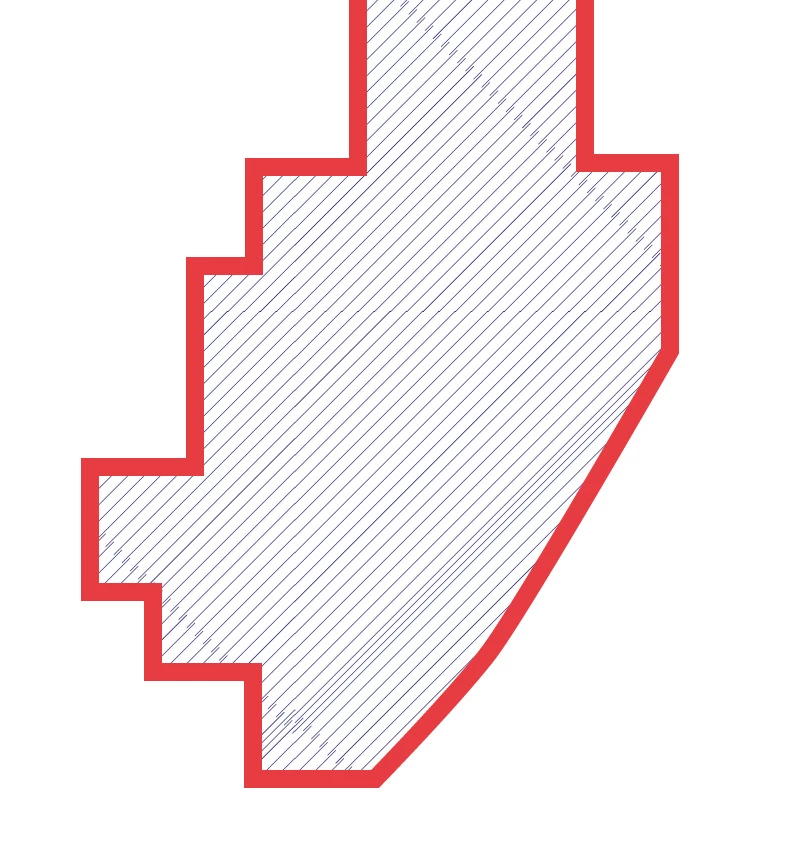
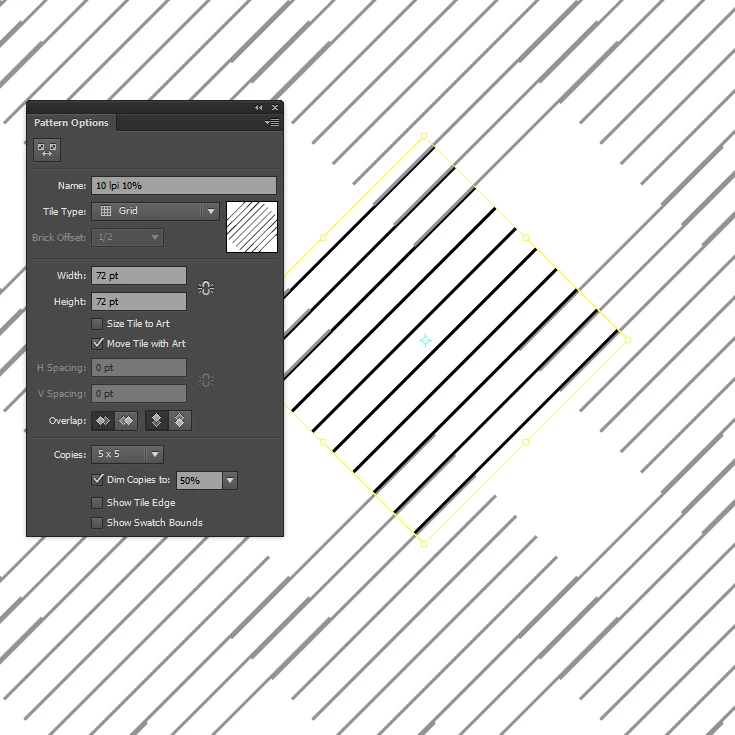
Basically I don't know how to make a pattern's lines match up when I do the 5x5 or 3x3. I tried doing 1x1 and the result is that of the image with the red stroke...still not aligning. Do I need to get mathematical with the size of the line i'm drawing and its stroke to allow H and V Spacing to work?
I'm completely lost and would really appreciate if someone could help me understand this....It just seems so arbitrary. and all the examples/tutorials i've seen of this tool are of floral patterns where arbitrary is okay.
Thanks,
 AdChoices