


charlotten86139972
Inspiring
September 14, 2017
Question

How do I rasterize an Illustrator pattern while keeping it seamless?

  • September 14, 2017
  • 7 replies
  • 4623 views

Hi

I have been making patterns in Illustrator with vector pieces over lapping the tile bounds so that they are seamless repeats
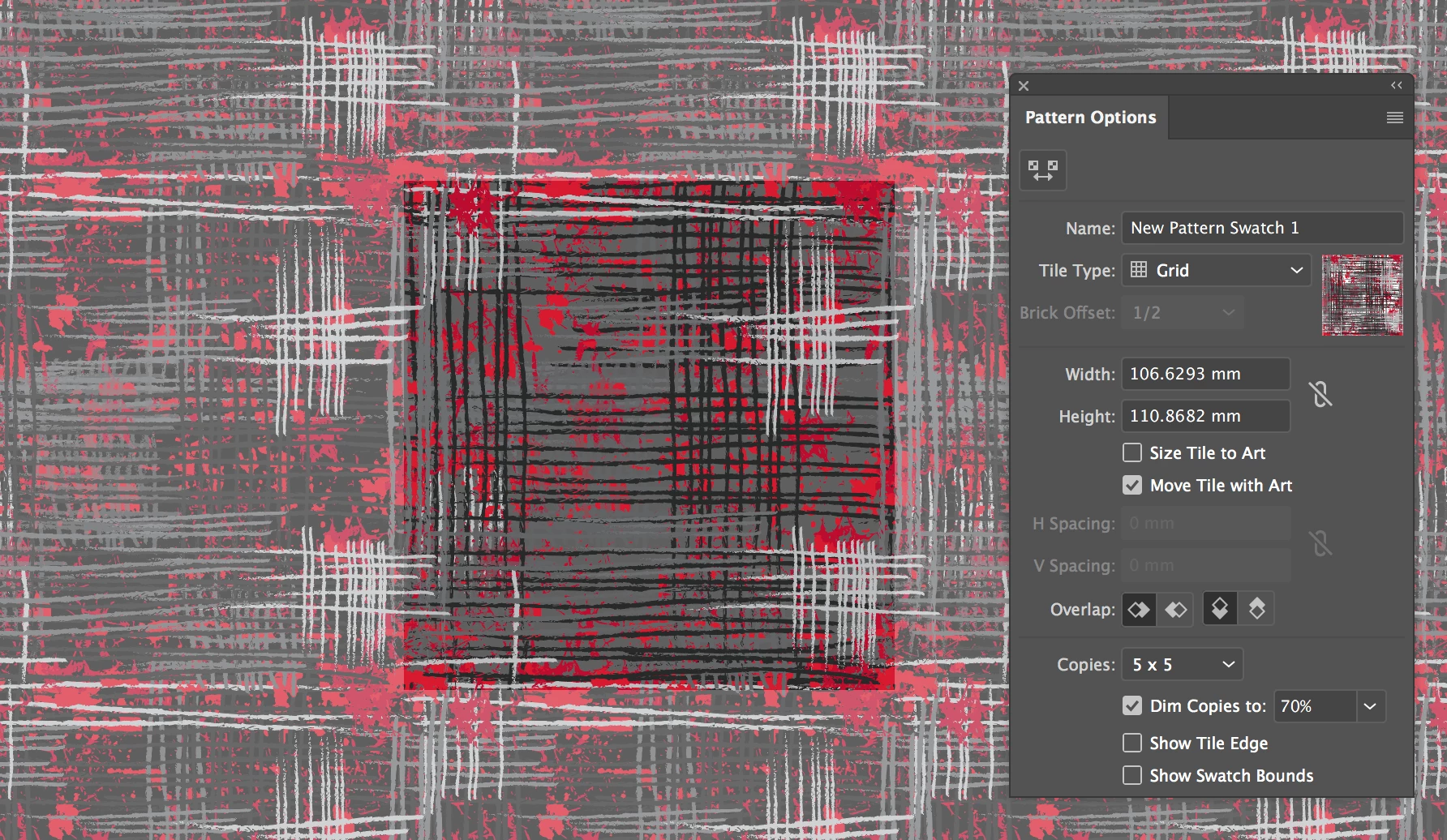
The pattern sizes are too large and making my laptop crash.

I dragged the pattern outside on to the artboard, rasterized them, and clipping mask them where the tile bounds were.. but then when i put this rasterized swatch back into swatches, the repeat is lost and the seams are visible!

My laptop is crashing so much, (file 23MB) i have to wait about 15 seconds everytime i click something for the wheel of doom to stop...

How can you rasterize a pattern while keeping the seamless repeats?

This topic has been closed for replies.

7 replies

charlotten86139972
Inspiring
October 5, 2017

Hi Ton,

This has worked to keep the pattern repeat and make it a smaller file.

but when i bring the png back into the artwork and make it a pattern it has dark lines around tile edges:

Why is this happening?

Ton Frederiks
Braniac
October 5, 2017

The dark lines are very hard to see in your screendump.

Why would you bring the .png file back into Illustrator and make it a pattern again?

charlotten86139972
Inspiring
October 5, 2017

Sorry I meant when I loaded the png file back into a different artwork file to apply as a pattern

Ton Frederiks
Braniac
September 19, 2017

Charlotte,

When I convert your tile width and height as seen in your screendump, from mm to pixels I get 302,256 px X 314,272 px

Your tile size should not contain fractions, so try if 302 px X 314 px works for you.

When you are done creating the patten, fill a rectangle with the pattern.

It is best to do the following in a clean document, so copy the filled rectangle and paste it in a new document.

Delete the rectangle and drag from the Swatches panel your pattern to the Artboard.

In the Layers panel you see a group. The last item in the group is a path with no fill or stroke.

Select only this path.

Go to Objects > Artboards > Fit to Selected Art

Now your artboard is exactly the size of your pattern tile.

Show the Rulers and double click their top left intersection to set the  zero point to the top left of your artboard.

Export the artboard (be sure to check the Artboard option in the export dialog) as PNG, PSD, TIFF or whatever raster file format you like.

For resolution choose 72 ppi or a multiple like 144, 288 to avoid  seams.

charlotten86139972
Inspiring
September 19, 2017

Ok apologies if Im not making much sense, thanks for your advice so far. I will update with screenshots when I can

charlotten86139972
Inspiring
September 19, 2017

When i select the vectors in the pattern and goto make pixel perfect, nothin seems to change, shouldnt the dimensions of the pattern tile change slightly if they're being aligned to pixels?

to rasterise patterns, I have been making bounding boxes with the same dimensions of the pattern tile, then filling the box with the pattern, then rasterising the box. but then this gives that white anti-alias thing around the edges..

Monika Gause
Braniac
September 19, 2017

Yes, they should.

Actually without knowing what exactly you are doing, this is pretty pointless.

A screenshot would help as well.

And then: just place (embed) the resulting image in your AI file and use the crop function to crop the antialiased edges away. Then make the pattern swatch. Most likely nobody will notice.

charlotten86139972
Inspiring
September 14, 2017

I went into the pattern editing mode, selected the bounding box and clicked snap to pixels on the control panel. how do i then convert the pixels to 72 ppi?

Monika Gause
Braniac
September 14, 2017

The command is Object > Rasterize

You could do this either in Pattern Editing mode - I would always make a duplicate of the artwork (resp the pattern)

Or you could do it after having created the pattern.

Drag the artwork out of the swatches panel

Align the pattern boundaries to the pixel grid

Create guides along the pattern boundaries

Convert to pixel grid

Crop the resulting pixel artwork to the guides you have created using Illustrators pixel cropping feature.

charlotten86139972
Inspiring
September 14, 2017

Hi monika,

whats a pixel grid? Could you please show me what you mean?

Monika Gause
Braniac
September 14, 2017

There's an underlying pixel grid in every Illustrator file. If you zoom in really close you should see it.

When you create new web documents, alignment to the pixel grid is turned on by default, but you can also use it in other documents.

WHen you set the units to pixels you will see if your artwork is properly aligned. When all the values (x, y, W, H) are whole numbers, then your artwork is aligned to the pixel grid.

This is how Illustrators align functions work:

Seamlessly align your artwork with the pixel grid...

Monika Gause
Braniac
September 14, 2017

You need to align the bounding box of the pattern to the pixel grid.

And then convert to pixels with 72 ppi. When you use other resolutions, artwork might get interpolated again.