


October 6, 2017
Answered

How do I remove the overlapping of lines used for highlighting in shading?

  • October 6, 2017
  • 3 replies
  • 993 views

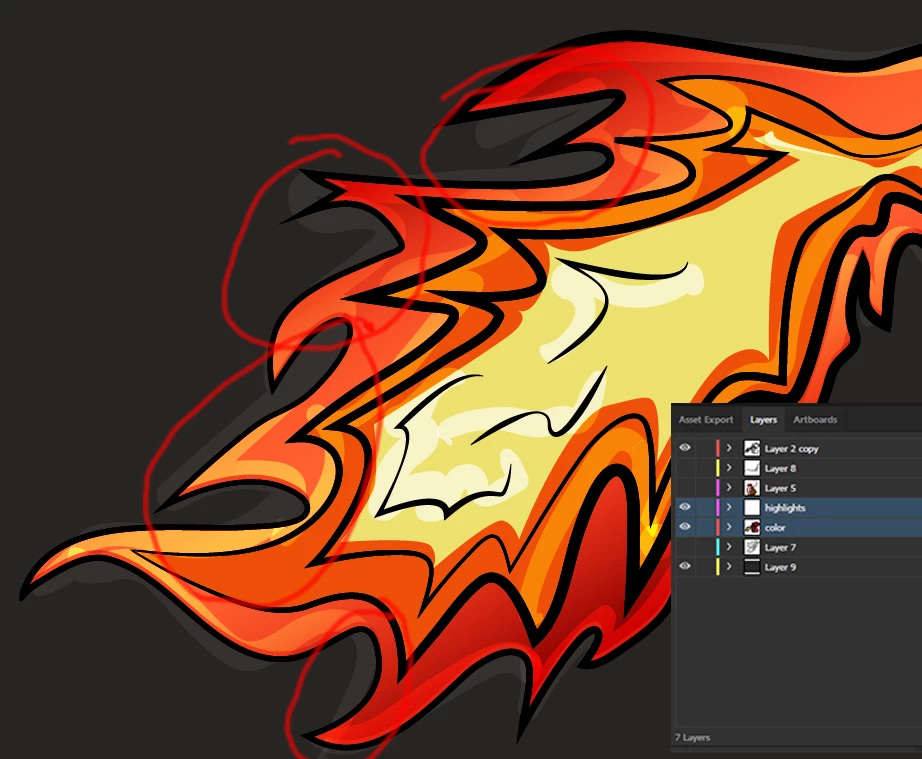
So I loosely drew these lines over my image and I need to trim them to sit only on top of the flame.  I'm sure there is an easy answer out there but I'm new to illustrator and can't figure it out.  You can see my layers in the bottom right the two layers I need to use to merge are highlighted.  I tried selecting both and clicking merge using pathfinder but it merges the color layer into the highlights instead of the other way around.  I circled some of the most noticeable problem areas. Hopefully this question makes sense... Thanks!
    This topic has been closed for replies.
    Correct answer S_Gans

    I *think* I get what you want.
    The easiest way to do this is to make the overall shape of the outer flame cut away the visibility of the squiggles?

    If that's the case, make a duplicate of the flame layer you want to have "define" what you want to see, and put that layer directly above the squiggle layer in the layer panel. Make sure it's a closed shape. Stroke and fill won't matter 'cause that's going to disappear in a minute.

    Then, select that "definer" shape AND all the squiggles. Go to Object>Clipping Mask>Make, and it should be only showing you the squiggles inside the shape you used.

    Can't make a video right now, so I hope that helps...

    3 replies

    S_Gans
    Community Expert
    Community Expert
    October 7, 2017

    MForsburg​ - I'm so glad that was helpful!

    That whole layer management thing can get really messy when we're just making stuff and being creative. I've found that the more times I've had to futz with stuff like this, the better my layer management's become!

    Adobe Community Expert / Adobe Certified Instructor
    S_Gans
    Community Expert
    S_GansCommunity ExpertCorrect answer
    Community Expert
    October 6, 2017

    I *think* I get what you want.
    The easiest way to do this is to make the overall shape of the outer flame cut away the visibility of the squiggles?

    If that's the case, make a duplicate of the flame layer you want to have "define" what you want to see, and put that layer directly above the squiggle layer in the layer panel. Make sure it's a closed shape. Stroke and fill won't matter 'cause that's going to disappear in a minute.

    Then, select that "definer" shape AND all the squiggles. Go to Object>Clipping Mask>Make, and it should be only showing you the squiggles inside the shape you used.

    Can't make a video right now, so I hope that helps...

    Adobe Community Expert / Adobe Certified Instructor
    October 7, 2017

    Thank you!  That's what I managed to work out.  It was hard because of how messy my layers and paths are but I got it to work.  Thanks again!

    Monika Gause
    Community Expert
    Community Expert
    October 6, 2017

    I don't understand at all.

    Please tell us some more detail as to what you expect to happen.