


Participant
February 8, 2022
Answered

How: make segments of the same path overlap each other
  • February 8, 2022
  • 3 replies
  • 1223 views

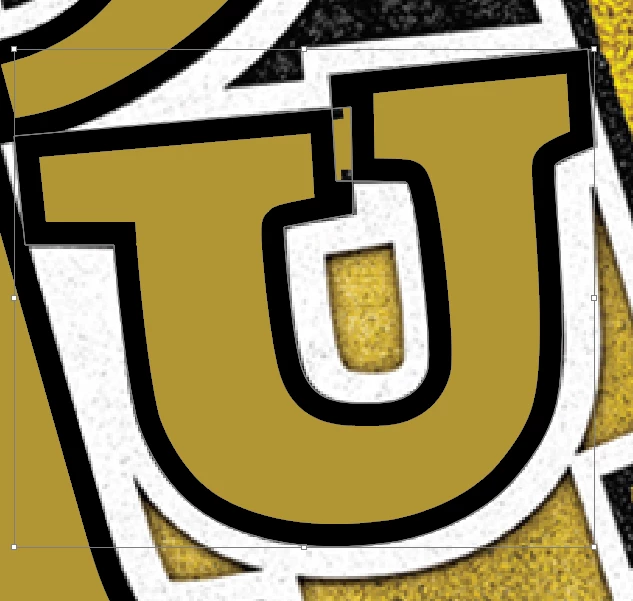
The U pictured is a single path with a gold fill color and a black 5pt. inside stroke.  I would like the left top-right section to overlap the right top-left section but, instead, the overlapping segments are affecting each other and pushing the stroke out instead of overlapping.

This topic has been closed for replies.
Correct answer Laura Coyle.

You probably need to make a copy of this letter and expand it, Object > Expand Appearance first, so that you can make edits once the paths have no stroke. I attached a 1 min video, small 4MB - hopefully this will upload and be of help.

3 replies

Ton Frederiks
Community Expert
Community Expert
February 8, 2022

If it is a vector and a compound path, you may try to change the winding rule in the Attributes panel.

Participant
February 8, 2022

This is close but it gets rid of the inside fill and I want it to complete the inside fill like in the attached image.  I ended up just duplicating the path and expanding appearance so the black and gold are seperate and controlable.  A little time consuming but it works.  Thanks for your help tho.

Laura Coyle.
Community Expert
Laura Coyle.Community ExpertCorrect answer
Community Expert
February 8, 2022

You probably need to make a copy of this letter and expand it, Object > Expand Appearance first, so that you can make edits once the paths have no stroke. I attached a 1 min video, small 4MB - hopefully this will upload and be of help.

Participant
February 8, 2022

This is what I ended up doing and it works, just a little more time consuming than I was hoping for but you can't argue with success.  Thanks for your help!

michelew83603738
Community Expert
Community Expert
February 8, 2022

From this selection, it doesn't seem to be a vector image. Can you post your layers panel expanded with the object selected so we can see what is going on. Is this a vector image?

Participant
February 8, 2022

It is a Vector Image I made tracing a raster image.  The "textured" areas you're seeing are the original image underneath and then I'm making a vector path on top of it.  Sorry, I should have turned off the raster before I screen shot.  I ended up just expanding appearances and making the black and gold seperate paths with no stroke.  Thanks for your help though!