


Known Participant
June 23, 2018
Answered

how to automatically add commas to numbers in adobe illustrator

  • June 23, 2018
  • 5 replies
  • 4180 views

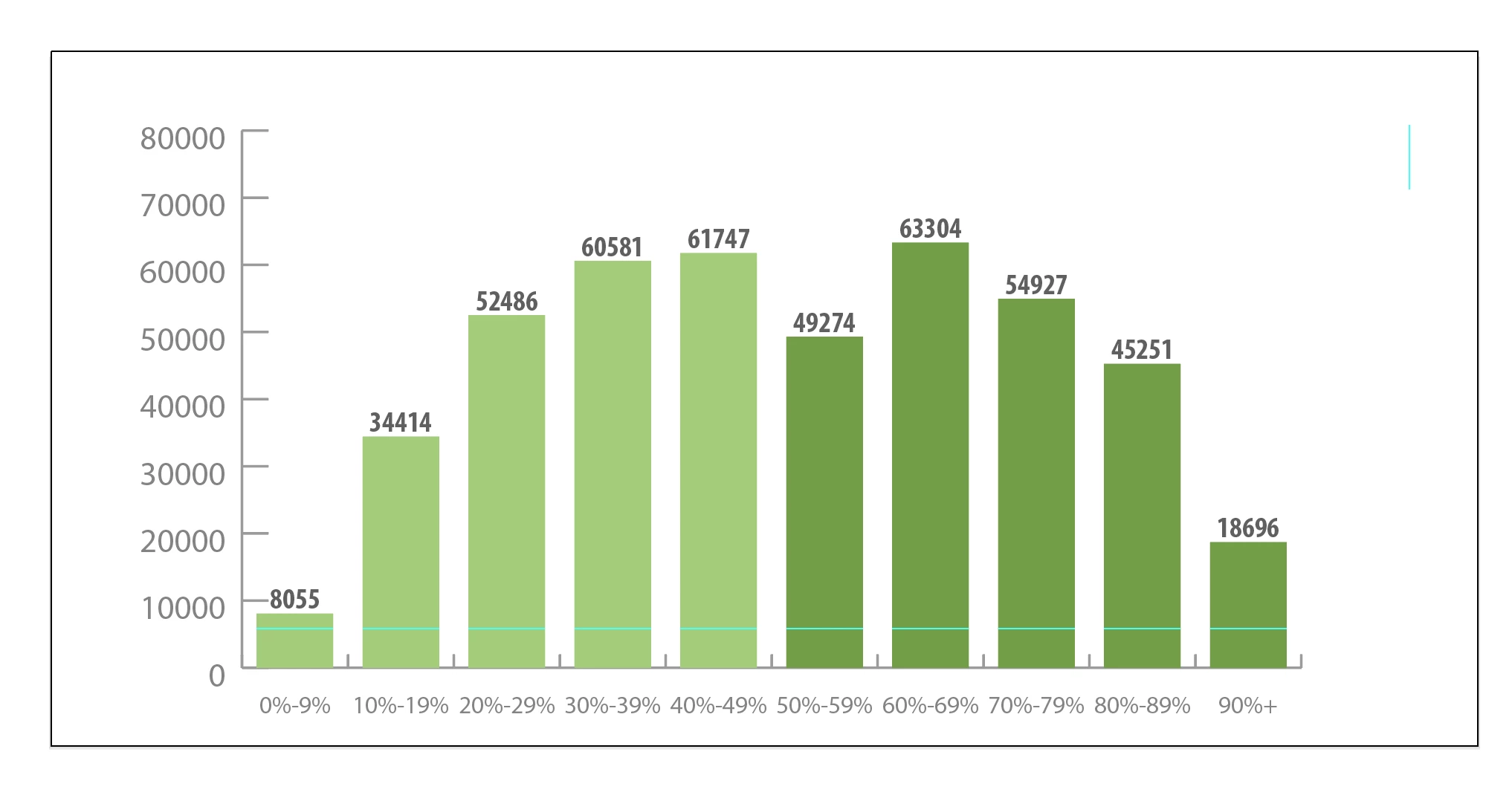
As far as I can tell, Ai graphs don't let you include thousand/comma separators in the data from which graphs are created, so you need to add them after. I can't find any automatic way to do this after the graph has been created. Here's a screen shot example, in case that's helpful. I want thousand/comma separators on the Y axis and the bar value markers. Any help would be greatly appreciated. Thanks!
Correct answer rcoda1

Here's another one... fake the axis data numbers... for instance if they are 100,000, 200,000, 300,000... divide all the data by 1000, then add ",000" as a "suffix"

5 replies

New Participant
November 14, 2025

No idea how to add commas in the data without script or manually but as for the Y-axis...
1. copy existing graph

2. set value/category texts' font color to none using direct selection tool

3. lock the graph's entire layer

4. create new layer

5. ctrl-F the graph.

6. select everything except value/category texts with direct selection tool

7. set all fill and stroke to none (slash, x, slash)

8. unlock the value/category

9. edit the graph's (alt-O,R,T) value axis by checking override and reduce the max number by 3 decimal points. (eg: if 80000, set the max to 80)

10. type in the ",000" on the suffix box. click ok.
10b. (optional) The graph design properties are set to none and it doesnt matter if the bars shoot sky high. the y-axis numbers will still align to the bars. If there's some reason it has to be trimmed down, dummy data (any single digit) can be put to each category as long as the overrides are there, including (mimicking) the divisions, it will still reach the same height and appearance.
-All graphs will remain editable for any revision
-Same concept works with column designs too. Say, bars 1-4 must be a certain design but the 5th bar should be emphasized with a diffrent color, do the "copy - set to none - paste - reverse set to none" thing then apply a different column design to the second graph.


Known Participant
September 27, 2021

It is complete insanity that anyone would have to write a SCRIPT to add commas to numbers on a GRAPH.   Adobe, cmon, GET WITH IT.

Inspiring
August 3, 2022

Here is a workaround... you can copy the axis numbers, then recolor the existing axis numbers (without the commas) to NONE. Then past on top what you copied, then add the commas. Keeps your chart live. Only issue is if the data range changes, you'd have to do this over again, but no biggie.

Stephen Marsh
Community Expert
October 27, 2019

Here is the modified version with hardcoded find/replace without using prompts, so no need to press OK:


#target illustrator

var scope = app.activeDocument.selection.length ? app.activeDocument.selection : app.activeDocument.pageItems;

var find = "\\d{1,3}(?=(\\d{3})+(?!\\d))"; // Escape those digits!
if(find !== null){

    var replace = "$&,";
    if(replace !== null){

        var changes = 0;

        for(var i=0;i<scope.length;i++){  

            var text = scope[i];

            var string = text.contents;  
            if(typeof string == "string"){
                var newstring = string.replace( new RegExp(find, 'g'), replace);
                if (newstring != string) {
                    changes++;
                    var paragraphsArray = newstring.split("\n");
                    text.paragraphs.removeAll(); 
                    for(var ii=0;ii<paragraphsArray.length;ii++){  
                         text.paragraphs.add(paragraphsArray[ii]);
                    }
                }
            }
        }
        alert( changes==1 ? "1 text object changed" : changes + " text objects changed");
    }
}


Stephen Marsh
Community Expert
October 27, 2019

To use the following scripted suggestion, you will need to ungroup the graph, therefore live/dynamic graph editing will be lost (so dupe and hide the original graph in a backup layer etc).


// graphicdesign.stackexchange.com/questions/50503/how-to-do-a-wildcard-grep-regex-find-replace-in-illustrator
// It does a regex find-replace on text in the selected items, or on all text if nothing is selected.
// Note: there seems to be a bug where sometimes it fails to find text within selected groups - if you encounter this, try running the script with nothing selected, or ungrouping.
// Here's a few examples I tested with it:
// Simple find/replace:
// Find: test
// Replace: hello
// Add a % to all numbers in selection:
// Find: (\d+\.?\d*)
// Replace: $1%
// Turn multiple spaces into one space:
// Find:+ (there's a space before that + which is getting chopped out)
// Replace:  (space)

// 2019: Hardcoded a thousand separator regex into the prefilled find/replace suggestion

var scope = app.activeDocument.selection.length ? app.activeDocument.selection : app.activeDocument.pageItems;

var find = prompt("Find: (Text or regex)","\\d{1,3}(?=(\\d{3})+(?!\\d))"); // Escape those digits!
if(find !== null){

    var replace = prompt("Replace: (Text or regex)","$&,");
    if(replace !== null){

        var changes = 0;

        for(var i=0;i<scope.length;i++){  

            var text = scope[i];

            var string = text.contents;  
            if(typeof string == "string"){
                var newstring = string.replace( new RegExp(find, 'g'), replace);
                if (newstring != string) {
                    changes++;
                    var paragraphsArray = newstring.split("\n");
                    text.paragraphs.removeAll(); 
                    for(var ii=0;ii<paragraphsArray.length;ii++){  
                         text.paragraphs.add(paragraphsArray[ii]);
                    }
                }
            }
        }
        alert( changes==1 ? "1 text object changed" : changes + " text objects changed");
    }
}


A modified version of the script could be created to remove the prompts and simply apply the regular expression find/replace directly, however, I believe that it is more useful to keep the prompts and change the prefilled text if needed. You will just need to press OK/return/enter three times, which is a small price to pay.


NOTE: If no objects are selected, then all matching digits will receive the comma separator, whether the text is locked or hidden or isolated on hidden layers etc. Otherwise, pre-select the objects first and only the selected text objects will change.


https://prepression.blogspot.com/2017/11/downloading-and-installing-adobe-scripts.html

New Participant
October 25, 2019

Yes, I've been wondering how to do this for years! I end up just manually adding them after I finish creating the chart. It's very time consuming.