TheGamerLion
Participating Frequently
April 16, 2018
Answered

How to color specific fill and stroke in AI?

  • April 16, 2018
  • 5 replies
  • 1128 views

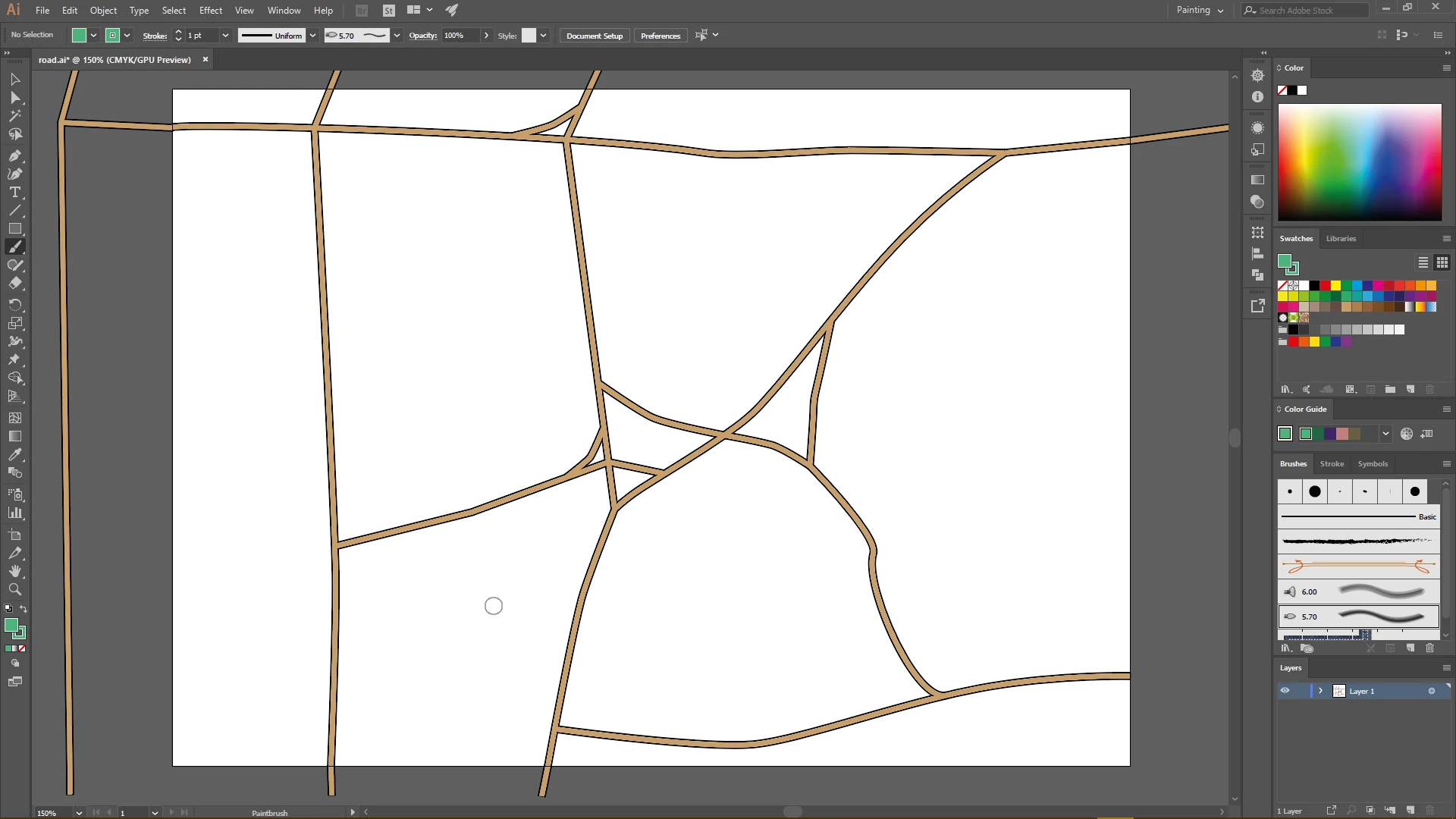
So i maked a custom path as seen on youtube to make a simple map but when i want to color it between the path's its making a new path with color inside how can i disable this?
sorry for the dumb question but i am a beginner to this
This topic has been closed for replies.
Correct answer Mike_Gondek10189183

Tyr

slext all

object >> expand appearance

object >> expand

hit K to swtich tool to live paint bucket and click on areas you wish to fill (use cursor keys to go between color swatches you have defined- i choose a tan color)

5 replies

TheGamerLion
Participating Frequently
April 19, 2018

And in the screenshot i posted i selected the path.

TheGamerLion
Participating Frequently
April 19, 2018

Hello Guys, Thank you for the help, i will give you guys a screenshot when i will be back from school i already saved it. Here is the video link: https://m.youtube.com/watch?t=2s&v=fIJeGM2VOzM

Sorry for very late response

Mike_Gondek10189183
Community Expert
Mike_Gondek10189183Community ExpertCorrect answer
Community Expert
April 17, 2018

Tyr

slext all

object >> expand appearance

object >> expand

hit K to swtich tool to live paint bucket and click on areas you wish to fill (use cursor keys to go between color swatches you have defined- i choose a tan color)

TheGamerLion
Participating Frequently
April 19, 2018

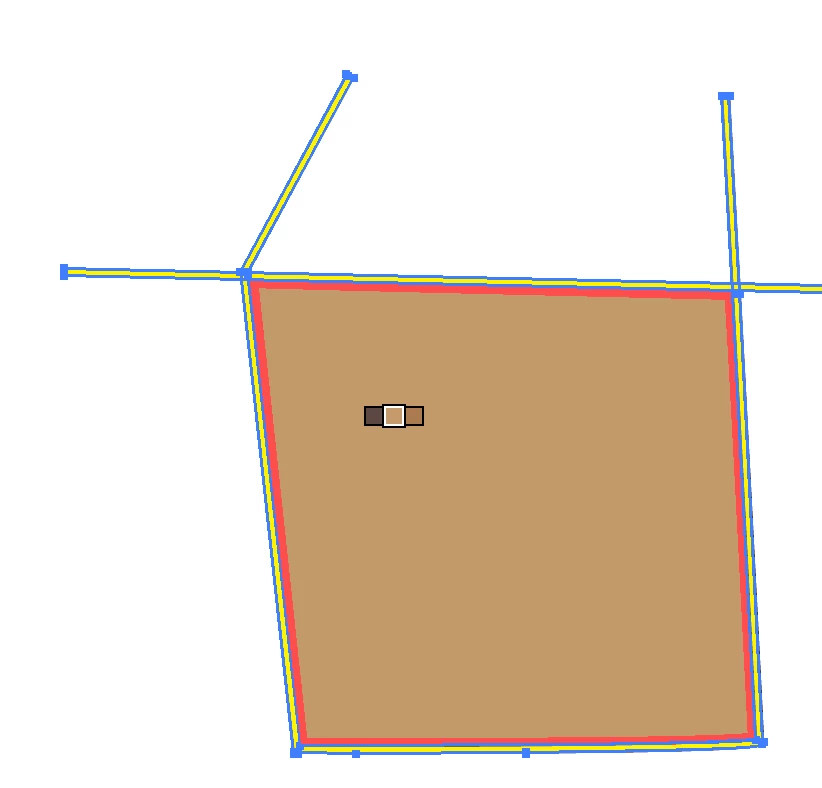
So i did that and i got this

Then i tryed to make the corners but i can't so i thought maybe some lines but that didn't work either.

So?

TheGamerLion
Participating Frequently
April 19, 2018

I get this

S_Gans
Community Expert
Community Expert
April 16, 2018

I'm afraid those screenshots of the appearance panel don't help us much without anything specifically selected so we can see how it's made, but from those shots, I DID see that you have brown fills on black stroked items. One suggestion I'd make to resolve this quickly would be to be SURE to use a SAVE AS copy of this (so if it doesn't work, you have something to come back to). THEN, on that copy, try selecting everything and using the command Object>Live Paint> Make. You can then fill the white spaces with the white Live Paint Bucket - which uses the colors from your Swatches panel.

For information on how to use Live Paint, take a look here:

How to create and work with Live Paint groups in Illustrator

Adobe Community Expert / Adobe Certified Instructor
Monika Gause
Community Expert
Community Expert
April 16, 2018

S_Gans  schrieb

I DID see that you have brown fills on black stroked items.

I'd rather say those are two strokes applied to the layer.

As I already wrote: create a new layer, make sure it has no effects, strokes, fills of its own and then draw on it.

If you want to go the live paint route, you will need to first expand the appearances that are applied in the file.

S_Gans
Community Expert
Community Expert
April 16, 2018

As mentioned, without a view of a selection, we can only guess as to how this is made. I hope that one of these methods is helpful to @TheGamerLion

Adobe Community Expert / Adobe Certified Instructor
Monika Gause
Community Expert
Community Expert
April 16, 2018

You applied several strokes to either your paths or your layers?

Please show the appearance panel, path selected.

Please do also show the layers panel.

Most probably you will need to create a new layer for your other objects.

Please do read the documentation about how the layers and appearance panel work. This is advanced stuff.

TheGamerLion
Participating Frequently
April 16, 2018

I know its to hard for me but it is for school and i need to have it done by tommorow. Thats why.

Do you mean this?

Thank you for your time btw.

jane-e
Community Expert
Community Expert
April 16, 2018

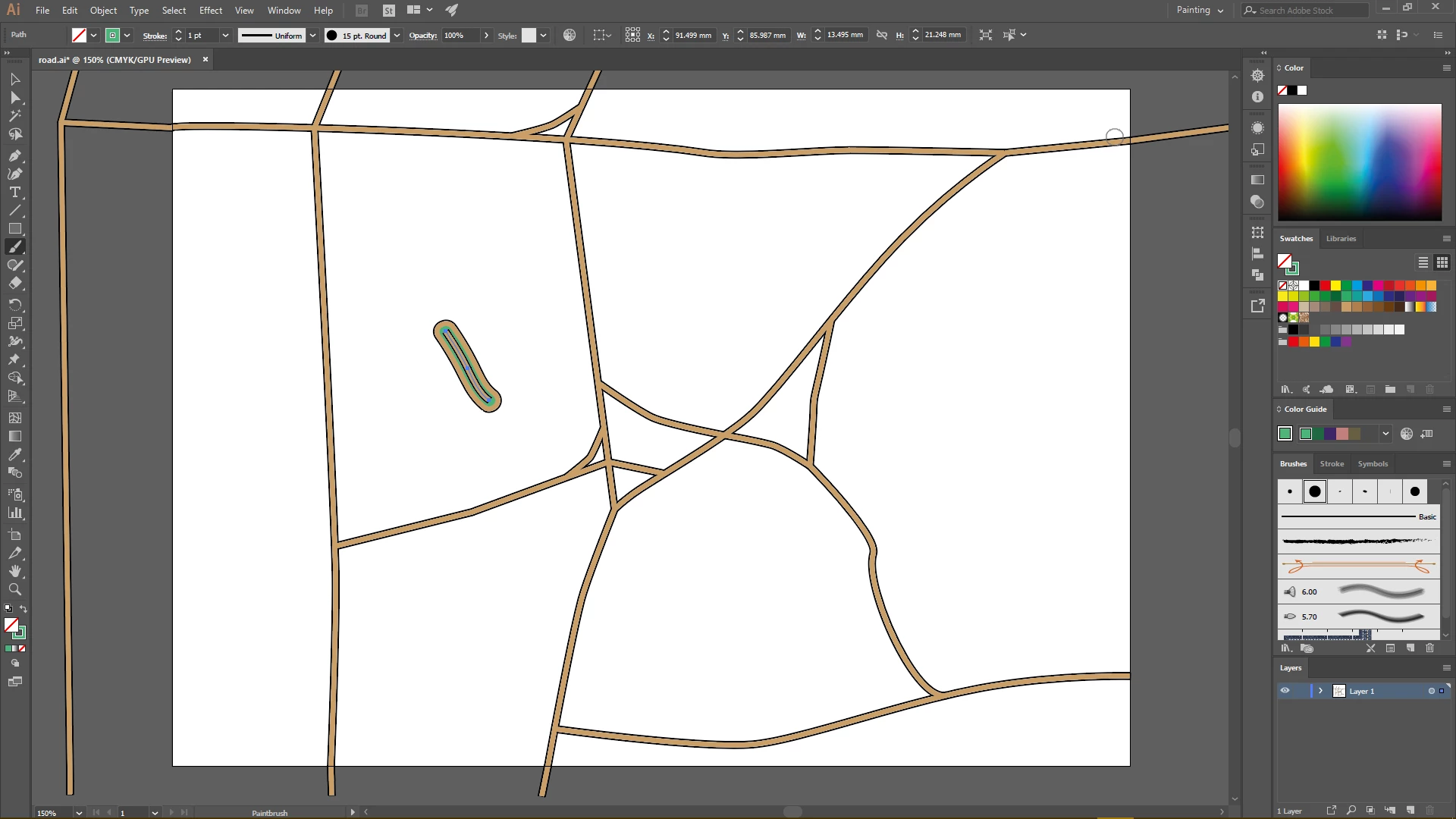
Monika specified to have a path selected, but nothing is selected in your screen shot.

Your layers panel is collapsed so we can't see what's on it.

In addition, your layer has a graphic style applied to it. We'll need a screen shot of the appearance panel with the layer selected also.

And it appears that you are painting with a 15 point round calligraphic brush with a green stroke on a layer that has effects on it. What do you hope to accomplish witht the brush?