Inspiring
March 24, 2023
Answered

How to create colors of the same Value that have different Chroma and Hue?

  • March 24, 2023
  • 2 replies
  • 7308 views

I think this should be simple.  Using the HSB color tab, I'm trying to create colored shapes of the same VALUE such that when I desaturate the image as a whole, the shapes disappear.  But when I use the tab, and Place the image in Photoshop with a Hue and Saturation Adjustment Layer and set Saturation to zero, removing the color information, the shapes remain distinct.


I think I must be fundamentally confused about the interaction of these three variables: Chroma/Saturation must add to Value, thus these aren't independent variables.  


So, is there a way in Illustrator of achieving my goal?  Thanks.


This topic has been closed for replies.
Correct answer johnm27994604
quote

Forgive me, but "do this in an RGB document" is not a workflow.  No need to comment again.  I'll keep working on it myself.  And if I figure it out I'll post my solution.


By @johnm27994604


It won't work in CMYK. Period.

When defining your colors in HSB you are using a very large color space. In an RGB ocument those colors are preserved. In a CMYK document they get converted to CMYK the moment you lift your finger from the mouse button. This is a CMYK color space inside an RGB color space. There might be slight deifferences between this plot and the specific color spaces you are using, but basically this is it:
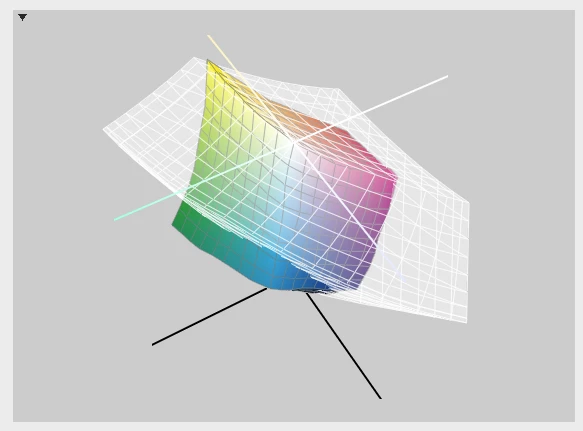


So you are difining something outside of the small space, it will automatically be moved to the inside and of course changed.


Next thing is that you are opening this in Photoshop (or placing, doesn't matter. I presume your Photoshop document is in CMYK as well. Trouble is that those blending modes work best in RGB. In CMYK they will work differently or not at all.


So good luck with your project. Maybe you want to read a bit about color and color management.


Works in RGB https://youtu.be/oN1yKAn9EO4 


I finally got it to work, and yes, both docs, in Photoshop and Illustrator are set to RGB.  You're right, when in Illustrator the Document Color Mode was set to CMYK, using the HSB sliders wouldn't stick.  But I do need to learn more about color, particularly about how the warnings work (Out of Web Color Warning and Out of Gamut Warning)


The solution, which is imperfect, I think because of antialiasing, requires that the Brightness AND Saturation be equal, letting the Hue be the only variable.  Which is interesting, because I thought these three would be independent variables, but Saturation and Brightness both affect to Value.  Not sure why.  


If you look at the gray png you can see the contours of the shapes.  Which means that the antialiasing must be adding brightness or contrast, just a little.  I see tutorials online for turning this off, so I'll have a look at these.


Thanks for your help!

2 replies

Inspiring
March 24, 2023

ChatGPT has given me a method:


  1. Open Adobe Illustrator and create a new document.
  2. Select the Rectangle tool from the toolbar on the left.
  3. Create a rectangle by clicking and dragging on the artboard. Set the fill color to a solid color of your choice.
  4. Duplicate the rectangle by pressing "Ctrl + C" and "Ctrl + F" to paste it in front.
  5. Change the fill color of the duplicated rectangle to a different solid color.
  6. Ensure that both rectangles are the same size and position them so that they overlap.
  7. With both rectangles selected, open the Transparency panel by going to "Window > Transparency."
  8. Change the Blending Mode of the top rectangle to "Difference."
  9. If the colors of the rectangles are not the same value, adjust the opacity of the top rectangle until the overlap color is a neutral gray.
  10. Save your document and you're done!


By adjusting the opacity of the top rectangle, you can make the overlapping area appear as a neutral gray, indicating that both colors have the same value. This ensures that if you desaturate the image, both shapes will be the same exact shade of gray.

Inspiring
March 24, 2023

Though you can't use the eyedropper to test whether the difference is a neutral gray because it samples the topmost layer.  Working on this.

Jacob Bugge
Community Expert
Community Expert
March 25, 2023

John,


What happens if you export the resulting appearance as a raster image, then apply the Eyedropper to that?


Monika Gause
Community Expert
Community Expert
March 24, 2023

Is the Photoshop document the same color mode, the same color profile?

How do you get the artwork into Photoshop? Copy and Paste might do its own thing on colors.

And above all: how is your color management set up in all the apps?

Inspiring
March 24, 2023

Thanks for the reply, Monika.  I'm Placing the image, not pasting.  And the color mode in both Photoshop and Illustator is RGB.  I set the color profiles in both to Monitor.  So they're in synch.  And even with Brightness set to 80% for both shapes, the desaturated version in photoshop still lets me see the different shapes.

Monika Gause
Community Expert
Community Expert
March 24, 2023

Monitor is not a proper RGB working space.

Also Copy and paste might do its own thing with your file. Try saving and placing instead.