


New Participant
July 21, 2021
Question

How to Lock an Image to Manually Trace

  • July 21, 2021
  • 3 replies
  • 3419 views

I have an issue manually tracing an image. I can import a JPG and begin using the pen tool to trace the image. The issue is, I keep accidentally moving the JPG and I have to keep re-aligning the pen tool lines. I searched before posting but searches are saturated with "Trace Image" tool results and not this. I just need to see how I can lock the JPG image and manually traced lines. 


I have attached a picture to show what keeps happening.
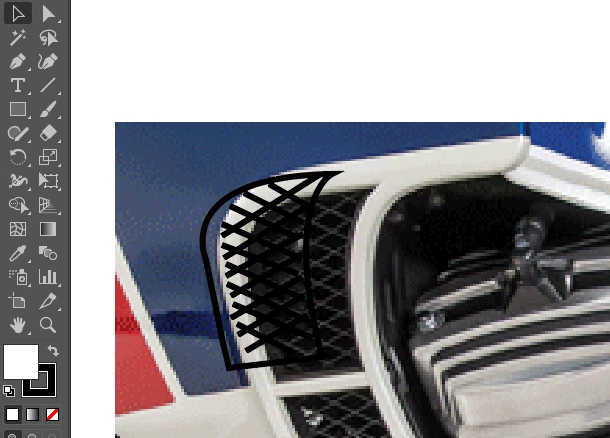
This topic has been closed for replies.

3 replies

New Participant
July 24, 2023
Screenshot_20230724_125349.jpg
Monika Gause
Community Expert
July 24, 2023

If you read this thread until the end you'll find plenty of descriptions of how to lock your image.

Dan Rodney
Community Expert
July 21, 2021
  1. In an Illustrator file, do a File > Place.
  2. Select the image you want to trace.
  3. At the bottom of the place dialog check on Template (if you don't see that, click the Options button) then click the Place button.
  4. If you need to adjust the size/position of the image after placing it, go to the Layers panel and unlock the template layer. Make adjustments and then relock the layer.
  5. To adjust the opacity of the trace image, double-click the layer (in the Layers panel) and adjust the Dim Images to amount.
— Adobe Certified Expert & Instructor at Noble Desktop | Web Developer, Designer, InDesign Scriptor
Doug A Roberts
Community Expert
July 21, 2021

Either select the image and use Object > Lock > Selection (Ctrl + 2), or put the image on its own layer and lock that using the layers panel.