


Participant
September 21, 2018
Answered

How to make a point snap to an existing point.

  • September 21, 2018
  • 4 replies
  • 1003 views

So I'm a bit new at with the pen tool... but I've been trying to make this water bottle and it's driving me insane.

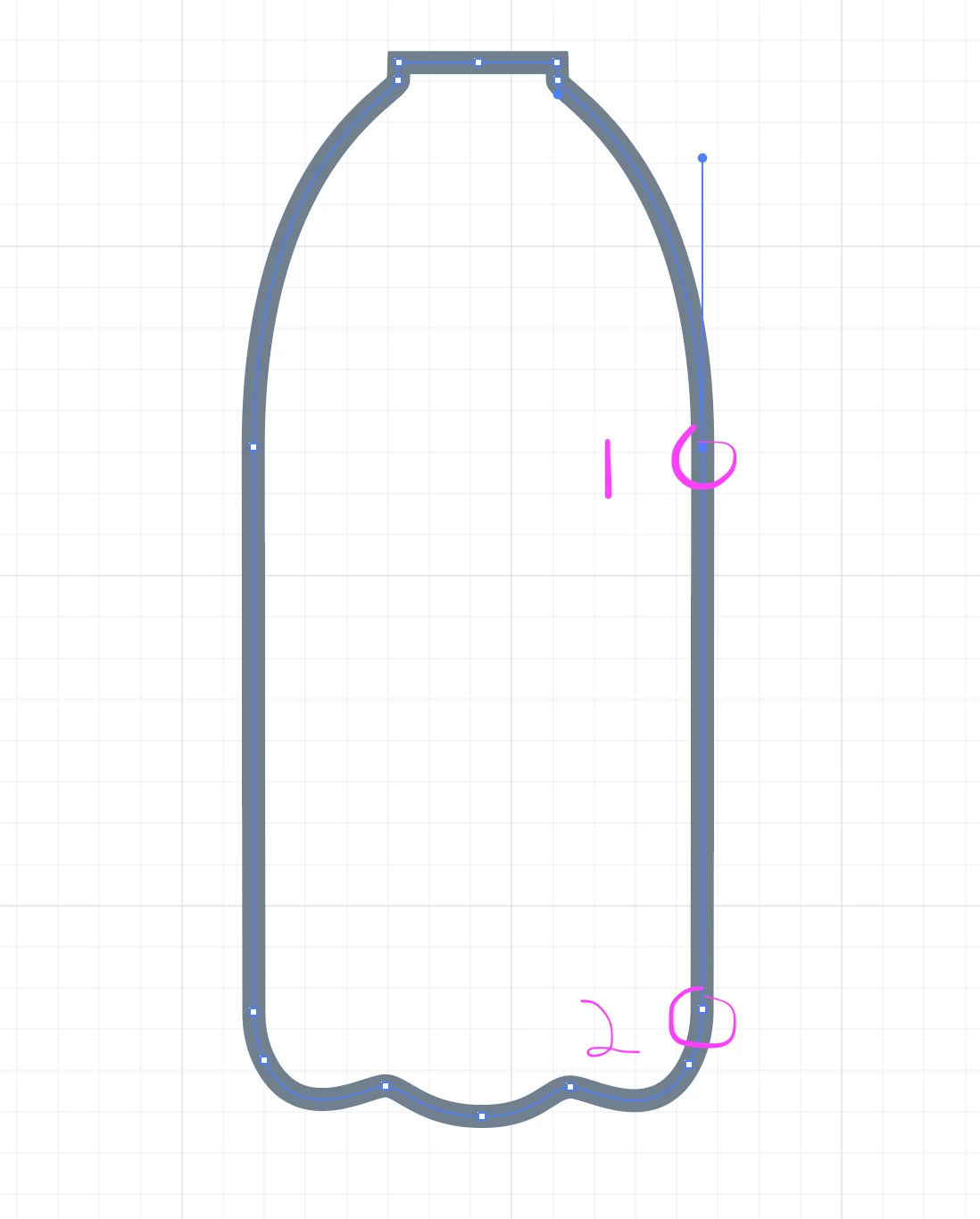
How do I move point #1 so that it will automatically align in the Y-axis with point 2? It seems like Illustrator doesn't have the same smart guide capability as inDesign.
This topic has been closed for replies.
Correct answer barbara_a7746676

Illustrator has Smart Guides that can be turned on/off under the View menu.

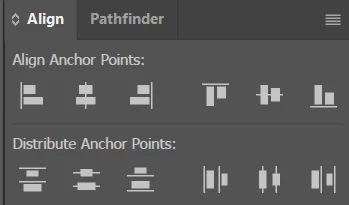
Also, you can use Align with any object that has at least 3 anchor points. With the Direct Selection tool, select anchor point #1, then select anchor point #2. Note that the first anchor point that you select is the one that will remain in place and the second one will move to align to that one.

Select the alignment you need in the Align panel.

4 replies

Ray Yorkshire
Participating Frequently
September 21, 2018

You might have snap to grid  turned on under

View > Snap to Grid

in which case the Smart Guides don't  show.

So in your screenshot  if you wish to align already draw point 1  vertically with 2, using with smart guides.

(temporarily) turn off  snap to grid.

Deselect everything.

Use the Direct Selection tool - the one white

Select just anchor point 1

and drag it until (hopefully ) you get feedback from the smart guides.

ceyhun_akgun
Legend
September 21, 2018

I recommend that you set the Snap options in advance. I have smart guides in Illustrator that work great, but I recommend using Snap Grid, Snap Point features on their own. Different options can be useful during drawing work.

Graphic Designer Educator / PrePress Consultant
Mike_Gondek10189183
Community Expert
Community Expert
September 21, 2018

I  recommend

  1. dragging a guide out from the rulers (Command R) to snap to point 2,
  2. view >> smart Guides
  3. Drag point #1 until a magenta (default color  in prefs) line appears.  Without the guide Illustrator may snap to the outside of a curve (my example below has more of a bump by point #1 so the guide really helps and recommend for when you have curves or many vector points near each other). The guide also helps in  proofing your work that you indeed snapped correctly, as without from far away might look correct.

barbara_a7746676
Community Expert
barbara_a7746676Community ExpertCorrect answer
Community Expert
September 21, 2018

Illustrator has Smart Guides that can be turned on/off under the View menu.

Also, you can use Align with any object that has at least 3 anchor points. With the Direct Selection tool, select anchor point #1, then select anchor point #2. Note that the first anchor point that you select is the one that will remain in place and the second one will move to align to that one.

Select the alignment you need in the Align panel.

tromboniator
Community Expert
Community Expert
September 21, 2018

I most humbly beg your pardon, Barbara:

Peter

barbara_a7746676
Community Expert
Community Expert
September 21, 2018

Thanks for the correction!