anaish41518197
New Participant
March 29, 2018
Answered

How to merge paths with the offset path tool?

  • March 29, 2018
  • 1 reply
  • 4409 views

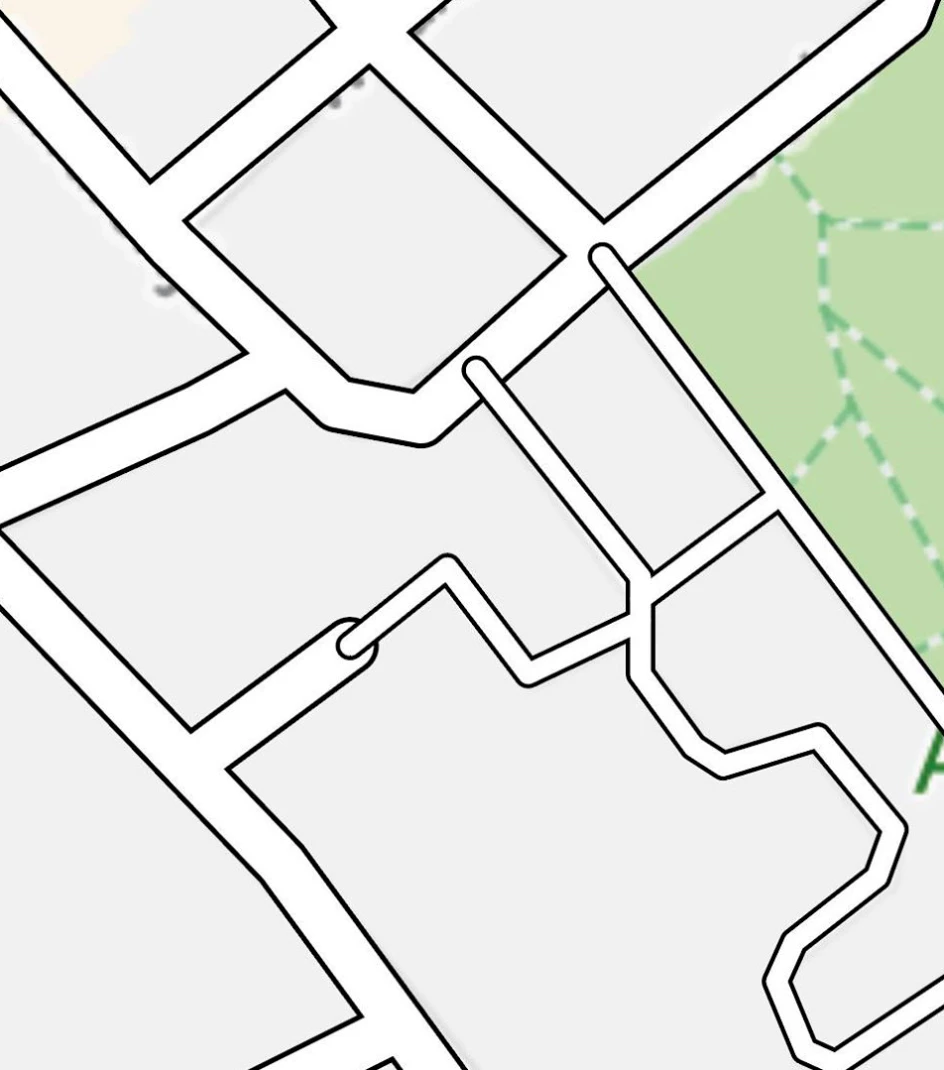
hi, i used this tutorial to merge paths for a map https://www.youtube.com/watch?v=fIJeGM2VOzM&t=170s It's with the offset path tool But now i want to merge thick and thin lines but i don't know how to do it? it looks like this now:
Discussion moved from Adobe Creative Cloud to Illustrator

.
This topic has been closed for replies.
Correct answer Monika Gause

Don't have time to watch that tutorial.

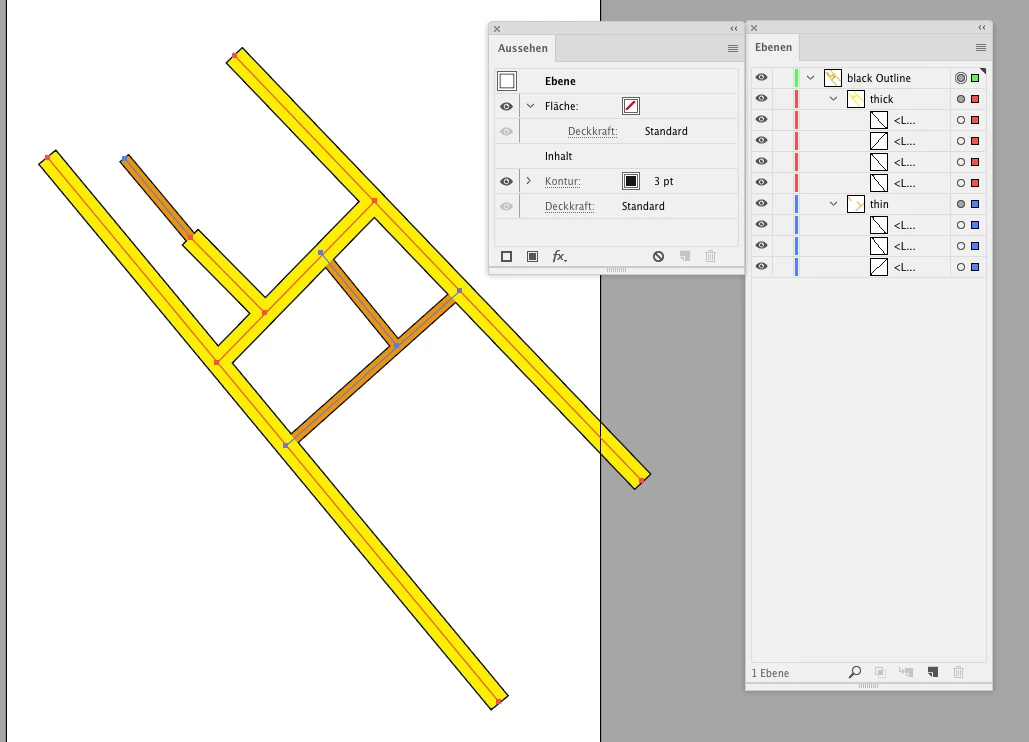
To get what you want:

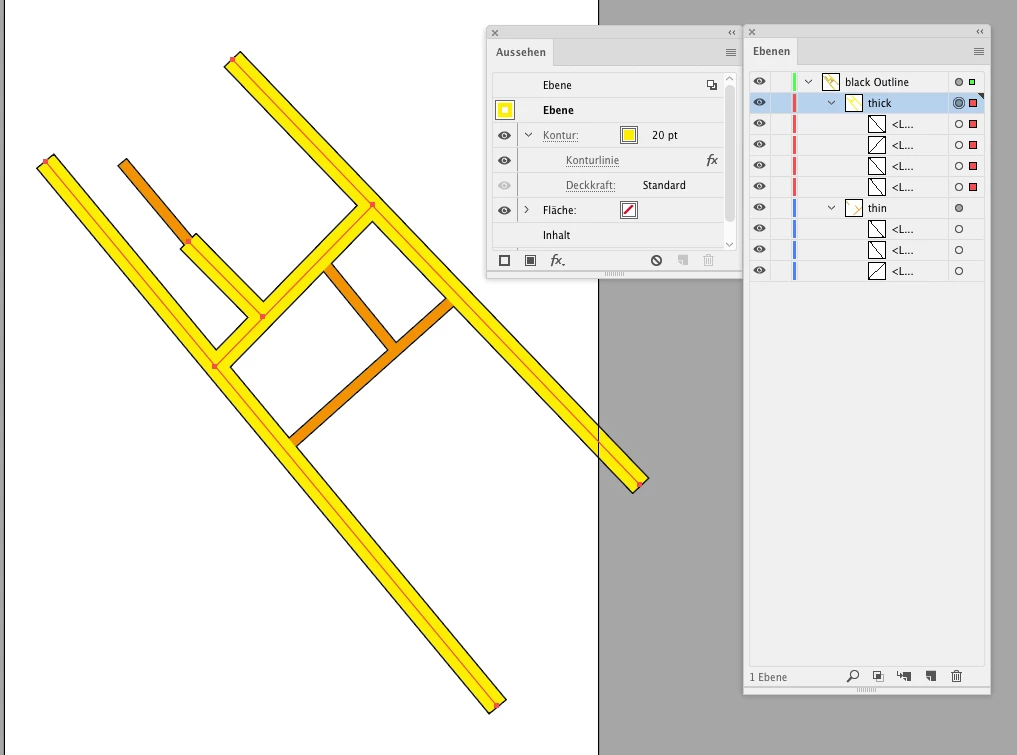
Set up a layer structure with layers for the small streets and the large streets each.

On these layers put the paths accordingly.

No fill, no stroke on the paths.

In the appearance panel create strokes for the layers

Apply the white strokes to the layers each

Apply the Effect > Path > Outline stroke

Then create a new layer

Put the streets layers into the new layer as sub layers

Create a stroke to the new layer

Apply black color to the stroke

Move the stroke below the "Contents" in the appearance panel.

1 reply

Mylenium
Braniac
March 29, 2018

Expand the appearance to contours, use Pathfinder operations to combine objects or manuall join paths.

Mylenium

anaish41518197
New Participant
March 29, 2018

Yes, i know that but then i can't adjust the paths anymore. I would like to still have my path-line.. so if i have to change it it can be done easily.

Doug A Roberts
Braniac
March 29, 2018

one possible way: set the black offset path on the smaller streets appearance to Colour Burn, and check Isolate Blending.