


Participant
August 7, 2017
Answered

How to quickly delete section or part of path(s)

  • August 7, 2017
  • 2 replies
  • 30939 views

I have a file destined for a laser cutter. It was imported from dxf format so it consists entirely of individual paths that are end to end.
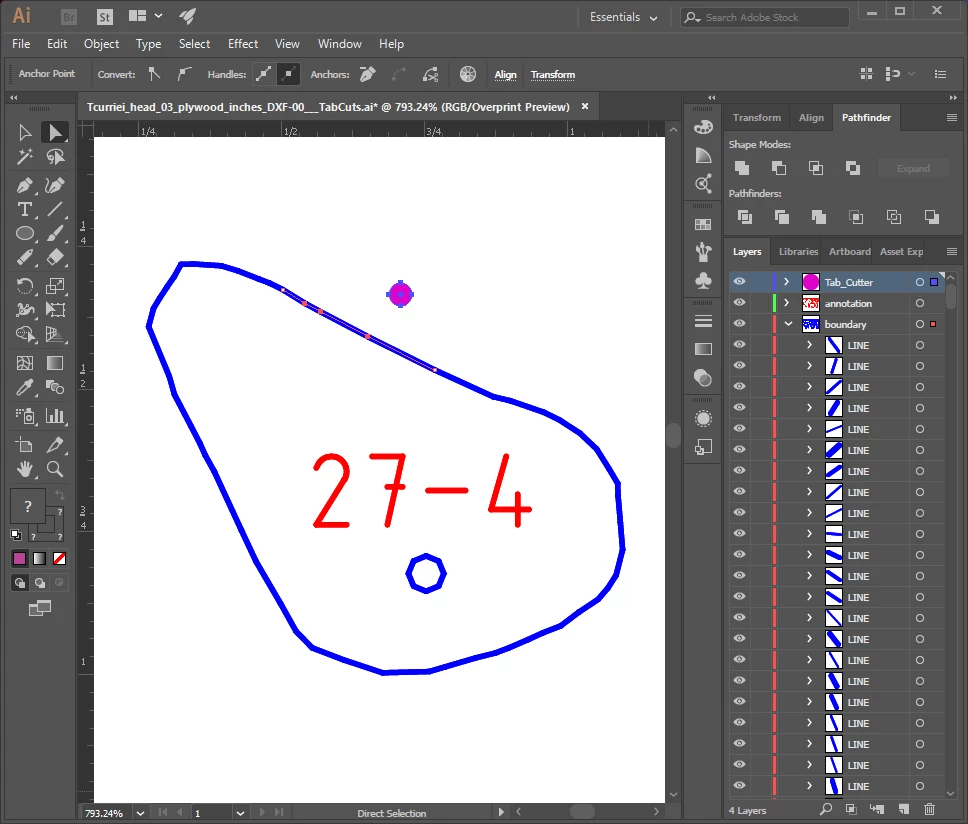
If I run the file in the laser cutter as it is, as the laser cuts a lot of small pieces will fall out and get lost. I want to create small tabs to hold these tiny pieces in place.

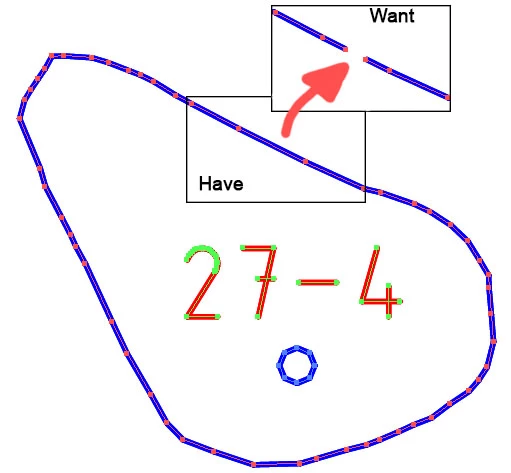
I've been trying to find a (hopefully) quick and easy way to delete sections of some of the paths (so the laser doesn't cut there and the piece stays in place) without deleting whole paths. I'd also like the sections I delete to all be the same length so I tried creating a circle and using Pathfinder > Minus Front, but that gives me the error "The filter produced no results. Please select two intersecting paths."

I tried to show what I want in the image below. Is there a (hopefully) fast and easy way to do this? Thank you!
This topic has been closed for replies.
Correct answer Myra Ferguson

The Scissors tool (C) would work. Click on the path where you want the gap to start and again where you want it to stop. Then use the Direct Selection tool (A) to select the segment, and Delete to remove it.

You could also use the Shape Builder Tool. First draw a shape like a circle over the path overlapping the segment you'd like removed. Select the circle and the path then the Shape Builder Tool (Shift + M). While holding down the Alt key, drag over the circle and the segment to remove it. The benefit of this method is it can be a little easier to see what part you want to remove.

2 replies

Myra Ferguson
Community Expert
Myra FergusonCommunity ExpertCorrect answer
Community Expert
August 7, 2017

The Scissors tool (C) would work. Click on the path where you want the gap to start and again where you want it to stop. Then use the Direct Selection tool (A) to select the segment, and Delete to remove it.

You could also use the Shape Builder Tool. First draw a shape like a circle over the path overlapping the segment you'd like removed. Select the circle and the path then the Shape Builder Tool (Shift + M). While holding down the Alt key, drag over the circle and the segment to remove it. The benefit of this method is it can be a little easier to see what part you want to remove.

Kurt Gold
Community Expert
Community Expert
August 7, 2017

Doesn't direct selecting the segment with the Direct Selection tool and then hitting the Delete key do it?

Participant
August 7, 2017

By doing that the whole path is deleted. I just want to delete a small section or segment out of the path.

Some of the paths are quite long.

Kurt Gold
Community Expert
Community Expert
August 7, 2017

No, that should not happen if you select only the path segment with the Direct selection tool.

Deselect the path, take the Direct Selection tool, hover over the segment that is going to be deleted, click on it and then hit the Delete key.