


New Participant
December 30, 2022
Question

How to scale one part of object

  • December 30, 2022
  • 1 reply
  • 749 views

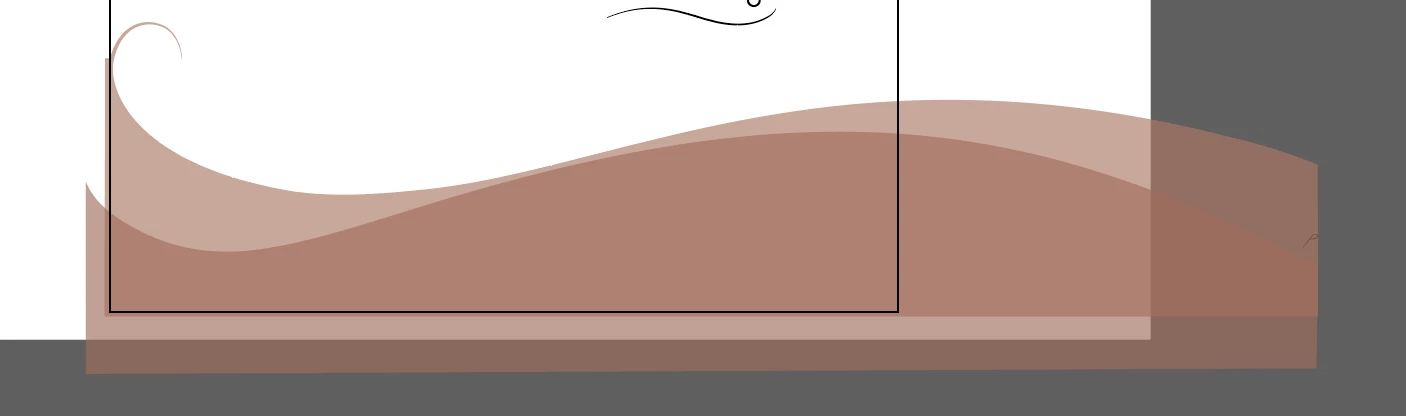
I've got this object I want to scale down only on the right side to fit the artbounds but if I do that it becomes distorted. I can't scale the whole things down by pressing shift because it will make the object smaller. Does anyone have any sollution to this problem? Please feel free to share.
This topic has been closed for replies.

1 reply

Monika Gause
Community Expert
December 30, 2022

I don't think I understand what exactly in this image you want to scale in which way.

You know that you can select single points and then move them? Or scale them.

New Participant
December 30, 2022

You see how on the right the two shapes overlapping each other are way beyond the artwork? I want to bring them to the edge of the artwork (on the right) without changing their shape and size. I tried adjusting single points manually but I need the shapes to look exactly how they are now. I'm designing packaging for a cake, I'd already created the design for the front of the cake box (it's wider that its side), so I need to transfer exact same design for the side of the box. See the photo

I just hope there's an easy way to do that. 

Monika Gause
Community Expert
December 30, 2022

WHen objects overlap the artboard, it actually does not matter a lot. So you could just leave it like that.

Option 2: make a clipping mask. This would even allow for changes, just incase you change your mind (or your client)

Option 3: use the pathfinder. Create a large rectangle that covers those parts you want gone. Make a copy of it. Select the rectangle and shape one and in the pathfinder panel: Subtract (2. button in the top row)

Then paste in front and select the rectangle and the second shape and siubtract again.