


New Participant
August 10, 2023
Answered

Illustrator Stroke Issues

  • August 10, 2023
  • 2 replies
  • 543 views

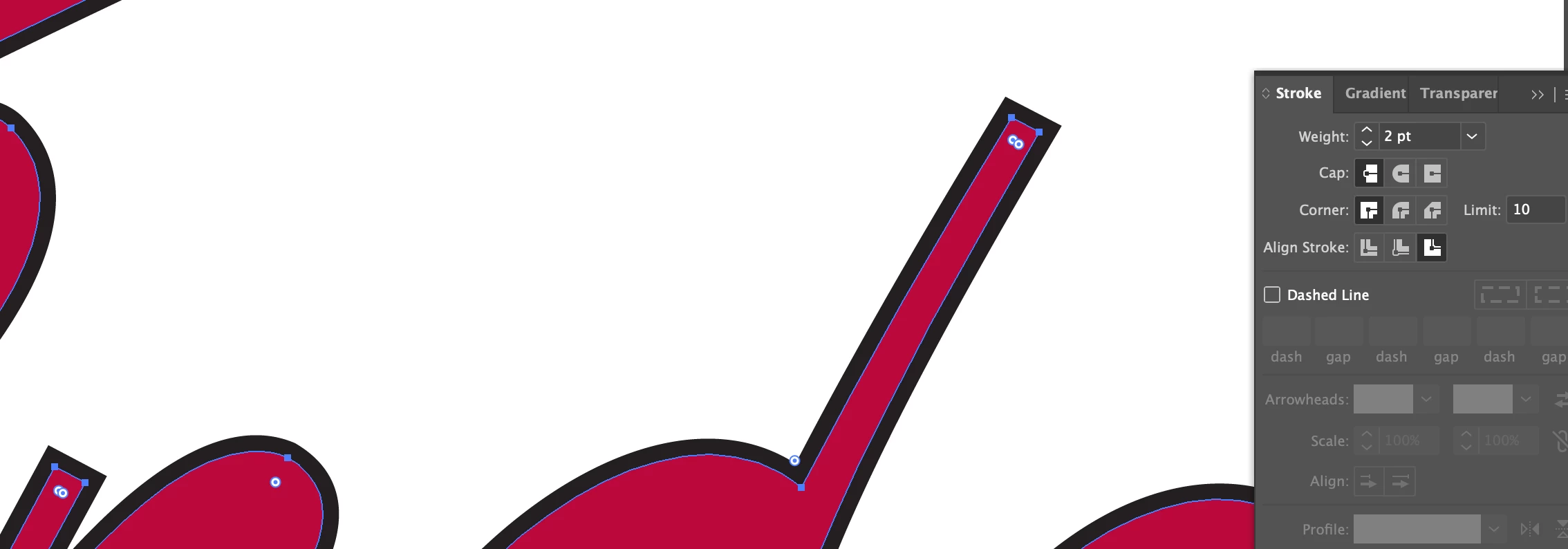
I have a word mark that is expanded to a compound path and I'm trying to add a simply outline stroke with sharp corners. The stroke feature is acting real wacky. An inside stroke changes the stroke to white and reveals rough edges on the wordmark. An outside stroke functions like a center stroke and carries an odd block step corners instead of clean square corners. Anybody run into this issue and have a fix? See screenshots

This topic has been closed for replies.
Correct answer nateransell

I solved the issue! It's possible that I had 2 of the same shape on top of itself within the same compound shape? I'm not sure how that would create this issue instead of applying the stroke to both. It was a single compound shape so there was only a single layer to work with. Not sure if that was it but I did 2 things and 1 of them solved the issue. First I did what was suggested below and offset the path which created a new issue so I set the offset back to 0 and left that setting. Secondly, thinking maybe there was a stacked layer, I selected my shape and "merged" it in pathfinder. After doing those things, the stroke tool worked as it should. See attached

2 replies

nateransellAuthorCorrect answer
New Participant
August 10, 2023

I solved the issue! It's possible that I had 2 of the same shape on top of itself within the same compound shape? I'm not sure how that would create this issue instead of applying the stroke to both. It was a single compound shape so there was only a single layer to work with. Not sure if that was it but I did 2 things and 1 of them solved the issue. First I did what was suggested below and offset the path which created a new issue so I set the offset back to 0 and left that setting. Secondly, thinking maybe there was a stacked layer, I selected my shape and "merged" it in pathfinder. After doing those things, the stroke tool worked as it should. See attached

Monika Gause
Adobe Expert
August 10, 2023

Can you try View > CPU preview?


If that doesn't fix it, please show the appearance panel.

New Participant
August 10, 2023

Command E is greyed out.  Here's a screenshot of appearance panel

Monika Gause
Adobe Expert
August 10, 2023

The stroke set to ouside might have caused it.

You can try offset path effect for the stroke instead.