New Participant
May 31, 2017
Answered

Invert colors relative to background when not working with text?

  • May 31, 2017
  • 2 replies
  • 5209 views

I have a logo that I am trying to get a section to flip from black to when over another black object so that it's visible. I haven't had to do that in a long while and can't remember how. I've read through the forums that I could find and they were all about text or something entirely different. Any help would be really great!!

Thanks,

Kris
    This topic has been closed for replies.
    Correct answer barbara_a7746676

    I think that the easiest way to change the colors where objects overlap is to use the Live Paint tool.

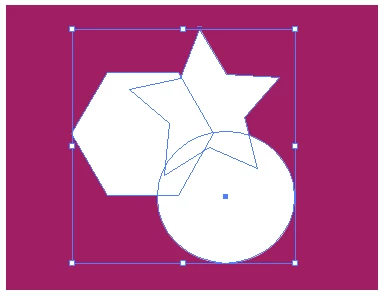
    I don't know what your logo looks like, but let's say that you have multiple shapes as shown below.

    Select the shapes.

    Select the Live Paint tool.

    Choose a color that you want to paint with and click  the Live Paint tool on the area you want to paint.

    As long as it is still a Live Paint group, you can move the shapes and they will maintain their fill colors. Since it is a group, you'll need to select individual objects with the Group Selection tool or go to isolation mode.

    2 replies

    barbara_a7746676
    barbara_a7746676Correct answer
    Community Expert
    June 1, 2017

    I think that the easiest way to change the colors where objects overlap is to use the Live Paint tool.

    I don't know what your logo looks like, but let's say that you have multiple shapes as shown below.

    Select the shapes.

    Select the Live Paint tool.

    Choose a color that you want to paint with and click  the Live Paint tool on the area you want to paint.

    As long as it is still a Live Paint group, you can move the shapes and they will maintain their fill colors. Since it is a group, you'll need to select individual objects with the Group Selection tool or go to isolation mode.

    kstevensxAuthor
    New Participant
    June 1, 2017

    That was perfect!!! Sorry about the logo. I attached a screen shot I captured but didn't realize the default format was a png which I guess didn't show up on your end. It showed up on my end so I didn't realize it was having any issues.  Thank you VERY much!!!!!!!! I've been stuck on this for far too long....

    barbara_a7746676
    Community Expert
    June 1, 2017

    Glad that worked for you!

    I think that Live Paint is the most versatile method, but now that I see your logo, another option would have been to select all the shapes and choose Object > Compound Path > Make. That command would result in empty areas (not white but little areas you can see through) where the shapes overlap.

    Monika Gause
    Community Expert
    May 31, 2017

    Can you show that logo? Are all strokes outlined? Do you want this to be editable (e.g. move the logo later)?

    kstevensxAuthor
    New Participant
    June 1, 2017

    I would like it to be editable and not sure about the outlined part but none have a stroke, only filled in with black. I'd like the circles over the black to switch to white. I could just ungroup and select the fully affected ones, but some are only partially over the black.