


Copy link to clipboard
Copied
To create the curvature of the grey shape below, I used two lines and and circle. I found it hard to intersect the circle outline with both lines.
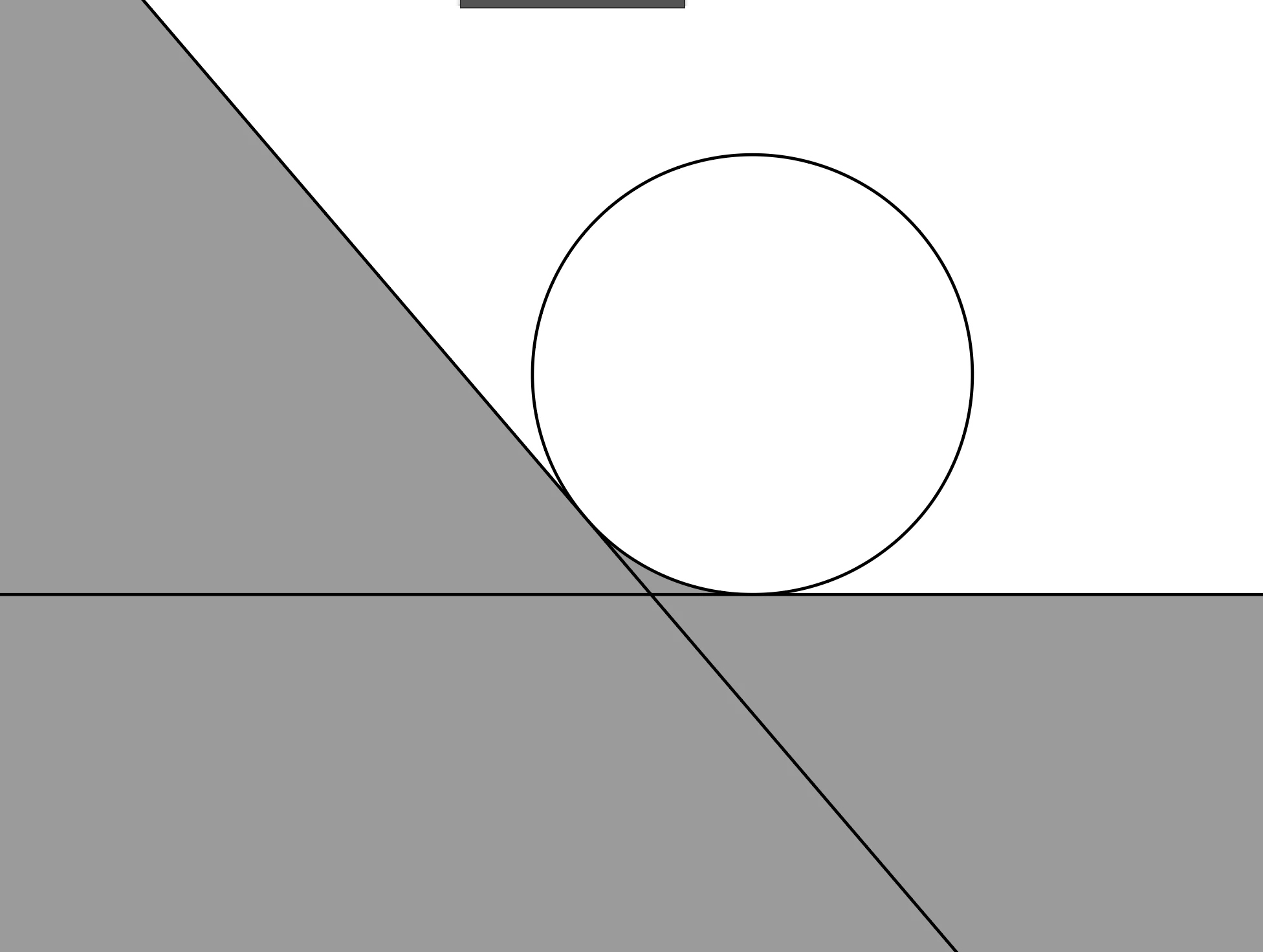
I used outlined mode to ajust, but I found it really hard to do so. What kept hapenning was that, once I snaped the circle outline to one of the lines, there would be a gap between the circle outline and the other line (image below).
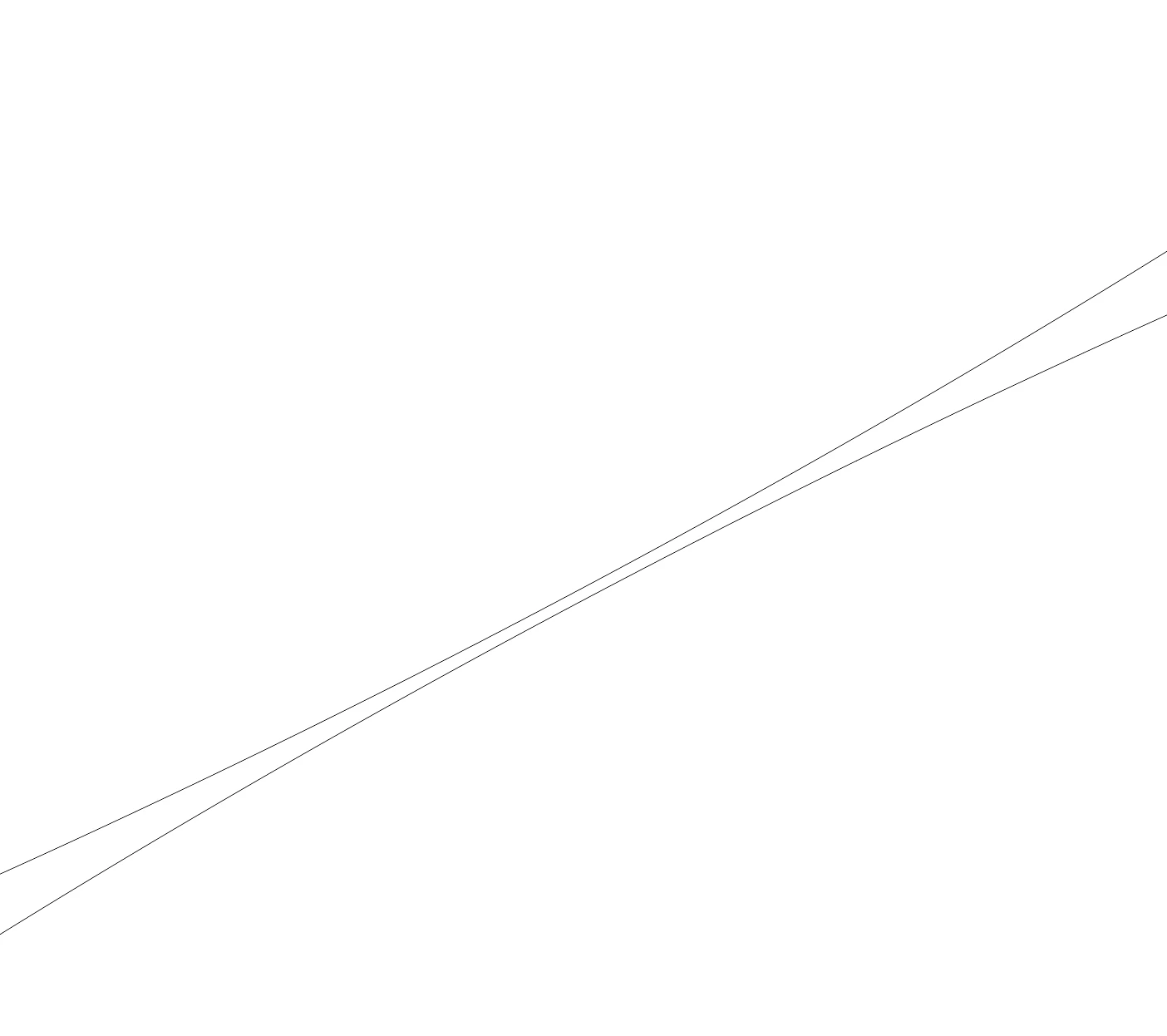
After much effort, I was able to do it (manually). I was wondering it there's an easy way to snap a circle outline to two lines.
Thanks!
Copy link to clipboard
Copied
Using plugins you can do it.
The plugin SubScribe for creating circles form two points or the plugin ColliderScribe for advanced snapping.
Copy link to clipboard
Copied
Catalina,
Given the two paths and the circle and Smart Guides being your friends, you can simply:
1) Select the two paths and Object>Path>Offset Path with an offset equalling the radius, in other words half the W and H for the circle;
2) ClickDrag the circle by its centre to snap to the intersection of the offset paths and then delete them.
This will work to create the curvature and use it as part of a united path:
The circle will reach the horizontal line exactly, and the same applies to any line at an angle divisble by 45 degrees; owing to the inherent bulging of Bezier circles, for lines at angles in between the circle will overlap the path by an amount (between 0 and 1.0002617 times the radius, the latter at about at 22.5 degrees), so there will be no gap.
The same inaccuray will undooubtedly apply to any other and more complicated solutions, such as plugins or the use of Live Corners/Line Tool/whatever in whichever way.
Copy link to clipboard
Copied
Catalina,
Or, if you are ending with a single/united path you could start by joining the grey paths (or just the lines), and then round the corner (Live Corner or the free script Round Any Corner).
Copy link to clipboard
Copied
It may already be obvious, but just in addition to Jacob's smart Offset Path route: If you then want to scale the circle, use the Scale tool, set the reference point at the intersection of the original lines and do a Uniform Scale.
Get ready! An upgraded Adobe Community experience is coming in January.
Learn more