


Known Participant
May 23, 2020
Answered

Is there a shortcut for this? Changing size of objects with certain parts not changing.

  • May 23, 2020
  • 3 replies
  • 910 views

Hi, I wan't to know if there's a quick shortcut for this process that I usually do. Is there a way for me to quickly change up the scale of a certain object/element made up of different shapes, but with only some parts of it changing?


For example, like the object in this picture below, it's made up of different shapes, but the shapes has a pattern on how it will transform when the entire object's size changes. When scaled up or down, only the Yellow Circle and the Green Square can change their sizes fully. The Light Blue Rectangles at the sides and bottom can only increase in length, and the Dark Blue squares at the bottom corners must remain unchanged.
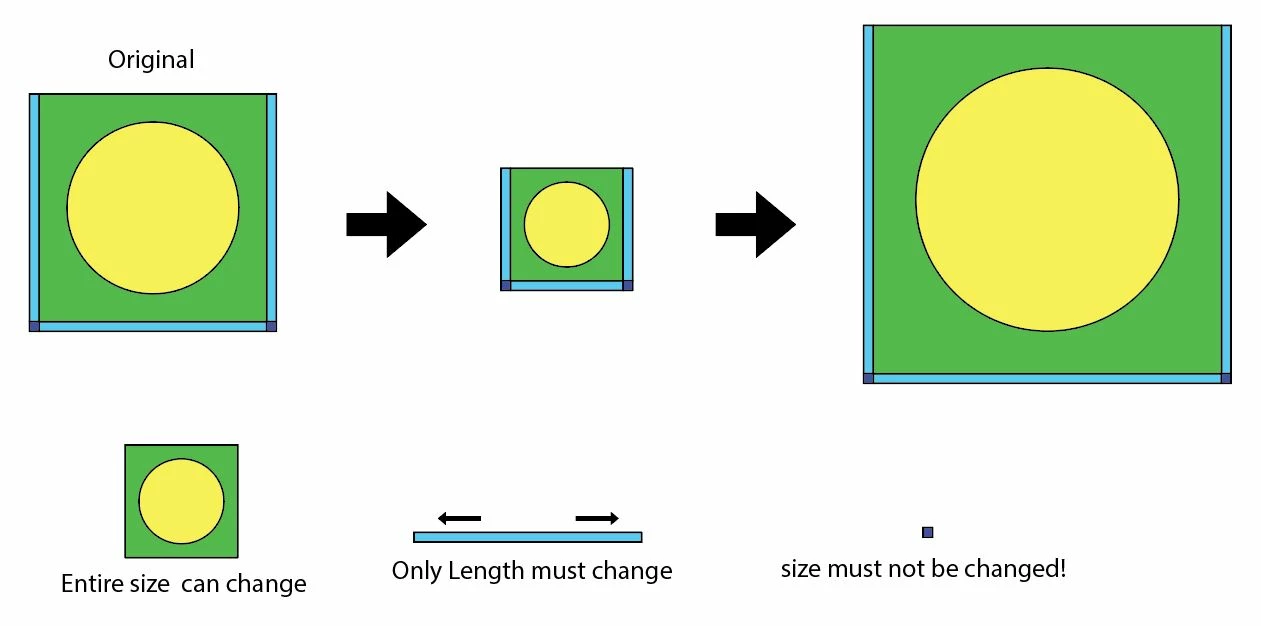
I want to know if there's a method where I can quicky adjust an object like the one in the picture, where I don't have to manually edit some of its parts.
 

This topic has been closed for replies.
Correct answer Luke Jennings3

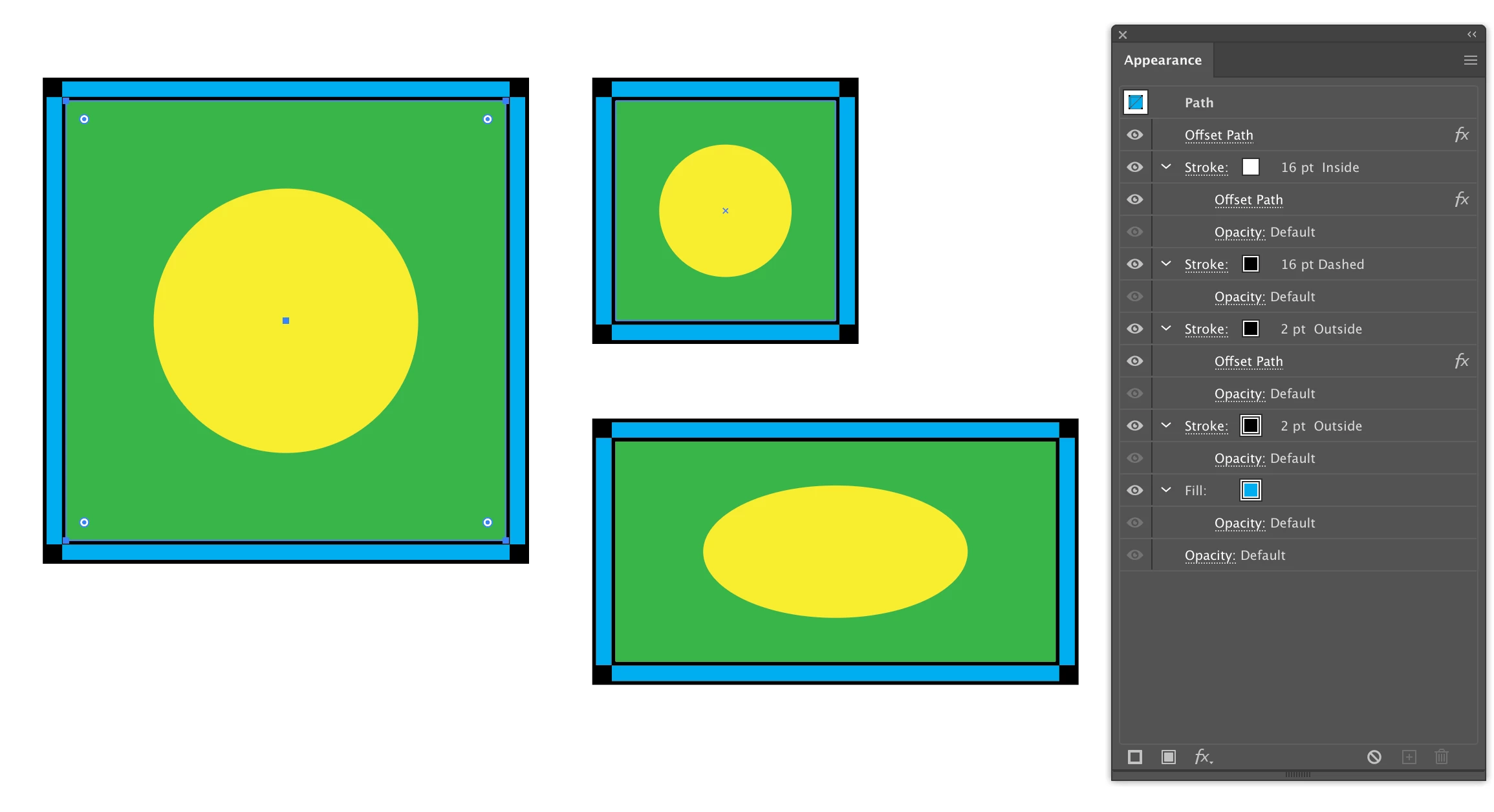
Another method to get close to what you want is to create the border entirely out of strokes and turning off the preference to scale strokes and effects. 

Use offset path and a dashed stroke to make the double stroke and corner squares. In order for the dash to work, you will need to select the Aligns dashes to corners and path ends, adjusting lengths to fit option. I used 0 pt. dash and 400 pt. gap. Also, the align dash option only works when the stroke is aligned to the center, so the unwanted parts of the corner squares need to be covered by an additional white stroke around the outside, which could be a problem if the shapes are used on a colored background.

3 replies

Z_GeovaniAuthor
Known Participant
May 24, 2020

Oh, thank you very much, sorry for the late replies. I'll try these two methods out.

Luke Jennings3
Community Expert
Luke Jennings3Community ExpertCorrect answer
Community Expert
May 23, 2020

Another method to get close to what you want is to create the border entirely out of strokes and turning off the preference to scale strokes and effects. 

Use offset path and a dashed stroke to make the double stroke and corner squares. In order for the dash to work, you will need to select the Aligns dashes to corners and path ends, adjusting lengths to fit option. I used 0 pt. dash and 400 pt. gap. Also, the align dash option only works when the stroke is aligned to the center, so the unwanted parts of the corner squares need to be covered by an additional white stroke around the outside, which could be a problem if the shapes are used on a colored background.

Legend
May 23, 2020

You can get pretty close to your challenge converting a set of shapes to a Symbol and checking the Enable Gides for 9 Slice Scaling box.

What's inside those guides gets scaled, 

Usually you can get two responses but not three different ones at the same time, in these situations you will get to partially select those shapes or apply one transform after another.

Shown below is -exactly- what you are after, I think.