


Davante Woods
Participant
January 1, 2019
Answered

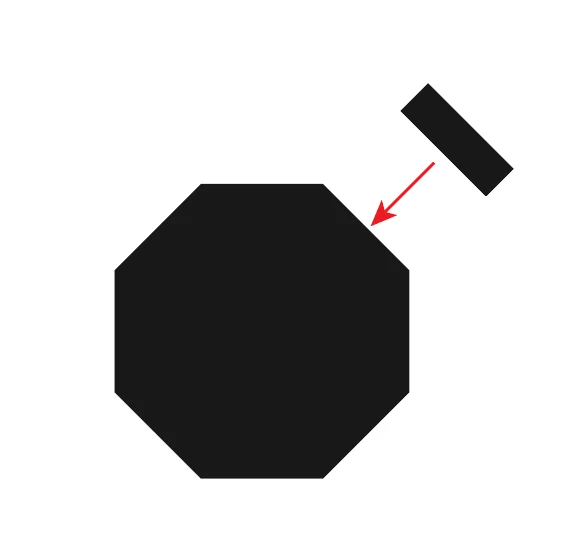
Is there a way to snap and object to a specific edge of another?

  • January 1, 2019
  • 4 replies
  • 1743 views

I am trying to align a shape, but I want it aligned to Octagon which has a 45 Degree angle on an edge. Is there a way to align my objects edge to the octagons sides. I have tried Smart Guides and the Align to Selections tools but they don't help when your object is angled.
This topic has been closed for replies.
Correct answer pixxxelschubser

In this special case:

Menu: Object --> Path --> Add path points …

to both objects

Then align with the white arrow (drag the object)

Have fun

4 replies

Jacob Bugge
Community Expert
Community Expert
January 1, 2019

Davante Woods,

As a general purpose way, you may also use Smart Guides; you can then just (deselect and) ClickDrag the other path by the relevant corner Anchor Point to snap.

Or you can even build the path by (deselecting and) Direct Selecting one of the polygon sides (horizontal or vertical), then Ctrl/Cmd+F, then Alt/OptionClickDrag, or Ctrl/Cmd+C+F a copy and Object>Transform>Move, as desired, then (maybe after locking the polygon) Join the opposite sides to form a rectangle that is already in place.

Monika Gause
Community Expert
Community Expert
January 1, 2019

You want it to automatically rotate? Try the plugin ColliderScribe.

Davante Woods
Participant
January 1, 2019

Thanks everyone your your help. ColliderScribe looks like what I looking for in terms of the object being able to snap to any angle on a shape. It would be much easier if adobe updated they way objects interact. But currentlyI am using the trial version of Illustrator so I think Pixxel's is the fastest way right now.

pixxxelschubser
Community Expert
pixxxelschubserCommunity ExpertCorrect answer
Community Expert
January 1, 2019

In this special case:

Menu: Object --> Path --> Add path points …

to both objects

Then align with the white arrow (drag the object)

Have fun

Sjaani
Community Expert
Community Expert
January 1, 2019

Try Snap to Point under the View menu