schroef
Inspiring
September 4, 2024
Answered

Issue selecting gradient color stop double click [SOLVED]

  • September 4, 2024
  • 1 reply
  • 1648 views

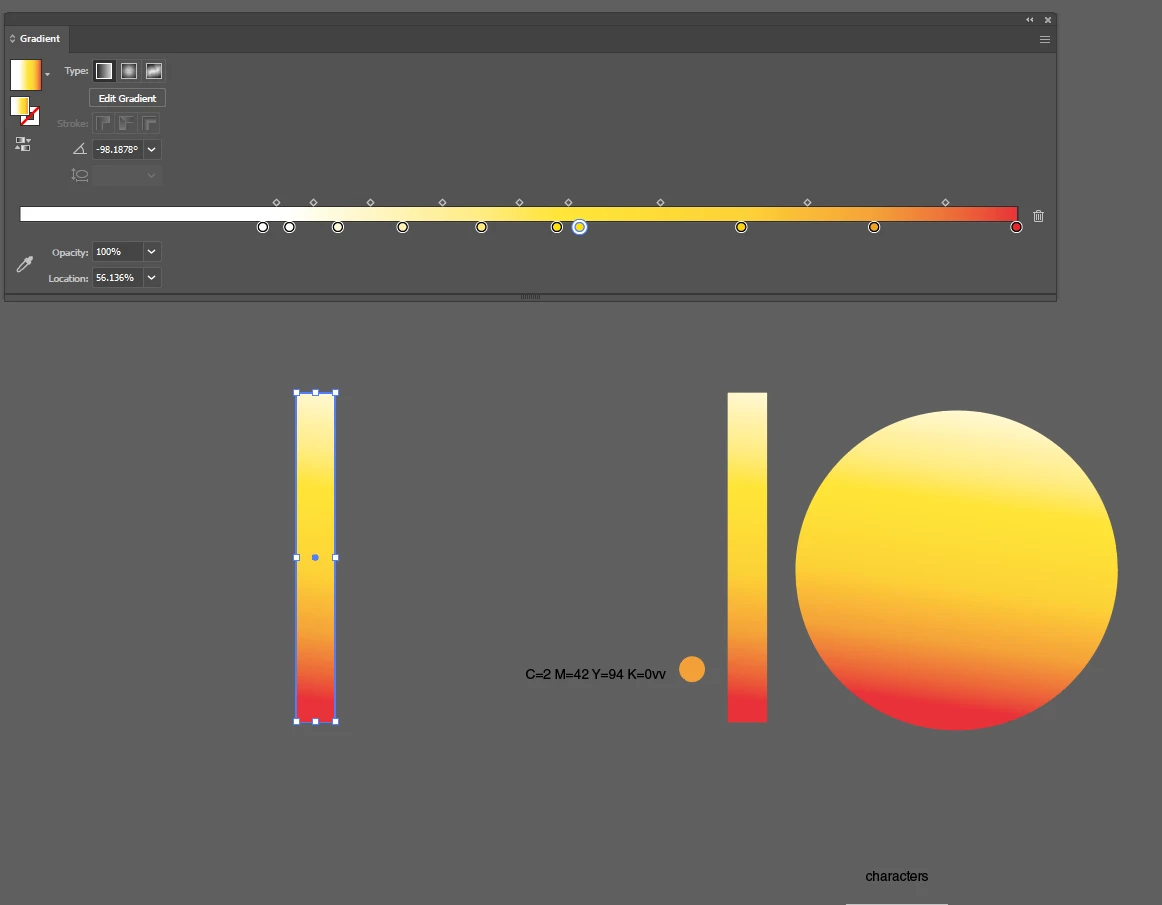
Im having issue for a while when i try to select a color stop in a gradient and trying to get the popup to show for changing a color. I work with a tablet and i guess due to the very small movement when performing a double click. Lots of times the color stop moves when i try to do a selection on the color stop.

I tried ny possible shortcut, perhaps one would prevent this behavior. 

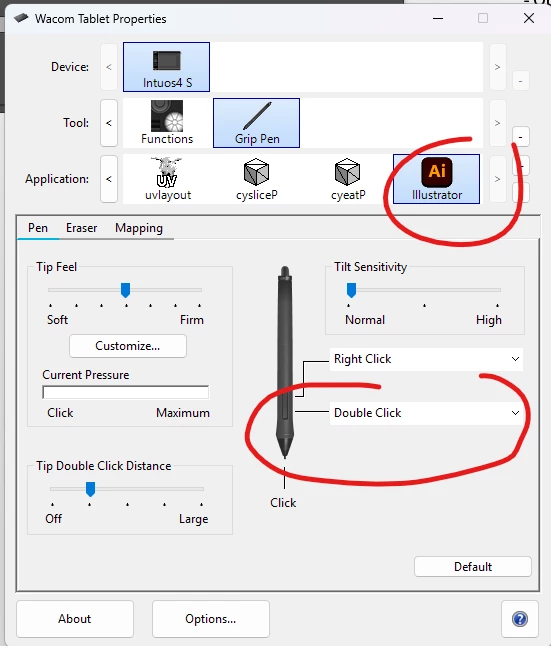
Does any one know a trick. perhaps change double click settings in Wacom setting i guess


Even when using a really large panel. There seems to be very very minimal movement as i perform a double click. Because when i check if the gradient is still the same using Select > Same Fill Color. The object on the left is the only on select, even when it was duplicated from the right rechtangle.
 

This topic has been closed for replies.
Correct answer schroef

@Anubhav M 


Thinking about it more now. My workaround now is adding custom button action for illustrator. This kinda solves the cursor moving, i dont need to physically do a double click


edit

at least i thought, i still see movement as when i click i move the ramp stop. Even when ive set the double click action. Not sure now there is a workaround for it

It seems what does work is use precise mode. Where when i press a button the only a very small portion of the display acts as the complete area of the tablet


@Anubhav M 


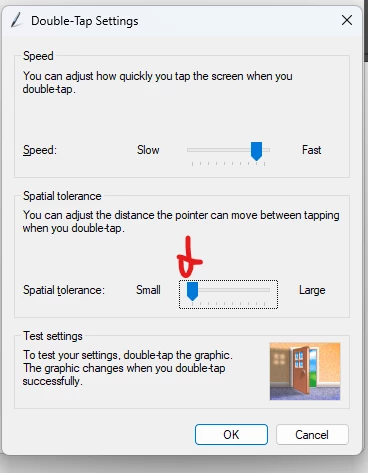
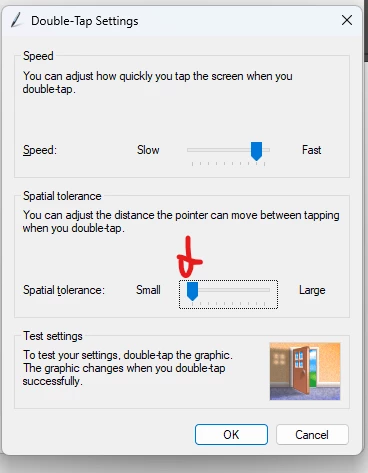
Okay dove a bit deeper in Windows settings. Im more of a OSX person, but im working since about a year on windows for the time being. But i found this setting and seems this also is a fix. The causes wont allow the cursor to move in between clicks. Tested it a bit and is much more convenient now.  By default it was set to the right about 1/5 or so. I set it all the way to the left now.

Perhaps this helps others


Edit

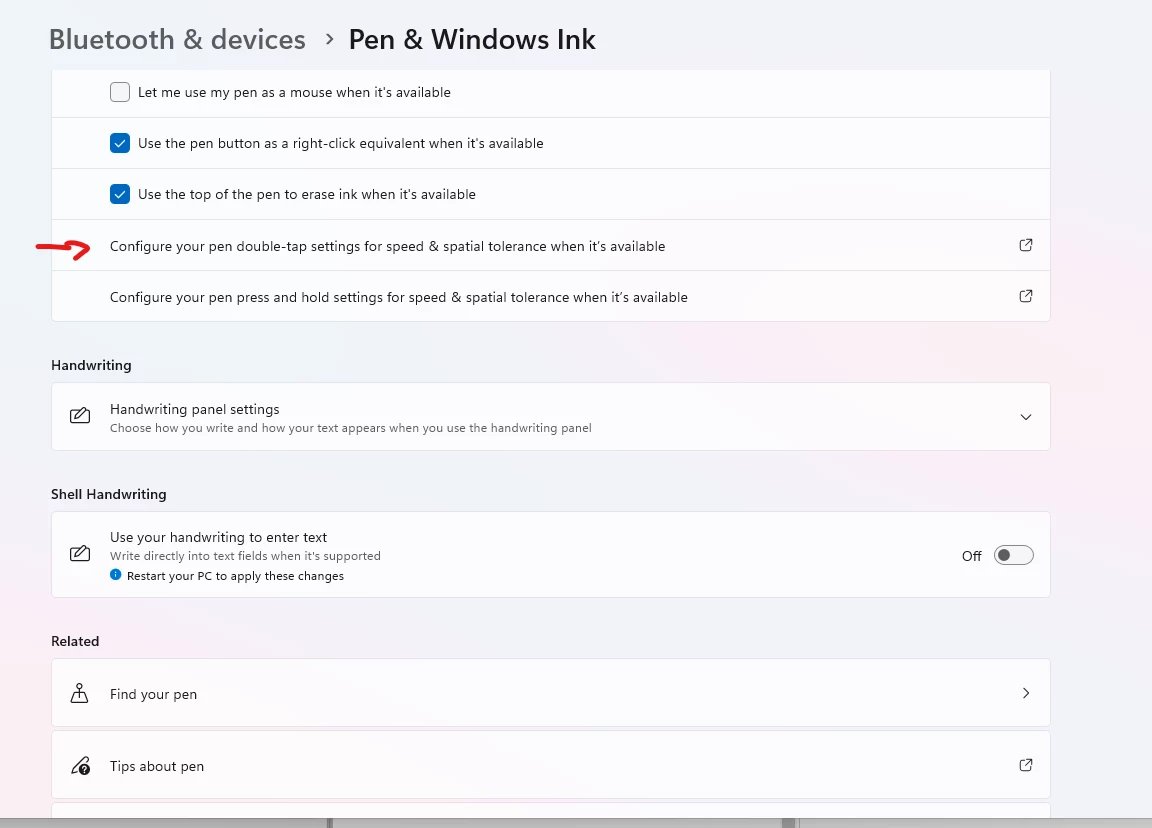
PS to get this window above. Search for "double tap settings"


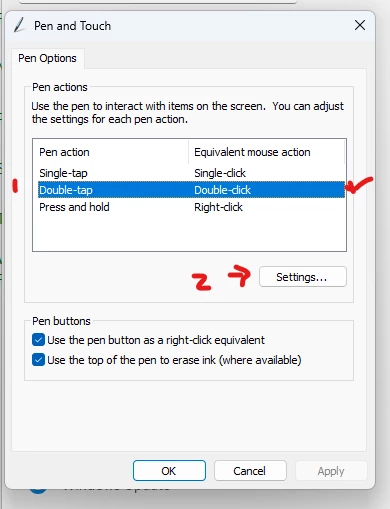
Then select double click > settings


Then adjust "Spacial Tolerance"

1 reply

Community Manager
September 4, 2024

Hello @schroef,

Thanks for reaching out. Would you mind sharing more details, like the exact version of the OS/Illustrator and a screen recording of your workflow and the problem (https://adobe.ly/3XaVqS5), so we can better assist you?

Looking forward to hearing from you.


Thanks,

Anubhav

schroef
schroefAuthor
Inspiring
September 4, 2024

Its not related to a version. I have this as long as i've been working with a tablet. 

Ill make a screen recording of it.

I think its just the downside of using a tablet. Perhaps i should select the stop using "precise Mode", but doing using that makes it more finicky since i need to move hands away from keyboard to tablet side panel.

You need to watch carefully as sometimes when i select the stop, you'll see it move just so slightly. At one point i enlarge the panel, this already helps a bit, but it still happens

Ive made a script where i can collect ramp point stops. Noticed that in some cases the points differ in such a tiny wat. But this issue makes the gradient differ from the original. Which causes issue when its use throughout a document. I can solve this by either selecting all pathItems and then do it. However than again, it can happen they will shift tehn and be different from the saved ramp

schroef
schroefAuthorCorrect answer
Inspiring
September 6, 2024

@Anubhav M 


Thinking about it more now. My workaround now is adding custom button action for illustrator. This kinda solves the cursor moving, i dont need to physically do a double click


edit

at least i thought, i still see movement as when i click i move the ramp stop. Even when ive set the double click action. Not sure now there is a workaround for it

It seems what does work is use precise mode. Where when i press a button the only a very small portion of the display acts as the complete area of the tablet


@Anubhav M 


Okay dove a bit deeper in Windows settings. Im more of a OSX person, but im working since about a year on windows for the time being. But i found this setting and seems this also is a fix. The causes wont allow the cursor to move in between clicks. Tested it a bit and is much more convenient now.  By default it was set to the right about 1/5 or so. I set it all the way to the left now.

Perhaps this helps others


Edit

PS to get this window above. Search for "double tap settings"


Then select double click > settings


Then adjust "Spacial Tolerance"