


New Participant
March 13, 2023
Answered

Issues creating a vector using "Create Object mosaic"

  • March 13, 2023
  • 3 replies
  • 5830 views

Hello community 🙂


I am trying to turn a PNG into a Vector file in Illustrator so I can edit the colors precisely, and I am having some issues.


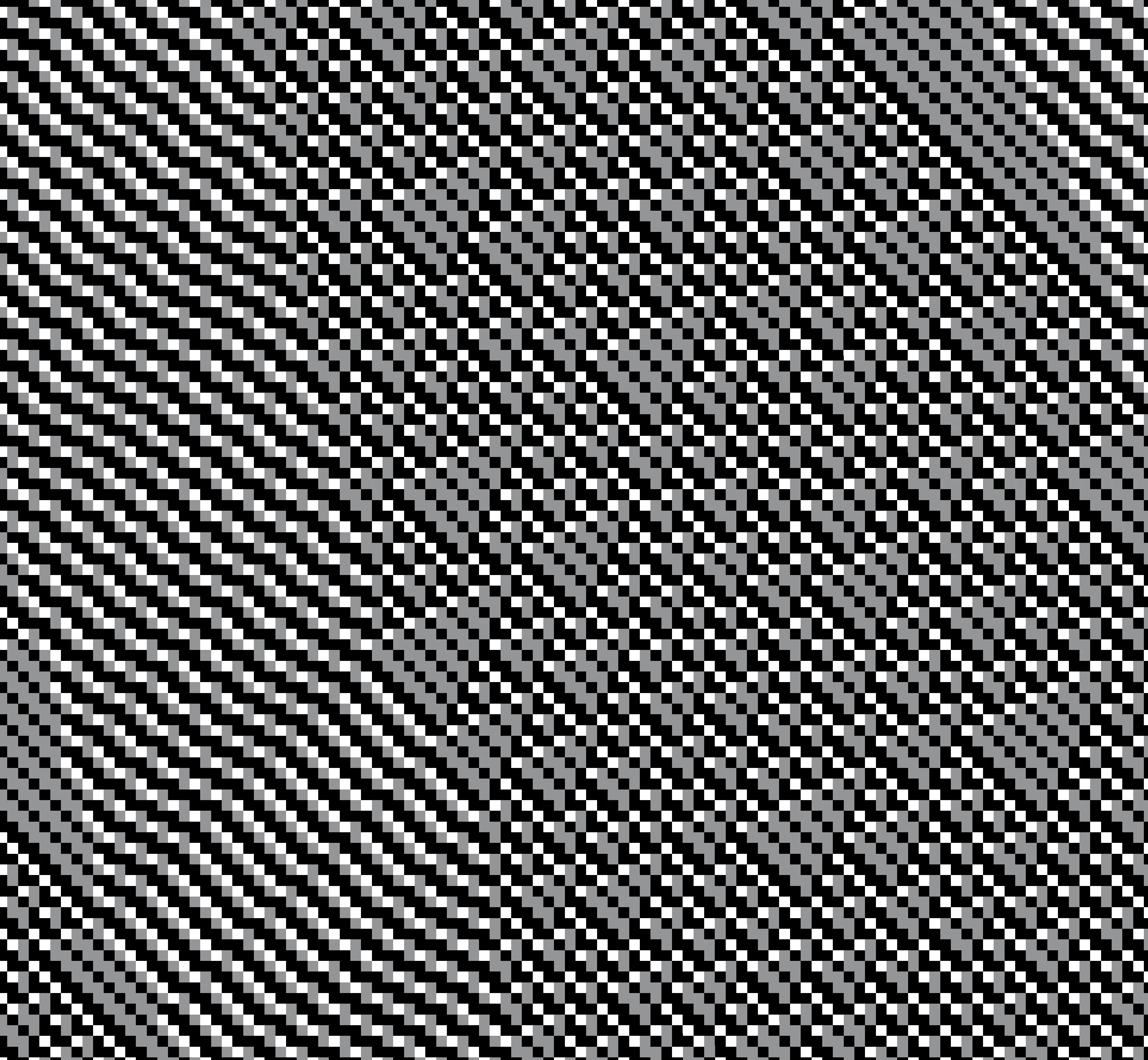
The original image is a cellular automata, so it is pixelated by nature. "Image Trace" didn't do a good job of precisely tracing the image, so I used the "Create Object Mosaic" function. This worked really well but it took hours and hours to compute the file. Then once the file was converted to a vector, it was extremely slow to do anything, like zooming in or selecting colors.


Is there a better way to do this? My goal is to have this file be a vector so I can easily edit the individual colors and export the file at varying sizes without the image getting blurry.


Thanks!


Here is a close-up of the image. The actual image is much bigger.
This topic has been closed for replies.
Correct answer Ton Frederiks

Hi ChloeBO,  I cannot do it anymore as simple as I described it.

I first have to convert to grayscale, convert back to RGB, Posterize and convert to Indexed color.

3 replies

Kurt Gold
Adobe Expert
March 13, 2023

Illustrator's Object Mosaic is a pretty old filter that has to analyze and process/combine each single pixel of the source image. Depending on dimensions and actual ppi that may just take a very long time.


What you can try is to first decrease the ppi with the Object menu > Rasterize command. Or you may first split the big raster image into several smaller ones, use Object Mosaic and combine the vector squares later.


Ton Frederiks
Adobe Expert
March 13, 2023

Ton Frederiks
Adobe Expert
March 13, 2023

Looks like a job for Photoshop.

Edit: First choose Image > Adjustments > Posterize and use 3 colors.

Convert the image to Indexed Color with 3 colors and no transparency.

Edit the Color Table to change the colors.

When enlarging use Nearest Neighbour to avoid anti-aliasing.

ChloeBOAuthor
New Participant
March 14, 2023

This worked really well! Thanks!! The only thing I didn't understand is how to export or save the file as a vector file. Is there a way to do this?

Ton Frederiks
Adobe Expert
March 14, 2023

As long as you keep the interpolation to nearest neighbour when using Image Size in Photoshop, you will get perfectly sharp straight edges. 

Unless you want to edit each square individually, why would you need this as vector?