
New Participant
April 21, 2020
Question

Making paths in Illustrator - how to fix the cut segment in middle?

  • April 21, 2020
  • 3 replies
  • 609 views

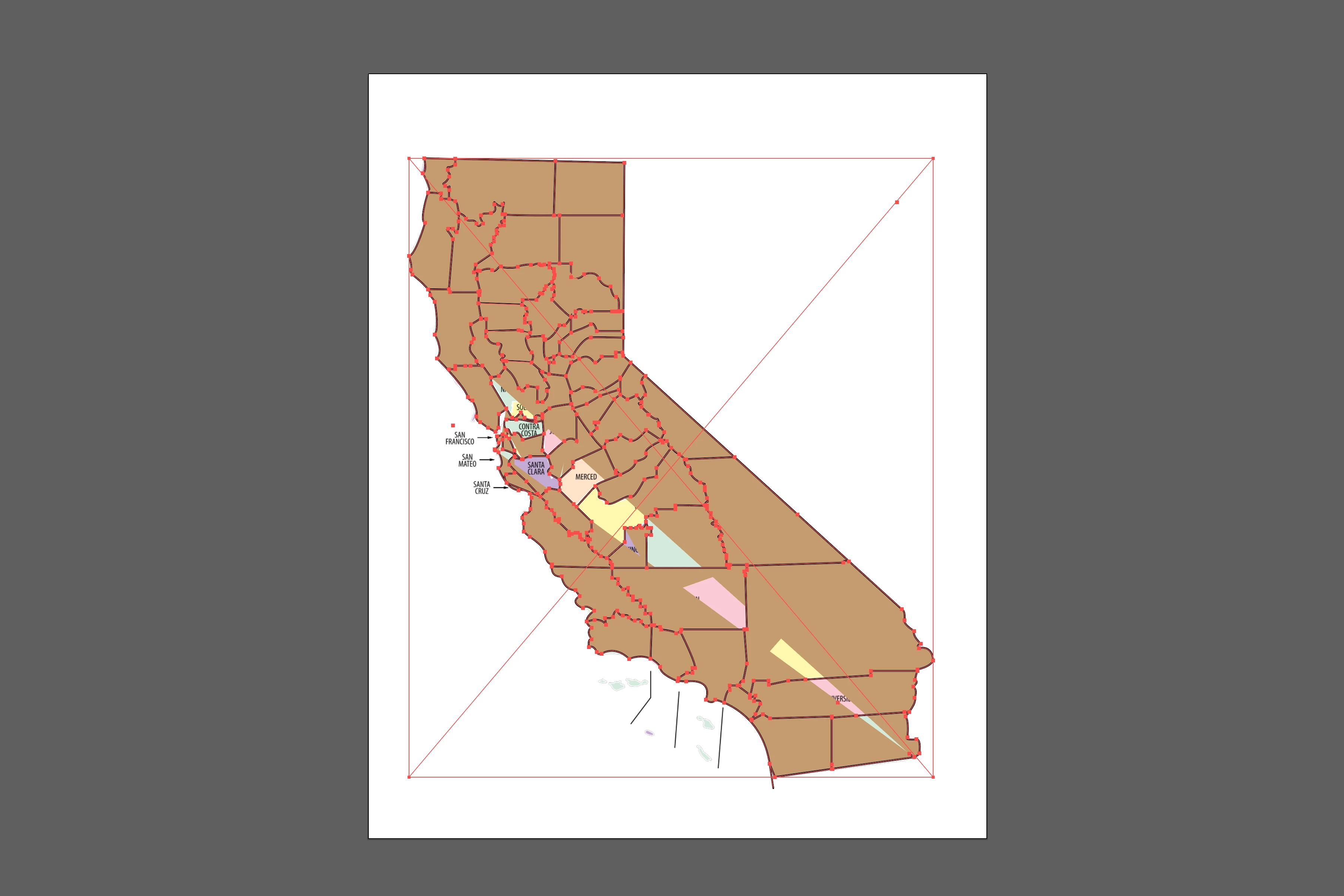
Hi! I spent a few hours to figure out the pen tool and draw the attached map but when I color it (to brown) there is this cut segment in the middle of it, showing the original map (the layer under). I'm guessing that it's because of a path I created by accident or the scissor tool that I was trying to use, but I can not figure out how to fix it. Any ideas? I already tried 'undo'ing but hit the limit so I can not undo any more. If you have any idea about how to fix it, please please share with me. I really don't want to start over... I'd appreciate any help. Or if you know how to search it online, please let me know. I don't even know how to ask this issue to google (newbie illustrator user).  
This topic has been closed for replies.

3 replies

Jacob Bugge
Community Expert
April 23, 2020

For my part you are welcome, ipeka.


Have you tried our suggestions?

Jacob Bugge
Community Expert
April 21, 2020

ipeka,


Have you tried to complete/unite the incomplete/split counties (or what they are called (over there)) by using the Shape Builder Tool (ClickDragging over both brown and non brown parts belonging together to select)?


https://helpx.adobe.com/illustrator/using/creating-shapes-shape-builder-tool.html
https://helpx.adobe.com/illustrator/atv/cs5-tutorials/creating-complex-art-with-the-shape-builder-tool.html

New Participant
April 22, 2020

Thank you for your help! I decided to go ahead and start over as it was my first attempt to draw something in Illustrator. I did draw it a lot better in the second run indeed, and I knew what I was doing at that time 🙂


For that issue I was having, I'm still not sure how to fix it, sorry. 


Thanks again for your replies though. 

ajabon grinsmith
Community Expert
April 21, 2020

It seems that some paths are not closed.

From this point onwards, I don't have a UI for English environment, so I don't know the exact menu item name, but I hope you understand the nuance.

Display the Document Information Panel from the Window menu,
From the panel menu, uncheck "Selected only" and turn on "Object". Then you can check the number of open paths on the panel.

However, this alone does not tell which path is an open path.
So I wrote a simple script, so please try it.

var sel = app.selection;
var count = 0;
for(var i = 0; i < sel.length; i++){
    if(sel[i].hasOwnProperty ("pathPoints")){
        if(sel[i].closed == false){
            sel[i].closed = true;
            count ++;
            continue;
            }
        }
    sel[i].selected = false;
    }

alert(count + "  opendPaths corrected.");


If you select all the paths that are likely to have problems and execute the script, the open paths contained in them will be converted to closed paths. Only the processed paths are selected and terminated.


Before running the script, make sure all paths are highlighted in layer color. If you have a mask object, it can be difficult, so you might want to do it twice with the "white arrow tool", half each.


I think Google knows how to execute the script. Good luck.