ori manor
Inspiring
November 4, 2018
Answered

Paste object into opacity mask is not working

  • November 4, 2018
  • 1 reply
  • 3229 views

Hi,

Strange problem: before the last update, in order to create an opacity mask, I used to create the masking shape outside of the mask, and than:

1. cutting the object,

2. Double clicking the opacity mask

3. Disable the "Clip" checkbook

4. Pasting the object in place

5. Applying Black fill

and this worked like charm.And I also could copy/paste objects between different masks.

Since the last update, this is not working, and when I paste the object into the opacity mask, it just doesn't affect the mask (nothing happens) even though it shows as having black fill   
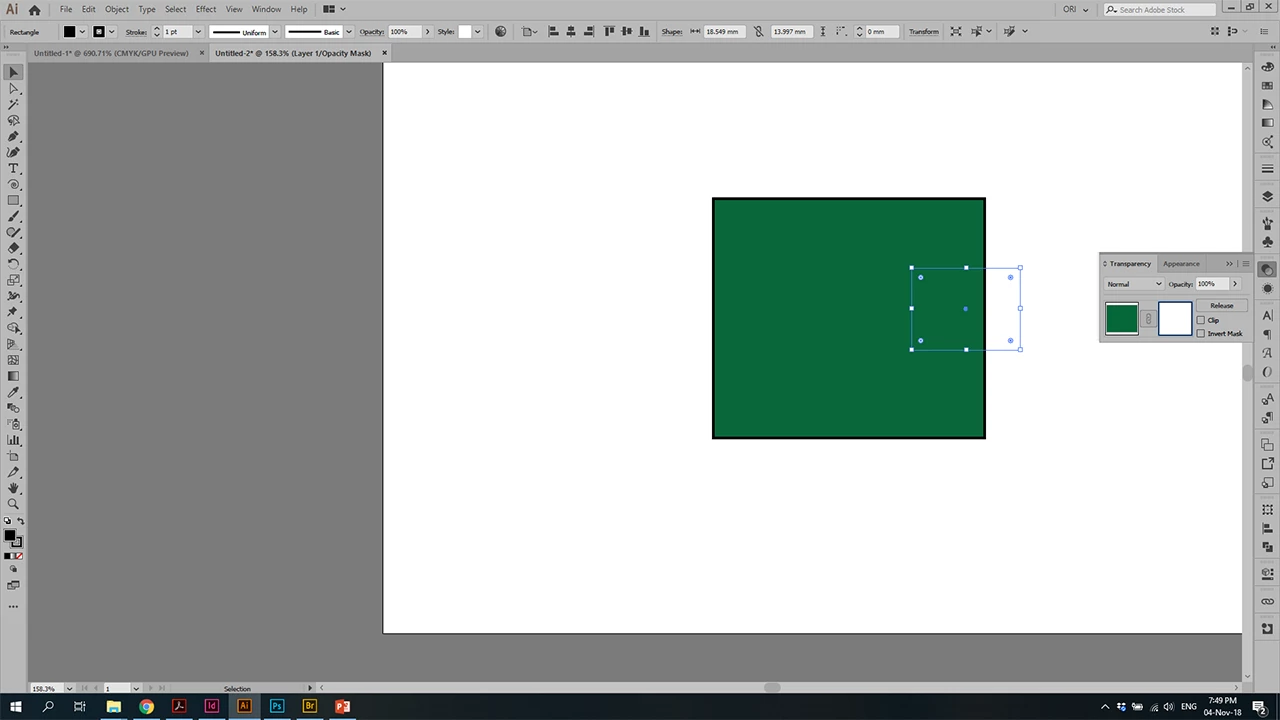
is this a bug, or am I missing something?

(I'm using the cc 2019 on Windows 10)
    This topic has been closed for replies.
    Correct answer ori manor

    It works ok for me

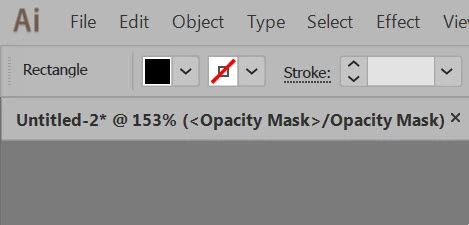
    only difference  is when I click to edit mask

    yours says ''layer 1 /opacity mask''


    You made me think, and I checked it out and found the problem:

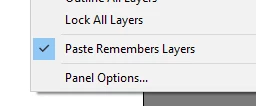
    It turns out that in the Layers Panel, the "Paste Remembers Layers" option was on:

    Once I disabled it, everything was back to normal.

    Thanks

    1 reply

    Monika Gause
    Braniac
    November 4, 2018

    Does it work when you just don't cut the masking object, but instead: select the green thing ans its mask and then click the button "Make mask" and then set whatever settings you need?

    If you don't see an effect of that, please do also try and View > Preview on CPU

    ori manor
    ori manorAuthor
    Inspiring
    November 4, 2018

    If I'm doing what you described than it works OK.

    Just copy/paste doesn't work

    ori manor
    ori manorAuthor
    Inspiring
    November 4, 2018

    Moreover, after I paste the object into the opacity mask (and get no results), once I exit the mask, and enter it again, the object is not there anymore.