New Participant
November 17, 2016
Question

Pathfinder Anchors way off!

  • November 17, 2016
  • 5 replies
  • 1311 views

Hello everyone,

I've recently encountered an issue that I have not had prior to the latest 2017 update of Illustrator.

I need to create shapes that, at a later stage, will be cut out with a cutting plotter.

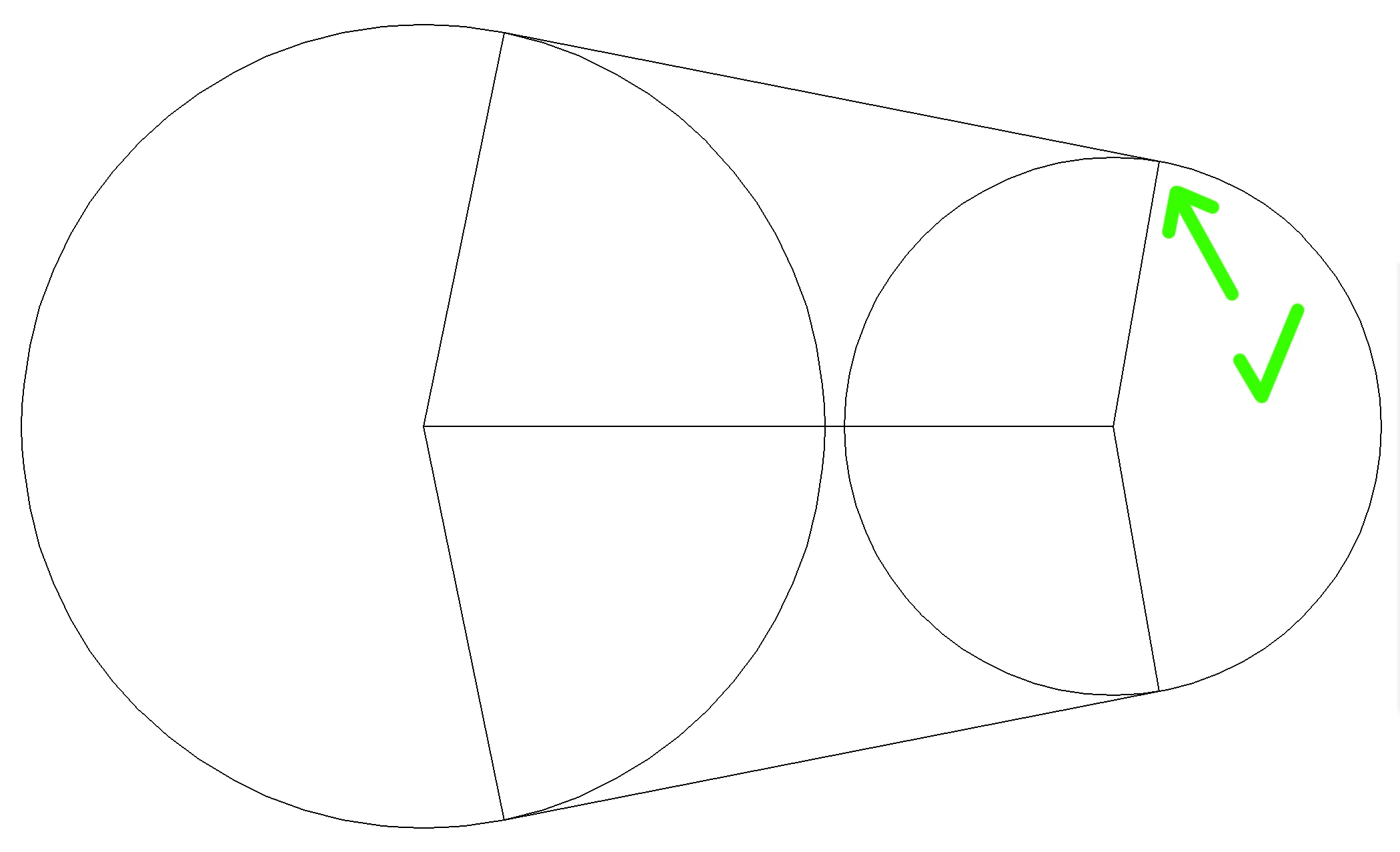
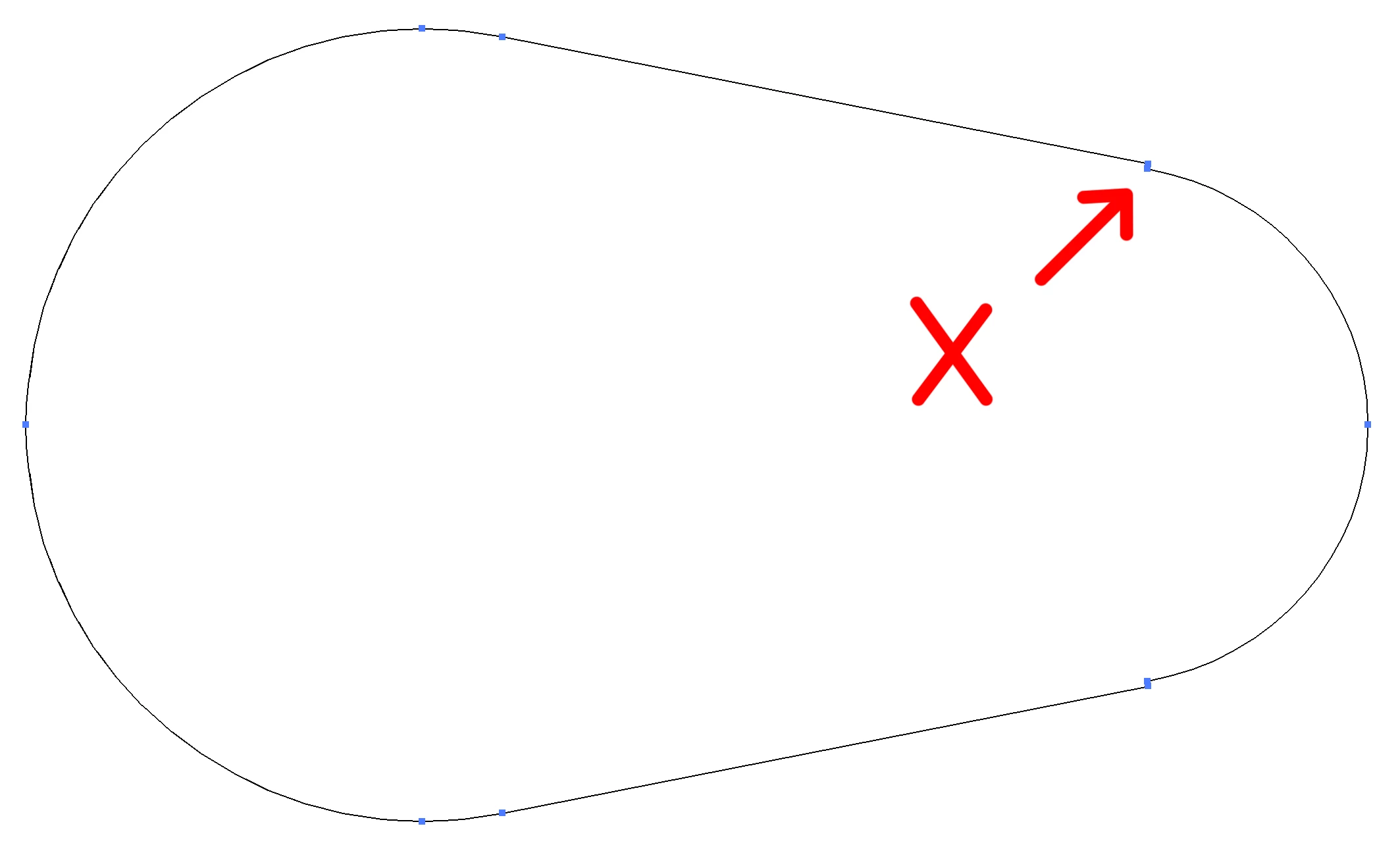
When I join shapes with the pathfinder tool the anchors now "jump" to weird locations, which, needless to say, makes this function useless for me...

Shape not joined yet, correct alignment
After Pathfinder has joined them...
I've Googled for quite a while now and haven't come up with any solutions yet. I'm desperate, please help...

Best regards,

Philippe

    This topic has been closed for replies.

    5 replies

    New Participant
    January 17, 2017

    I found Pathfinders default "Precision" setting is not precise as it can be... the default setting is set to 0.028 pt.

    Go to Pathfinders pull down menu and select "Pathfinder Options...". Change the default settings to zero (it will set to .001 as the minimum). Here is the settings I use:

    These settings stay until you quit Illustrator. You will have to reset them every time you launch Illustrator.

    Anyone know a way to change these default settings and make them stick?

    twinbrush
    Inspiring
    July 30, 2017

    You absolute legend. I've been ripping my hair and keyboard keys out trying to sort this. The align to pixel grid, snap to options were all explored and still getting strange and messy pathfinder results...this has done the trick!! Thanks a million!

    Ray Yorkshire
    Participating Frequently
    November 17, 2016

    what happens if you use the shapebuilder tool to unite the circles instead ?

    Astute graphic free plugin Subscribe, has a tool that joins the circles at their tangents

    enter image description here

    at the stsrt of this video

    SUBSCRIBE FREE | Perpendicular and Tangent lines in Illustrator - YouTube

    You have to get a free  licence code by signing up  via an email address to astutegraphics

    Download their unified installer

    install Subscribe, (maybe best to untick the other  paid for plugins to try another day)

    http://astutegraphics.com/software/subscribe/

    Monika Gause
    Community Expert
    November 17, 2016

    Have you tried the Pathfinder options? There's a setting to delete points that are not needed. Also you can adjust how exact the result should be.

    Doug A Roberts
    Community Expert
    November 17, 2016

    something i always forget about: what's the accuracy of pathfinder set to (in the palette's menu)? how large are these objects?

    K1P57AAuthor
    New Participant
    November 17, 2016

    Hey dougofakkad,

    The shapes you saw I created using the ellipse shape tool for the circles and the pen tool for the shapes connecting the two circles.

    Document profile is print. None of the snapping options are turned on.

    I set the accuracy to 0.001pt now (which is the lowest possible) and this indeed is way more accurate, however it still creates an offset (just not visible any more) but when I drag the anchor out it's clearly still two points (see image).

    After adding shapes with pathfinder

    When I drag the anchor out it's still 2 points, just sitting much closer on top of each other...

    Any ideas? In the older version it used to be an option that new shapes shouldn't be aligned to pixels but I somewhat can't find this option in the new version...

    Doug A Roberts
    Community Expert
    November 17, 2016

    yeah they changed the align to pixel grid thing; you can now see the options via here (top right in the control bar):

    getting inconsistent results myself. sometimes i end up with two points, sometimes one.

    Doug A Roberts
    Community Expert
    November 17, 2016

    how are you creating those tangential shapes/lines? could that have something to do with it?

    what document profile are you using? is snapping to pixels on?

    do those shapes have strokes?