dzgnr89
Inspiring
November 17, 2016
Answered

Perfect method for outer profile of a grouped artwork

  • November 17, 2016
  • 3 replies
  • 4264 views

I made this effect in illustrator today (the one on the right). The shadowy rectangles are jpegs renders and the linework is pure vector pasted above the jpeg. However, I used the paint bucket tool for this composition to get the outer profile to make it thick then did the effect.
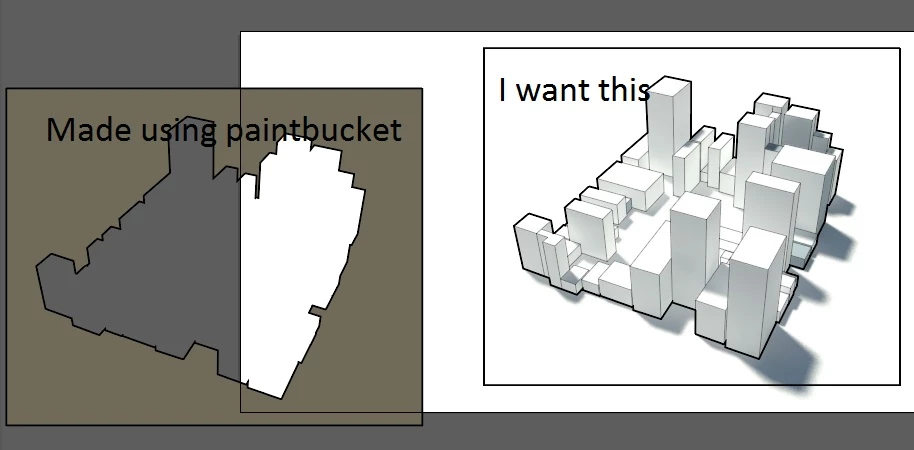
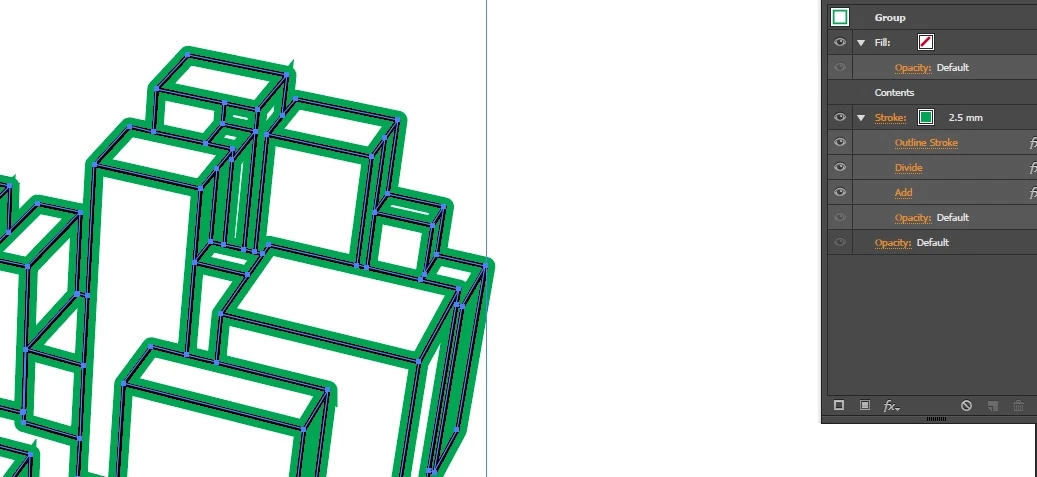
However, if I draw some rectangles in illustrator, do a grouping, apply a new stroke in the appearance panel, drag it down the contents name, I get the effect. This however wasn't happening in the first image scenario where I have lots of blocks, the new stroke applied to the group was getting applied to all the lines and not the outer profile which is my requirement. The lines of the cuboids and cubes are all strokes, simple strokes without any fill.

In the rectangular composition creation, I also met two conditions, one with contents option visible, a
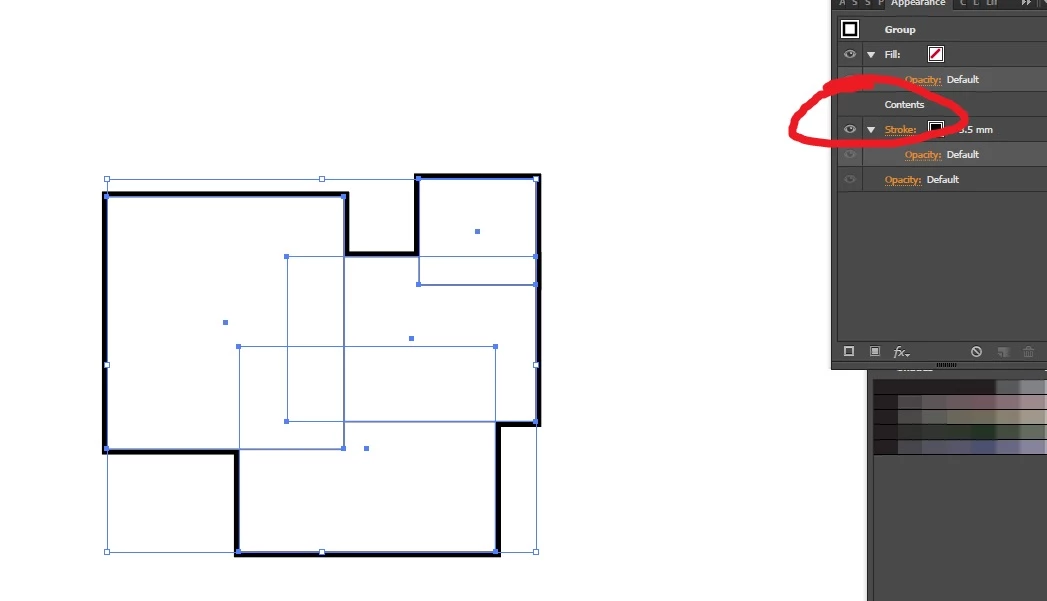
and one without.
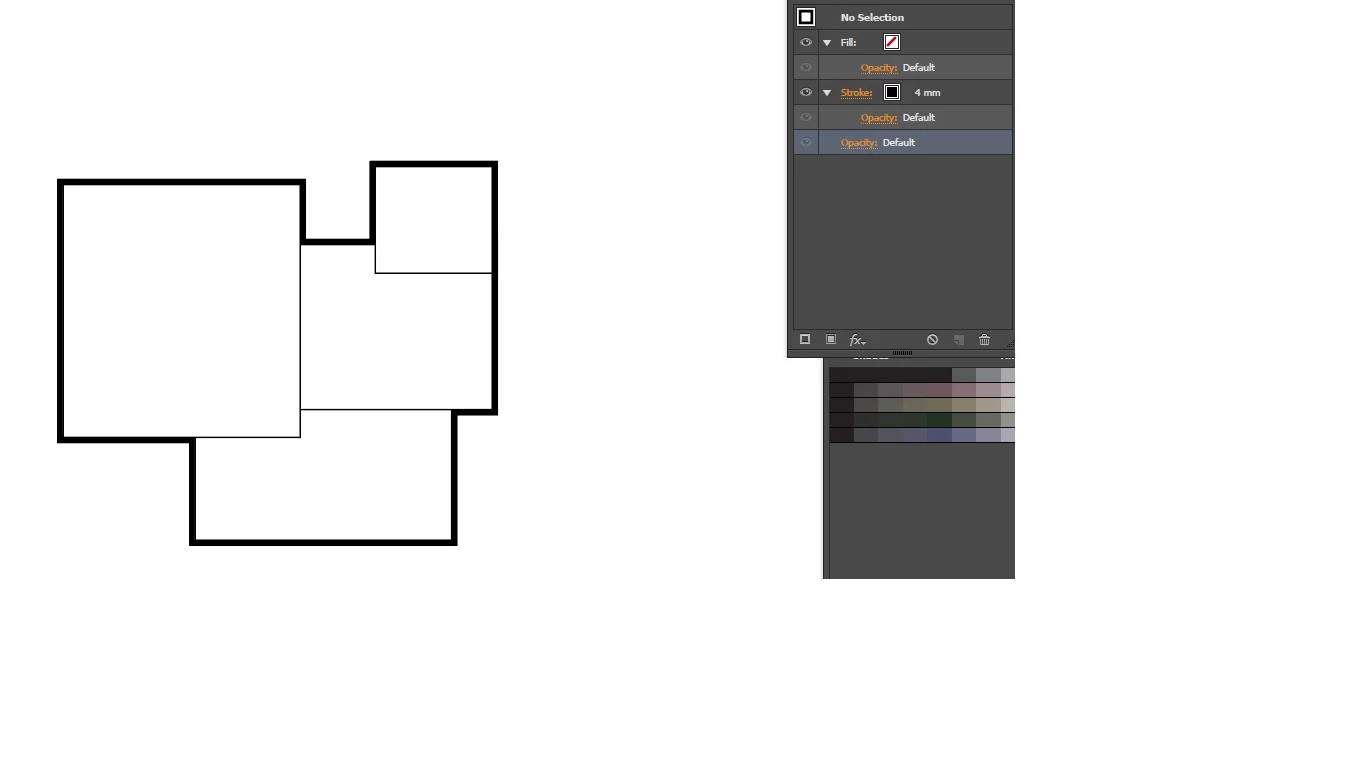
I want the outer profile method to work every time. What should I do?

While making the outer lines as thick, I do a grouping
    This topic has been closed for replies.
    Correct answer Kurt Gold

    Kurt Gold wrote:

    Can you save the file to Illustrator CS5 format?

    I'm using AI CS5 and therefore I can only open the PDF portion of the file (which does not contain your graphic style definition).

    Here it is, I have saved the file in CS4 format.

    https://www.sendspace.com/file/7ttk7w

    Here is how my appearance panel shows.


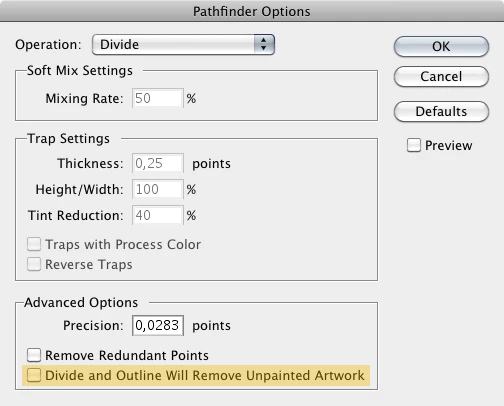
    In the Pathfinder Options for 'Divide' the advanced option 'Divide and Outline Will Remove Unpainted Artwork' has to be turned off.

    3 replies

    Kurt Gold
    Community Expert
    Community Expert
    November 17, 2016

    I've uploaded a sample file that includes one (graphic style) way to do it.

    stroke_around_cubes.ai.zip - Google Drive

    AI CS5 format, ca. 100kb

    dzgnr89
    dzgnr89Author
    Inspiring
    November 18, 2016

    It is awesome!!! How did you make this?

    Larry G. Schneider
    Community Expert
    Community Expert
    November 18, 2016

    As Jacob suggested.

    dzgnr89
    dzgnr89Author
    Inspiring
    November 17, 2016

    Here is the cuboids one file

    Jacob Bugge
    Community Expert
    Community Expert
    November 17, 2016

    arjun,

    Have you tried to add the stroke at Layer level?

    dzgnr89
    dzgnr89Author
    Inspiring
    November 17, 2016

    I have all those lines in one layer. There is only one layer in the entire document. I am not sure what you are saying.

    Jacob Bugge
    Community Expert
    Community Expert
    November 17, 2016

    arjun,

    What I was (trying to be) saying was something like this:

    1) In the Layers platte, click the Layer to select it with everything;

    2) In the Appearance palette flyout click Add New Stroke and set it as desired, then drag it down beneath Contents in the main Appearance palette.

    It should work on the one Layer, also if there are others in the document.