



Alexandre Brandt
Inspiring
March 11, 2018
Answered

Pixelated/compressed images on PDF export for screens

  • March 11, 2018
  • 4 replies
  • 80424 views

Hello,

I've got an artboard in A4 format with two images at the top.

The images, a JPEG of high resolution 3000 x 1500 for one a TIFF more than 4000px for the other,  placed on the artboard.

When I export for screens, as PDF, the resulting PDF has the images pixelated / compressed / look really bad.

The text is perfectly sharp, everything is sharp but the images are terrible.
This is a link to my screenshot for a better resolution as to see what I'm saying.

Screen Shot 2018-03-11 at 18.52.10.jpg

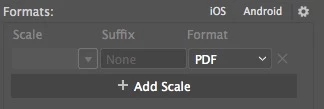
I've tried changing the scale in the formats, but when PDF is selected the scale drop down and suffix columns are grayed out.
If I export for Screens as JPEG2000 and select 300ppi for the scale there is no issue.

Here is a screenshot of the result

Non pixelated image.jpg

I could definitely export at Jpeg and then convert to PDF in other application, but is there a way to export a PDF from illustrator without affecting the picture qualities. ?
Correct answer friedmikey

I spent half the day trying to fix pixelation of linked images when saving as PDF. Here are a couple extra steps which solved the problem for me: 

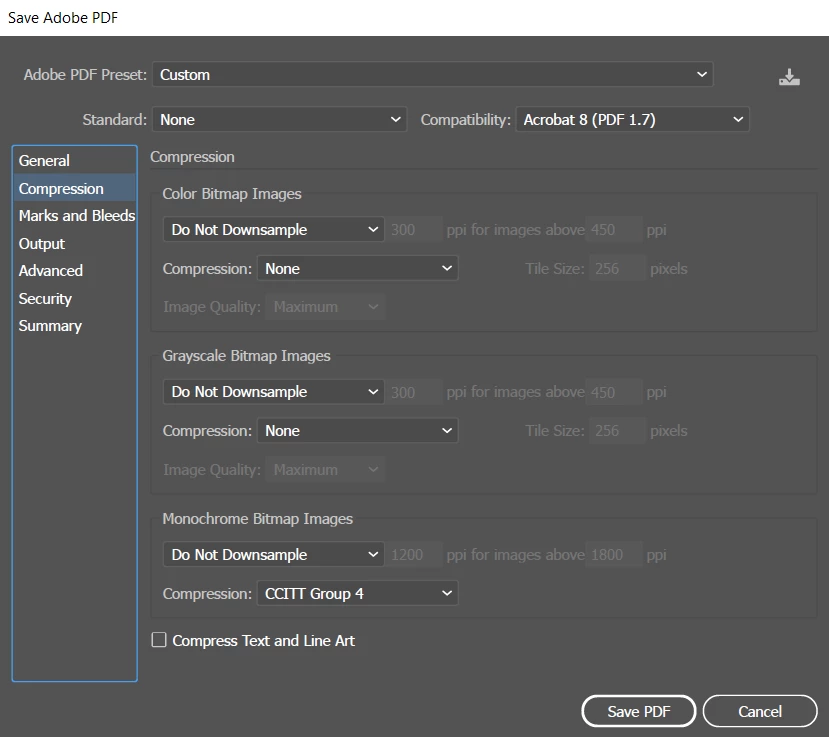
In the Compression tab, change all the downsampling settings to "Do Not Downsample." My file sizes are huge, but I don't care. At least the placed images aren't pixelated.


4 replies

tamaram53198081
New Participant
March 7, 2024

So I tried everything that people in the comments suggested. My problem was that I exported my files as a PDF a few times, and at one point, it just started exporting PDFs with blurry images. I usually ignored the message that appeared when I opened the file to relink some images, and it worked fine until it didn't. The only thing that helped was to relink some of the images; after that, all the exported PDFs were perfect.

Inspiring
April 9, 2021

I have had success with reducing the DPI of the original image and replacing. This does not reduce the image size, just the dpi and seems to fix the pixelation

Doug A Roberts
Community Expert
March 11, 2018

looking at the PDF settings in Export for Screens (click on the gear icon and pick PDF from the list), it looks like 'Smallest File Size' is selected by default. this sets images to 100 ppi and low quality compression.

pick a different set of PDF options, like High Quality Print for instance, or create your own.

Alexandre Brandt
Inspiring
March 12, 2018

Nice, I didn't realize that gear icon would open up a menu with options.

Indeed, the PDF was set to smallest file size

Thanks.

Monika Gause
Community Expert
March 11, 2018

You need to edit the PDF options.

So use File > Save as > PDF

Then in the image compression part of the option, set it to something higher than 72 ppi

Alexandre Brandt
Inspiring
March 12, 2018

Hey Monika.

Ok, I see now.

I was actually trying to save as PDF but by doing, Export As. There is no PDF in the drop-down menu of the format:

But apparently it's possible in Save as. Thanks