New Participant
January 5, 2021
Answered

Please Help! Illustrator is blurring my barcode!

  • January 5, 2021
  • 4 replies
  • 4082 views

Hi All.

I'm hoping someone here might be able to help me fix my problem that's driving me nuts over here. 

Here's what's happening: I saved a barcode image in photoshop and placed it in Illustrator. On the page it looks sharp and crisp. No blurriness. When I export it to pdf it becomes slightly blurry. I've looked on here and tried some of the ideas but nothing is working. Here's what I've tried so far...

- Changed the measurement settings for the image to inches instead of pixels

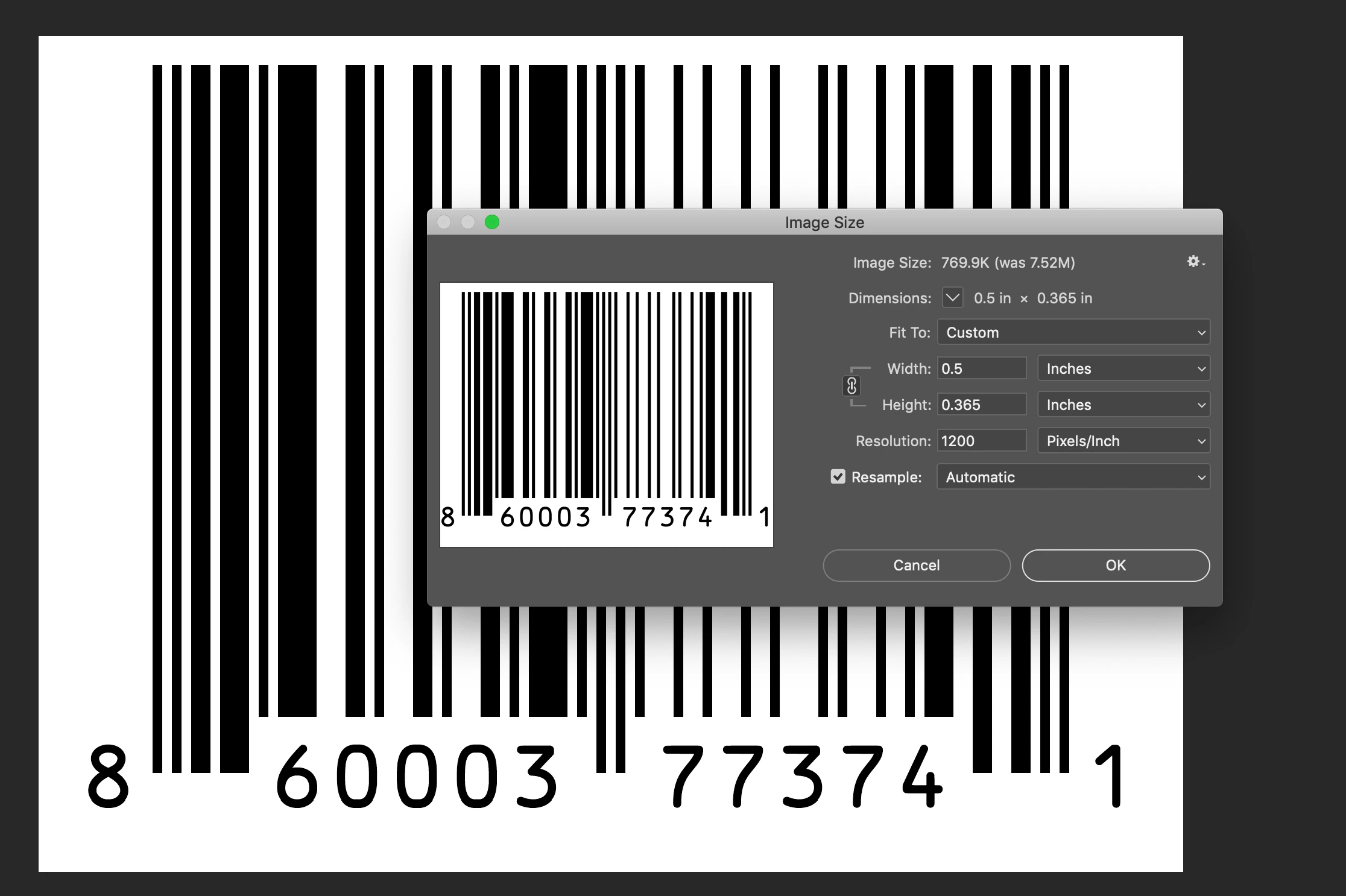
- Original file size was 1.582 in x 1.153 in with a resolution of 1200 DPI - reduced it to 0.5 in x 0.365 in with a resolution of 300 DPI since it was going to be shrunk down to fit on a print label design. 

- I've tried saving it as a .psd and as a .tiff file (all as cmyk color mode)

- when I exported it as a pdf in Illustrator I made sure that the file was at press quality, with maximum DPI settings

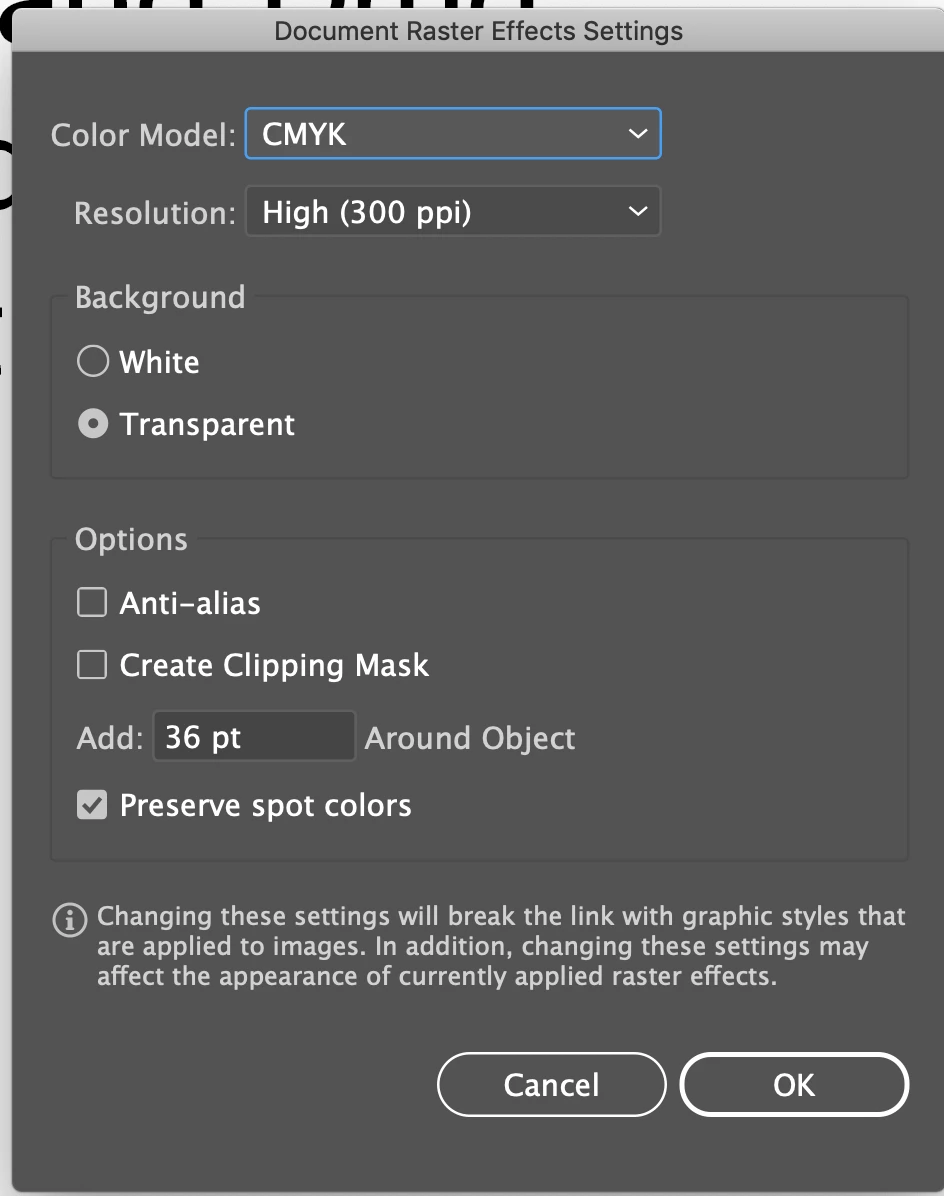
- Made sure that my Document Raster Effects Setting (from Effects menu) was set at high, CMYK color mode

Nothing has worked. 

Someone please help and tell me what I'm missing or doing wrong. I'm going nuts over here. Much thanks in advance!!
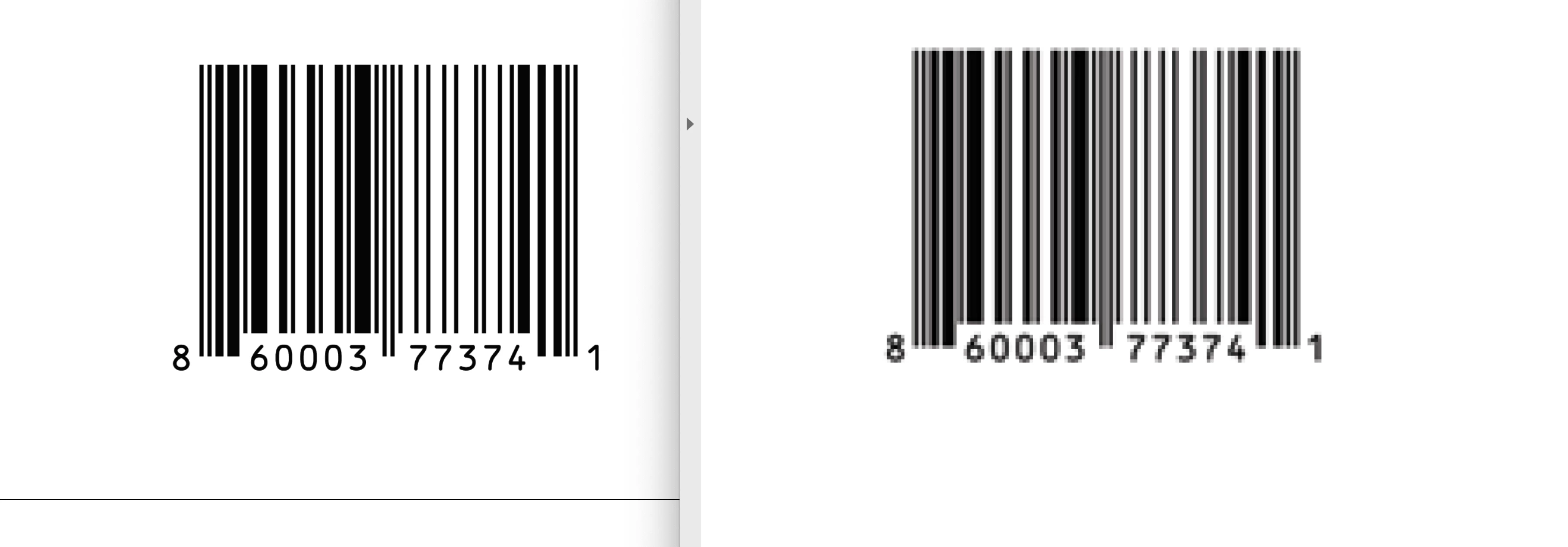


[ attachments inserted as inline images by moderator ]

This topic has been closed for replies.
Correct answer Ton Frederiks

I would convert the png files to grayscale  in Photoshop.

If you want to change the dimensions in Photoshop, turn off Resampling, resampling causes the blurry lines.

If you turn off Resampling and change the dimensions, the Resolution will increase, I would not don't worry about that.

If you must have a lower resolution, turn on Resampling but use Nearest Neighbour to keep hard edges (and check the result).

This all assumes that your original files have hard edges and that the result is placed in Illustrator without further scaling.

4 replies

Luke Jennings3
Community Expert
January 12, 2021

Are you printing the labels? If so, place the .png into Illustrator at the existing res (after converting to grayscale if necessary), save as a PDF from Illustrator without downsampling, output a proof, test the barcode with a reader (it sounds pretty small). 300 dpi is too low for a small barcode.

Ton Frederiks
Ton FrederiksCorrect answer
Community Expert
January 5, 2021

I would convert the png files to grayscale  in Photoshop.

If you want to change the dimensions in Photoshop, turn off Resampling, resampling causes the blurry lines.

If you turn off Resampling and change the dimensions, the Resolution will increase, I would not don't worry about that.

If you must have a lower resolution, turn on Resampling but use Nearest Neighbour to keep hard edges (and check the result).

This all assumes that your original files have hard edges and that the result is placed in Illustrator without further scaling.

SeikrenAuthor
New Participant
January 11, 2021

Thanks for the info Ton, I'll give that method a try.

I really appreciate everyones assistance and advice!!

Ton Frederiks
Community Expert
January 11, 2021

Thanks, let us know if it works for you.

SeikrenAuthor
New Participant
January 5, 2021

Hi John,


Barcodes were supplied to me by the client, unfortunately I did not create them. I have never tried making barcodes of my own. I thank you for the link and info though! I may have to end up researching that and going about it that way if I can't get it to work in any other way.


BTW - Realized that I forgot to mention that original files were .png files.

John Mensinger
Community Expert
January 5, 2021

The interpolation induced by the resampling to which you're subjecting the image is fouling it's clean edges.


I'd recommend regenerating your barcode in resolution-independent vectors at https://the-burtons.xyz/barcode-generator/