Known Participant
October 18, 2020
Answered

Poor display quality when exporting from Illustrator to PDF

  • October 18, 2020
  • 4 replies
  • 14072 views

Hello,

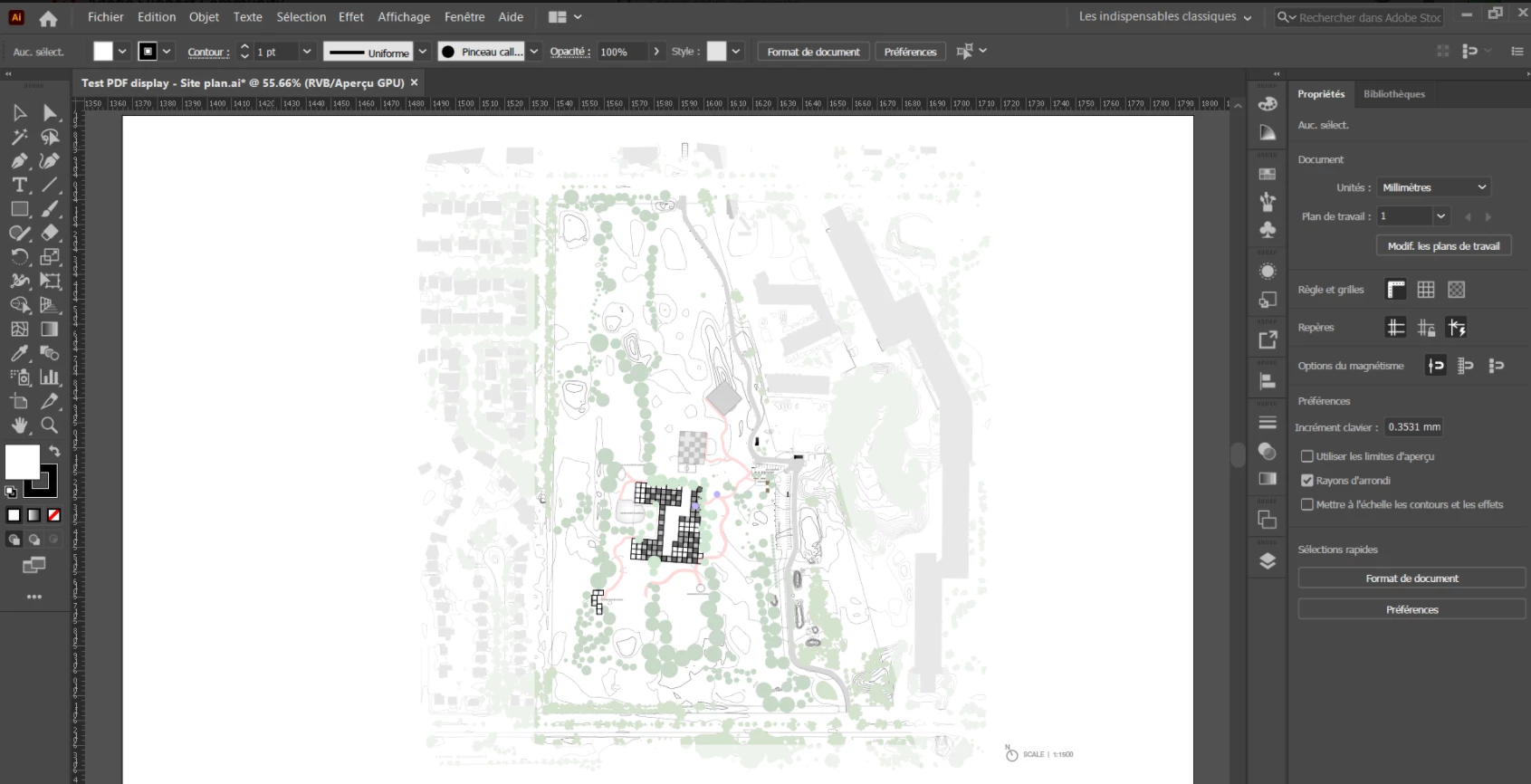
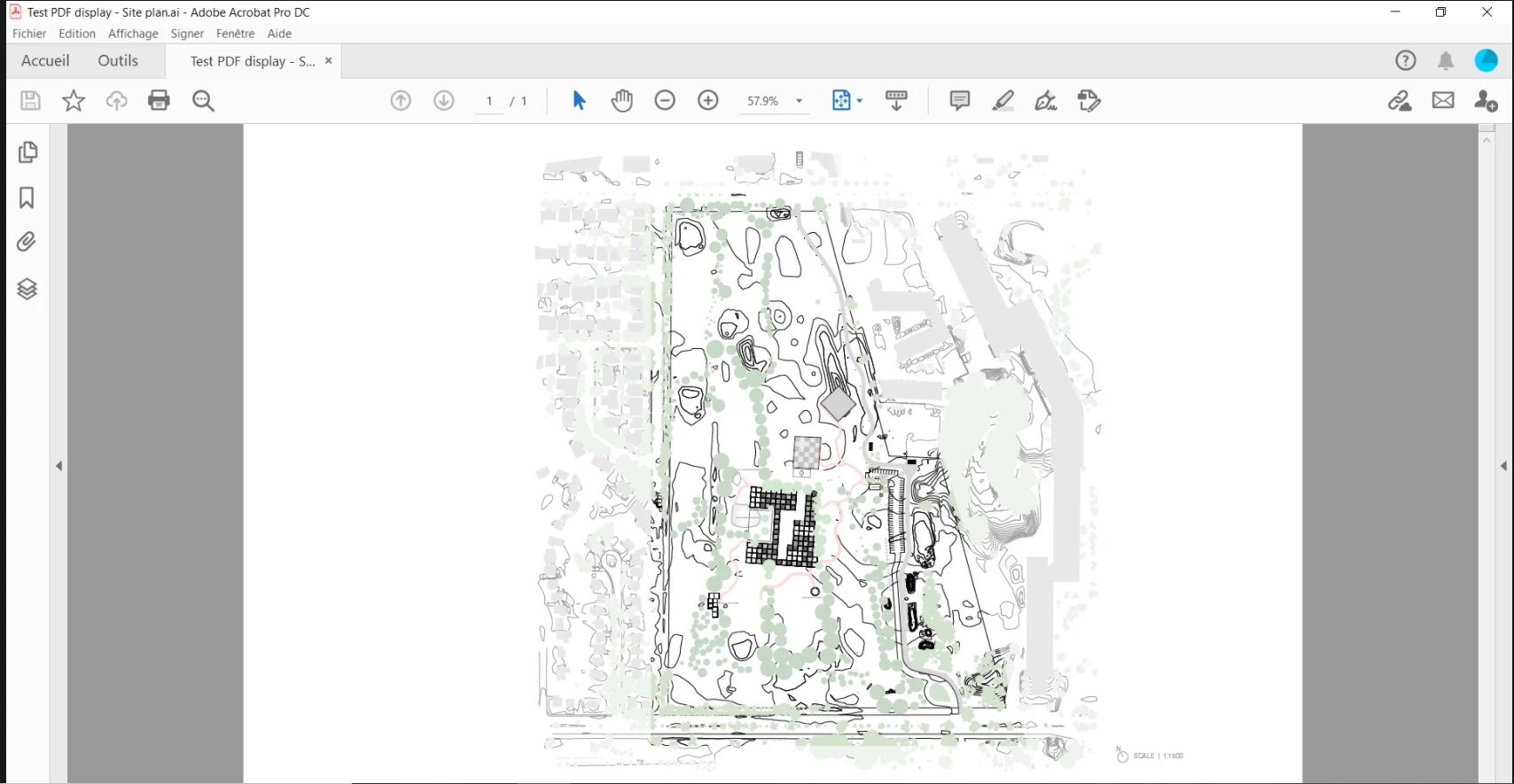
I drew a plan on illustrator and when saving it as a PDF for my presentation, its display quality changes quality. The line weight isn't as flattering as it originally shows on illustraor, it appears much thicker in PDF which I don't want. This problem doesn't occur with some of my previous drawings. Would anyone be able to help me with please? I have an important midterm presentation in a week and I must fix. Thank you very much!

This topic has been closed for replies.
Correct answer Luke Jennings3

Hello Luke,


Okay, so if I understood you correctly, the presence of the 60% opacity white shapes "forces" Acrobat to enhance the black lines.

Now, what I must do, and what I care about at the end of the day, is that if I want Acrobat to display the correct line weight (and color for that matter), at the zoomed out scale of the drawing, I must flatten out the PDF and convert the strokes to outlines, and that is regardless of whether the 'enhance line thickness' option is selected.

Can you clarify whether said flattening and conversion of strokes into outlines must occur in Acrobat or Illustrator? And under what window will that be?


Thank you very much again Luke.


Yes, that is sort of correct. The presence of 60% opacity causes the lines to appear thinner. The Acrobat thin line enhancement will be noticable if and when the Acrobat preference is on, and the PDF is displayed at (more or less) 50% magnification. You can effectively disable the Acrobat preference if you convert the strokes to outlines by flattening the PDF in Acrobat. Go to Tools> Print Production> Flattener preview, select the option to Convert All Strokes to Outlines (as previously mentioned). Note, you will be flattening your PDF, which may introduce other possible changes. Or you could just ignore the enhanced lines in Acrobat. Are you in France? If so you are very lucky, a wonderful country!


4 replies

New Participant
May 1, 2024

I'm having problems with exporting illustrator files to pdf with certain parts coming out blurry and not like the original file. I'm using Illustrator 28.4.1 and Acrobat 24.1. The file exports accurately at a high resoultion to jpg or png. However, when I try to export to pdf, the logo of the design gets blurry, while everything else stays clear.  Does anyone know why this is happening?

Luke Jennings3
Adobe Expert
May 1, 2024

You should probably ask a new question. Are you referring to the water droplet logo? What happens when you save as a pdf using the Illustrator default settings? You may be downsampling the image when you create the pdf, the default settings won't downsample. Is the water droplet created in Illustrator? if so, make sure your document raster effect settings are high res (Effect> Document raster effects settings). 

Luke Jennings3
Adobe Expert
October 19, 2020

Can you upload sample PDF and .ai files?

Are you sure the lines are thicker, or are they darker?

Are you using spot colors, or a mix of RGB & CMYK?

Are you viewing your Illustrator file with overprint preview on? Perhaps Acrobat is showing you overprinting lines.

Edit- After changing the thin line preference in Acrobat, as Larry mentioned, you may need to close and reopen your PDF to see the change.

If this turns out to be the problem, you can't force other people to change their Acrobat preferences, but you can convert your strokes to outlines, which should disable the enhancement of thin lines in Acrobat & Reader. Go to Tools> Print Production> Flattener preview, select the option to Convert All Strokes to Outlines. Note, you will be flattening your PDF, which may introduce other possible changes.


yosra5FFBAuthor
Known Participant
October 19, 2020

Hello Luke,


Yes absolutely, here's the link to my ai. file:
https://shared-assets.adobe.com/link/2be737b8-cb0f-403d-49b6-bfb2252ace61
I can't seem to upload the PDF to cloud so I can share the link with you, is there another way to send you the sample PDF?


As for the questions:

I actually can't tell whether the lines appear thicker or darker on PDF, and I now realize that I gave all of them the same thickness on .ai (0.15 pt) but they seem different on screen on Illustrator.

As for the spot colors, I'm not sure whether I went under the right tab, but when I clicked on Edit > Colors, here's the window that pops up (I apologize, it's in French):

And at last, I don't know whether I'm viewing my ai. file with the overprint preview on. 

The same issue still appears after following Larry's recommendation . 
By Convert All Strokes to Outlines, do you mean in Illustrator or Acrobat?


yosra5FFBAuthor
Known Participant
October 20, 2020

Thanks for uploading your files.

All line thickness is .15 pt. as you mentioned. There are white shapes set to 60% opacity over some objects, causing the lines to appear thinner in some areas. When zoomed in, the Illustrator file and PDF look fine. Acrobat is enhancing the line thickness when the preference is on, you can see this clearly when the PDF is zoomed out (50%) (screen shot 1, original PDF is on the right, flattened PDF is on the left). If the PDF is flattened and the strokes are converted to outlines, the enhance line thickness does not occur in Acrobat, regardless of preference. (screen shot 2, enhance thin line preference turned off)


Hello Luke,


Okay, so if I understood you correctly, the presence of the 60% opacity white shapes "forces" Acrobat to enhance the black lines.

Now, what I must do, and what I care about at the end of the day, is that if I want Acrobat to display the correct line weight (and color for that matter), at the zoomed out scale of the drawing, I must flatten out the PDF and convert the strokes to outlines, and that is regardless of whether the 'enhance line thickness' option is selected.

Can you clarify whether said flattening and conversion of strokes into outlines must occur in Acrobat or Illustrator? And under what window will that be?


Thank you very much again Luke.

KShinabery212
Adobe Expert
October 18, 2020

You know... I never export things as PDF or PNG.  As I have noticed there can be issues at times.  So, what I do is put everything into one folder in Illustrator.  Select everything.... then I simply copy and paste into Photoshop.  Then I am asked to make it a smart object.


Now you can do the same thing and paste into InDesign as well.  It just depends on where you want your final graphic to appear.


This is just a cheat that I use.  Not sure it will help out, but worth a try.

yosra5FFBAuthor
Known Participant
October 18, 2020

Yes I can try that at some point. The only thing is that, when the drawing is saved from Illustrator into a PDF, the resolution is maintained because the drawing is not pixelized. That's why I love saving my illustrator drawings as a PDF. Now I'm facing this issue all of a sudden and I don't know why...

Larry G. Schneider
Adobe Expert
October 18, 2020

You might want to check your Acrobat preferences and see if Enhance Thin Lines is checked. It's in Preferences>Page Display>Rendering.

yosra5FFBAuthor
Known Participant
October 18, 2020

Hello Larry,


Yes I have tried it before and it still wouldn't work. Which is really odd because I have another drawing with the same line weight and oppacity-color style, but this latter one saves perfectly as a PDF. See the picture below.