Dachshund Daddy,
As I (mis)understand it, you can replace all of the compass, triangles, and T-square, by the Ellipse Tool (flyout from the Rectangle Tool), and the Line Segment Tool, and first create the circle containing the arc, then cut the circle at the two desired end points of the arc and delete the rest of it.
https://helpx.adobe.com/illustrator/using/drawing-simple-lines-shapes.html
Smart Guides are your special friends friends for precision, telling you when you are within snapping distance, the word shown depending on how you have established the point, such as intersection if the point is the intersection between two paths.
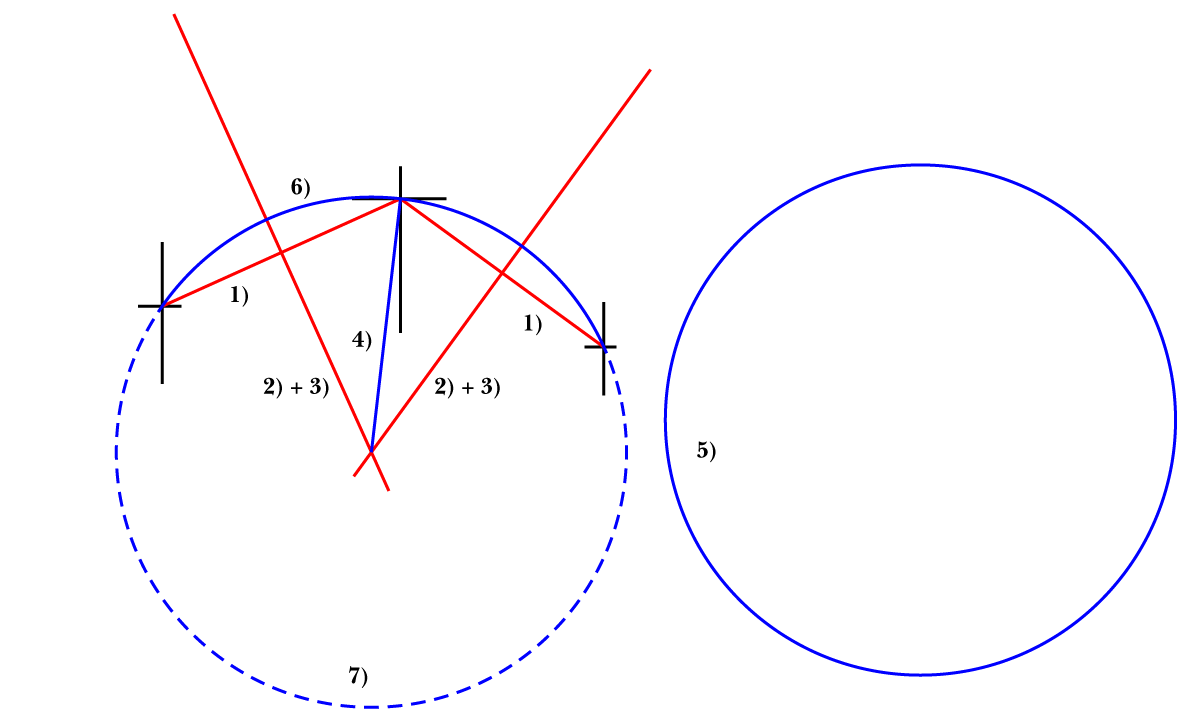
This works for any three points defining a circle when you have already established them (shown in black), see the image set incorporating all the steps below:
1) With the Line Segment Tool ClickDrag between the middle point and each of the arc end points, snapping to both points (either direction works); shown in red;
2) Select each of the lines and rotate (a copy of) it by 90 degrees using Object>Transform>Rotate; shown in red;
3) If the rotated lines do not cross, scale either/each of them up uniformly using Object>Transform>Scale; the point where they cross is the centre of the circle, of course; shown in red;
4) With the Line Segment Tool ClickDrag between the centre of the circle and the middle point of the desired arc (or one of the others) snapping to both, then Click an empty spot on the Artboard with the Line Segment Tool to reveal its length which is the radius of the circle, of course, then simply pres Ctrl/Cmd+C to copy it, then press Cancel; shown in blue;
5) Click with the Ellipse Tool on the Artboard and insert the copied radius from 4) in the Width field and add *2 in this field, then Click (the word) Height (not the field), then press OK; now you have the circle with the right diameter; shown in blue;
6) ClickDrag the Centre of the circle (Smart Guides say center) to snap it into its rightful place established in 3) (Smart Guides say intersection); now the circle ought to go through all three points; shown in blue;
7) With the Scissors Tool Click each of the desired arc end points, then with the normal Selection Tool Click the unwanted part of the circle and press Delete; shown in blue (dashed).
After that you can hide or delete all the objects no longer needed.
Click to get closer
Always keep backups of works in progress to fall back on.
In this connexion, after 7) you can click the right Arrow at the top right of the Layers palette and click Duplicate Layer, hide the old Layer with all the artwork (which you can fall back on) and remove the objects no longer needed in the new Layer.
If you get stuck, you can post a plain screenshot of what you have and describe the issue(s).
Unknown to most, it is quite easy to directly show images in posts, hence the following general suggestion:
Please show images by using the Insert Photos button (looks like moon over mountains) for each at the top of the reply box which makes everything appear right there in your post together with your text, rather than he more conspicuous Drag&drop attachment which requires helpers to open a new tab for each image and wait for its showing, then go back and forth; and if they just click it and wait for its showing and press the X to get back to the text, the image is gone so they have to open it again and wait to see it again.
Edit: I added a link to the Line Segment Tool.



 AdChoices