

Participant
February 12, 2020
Answered

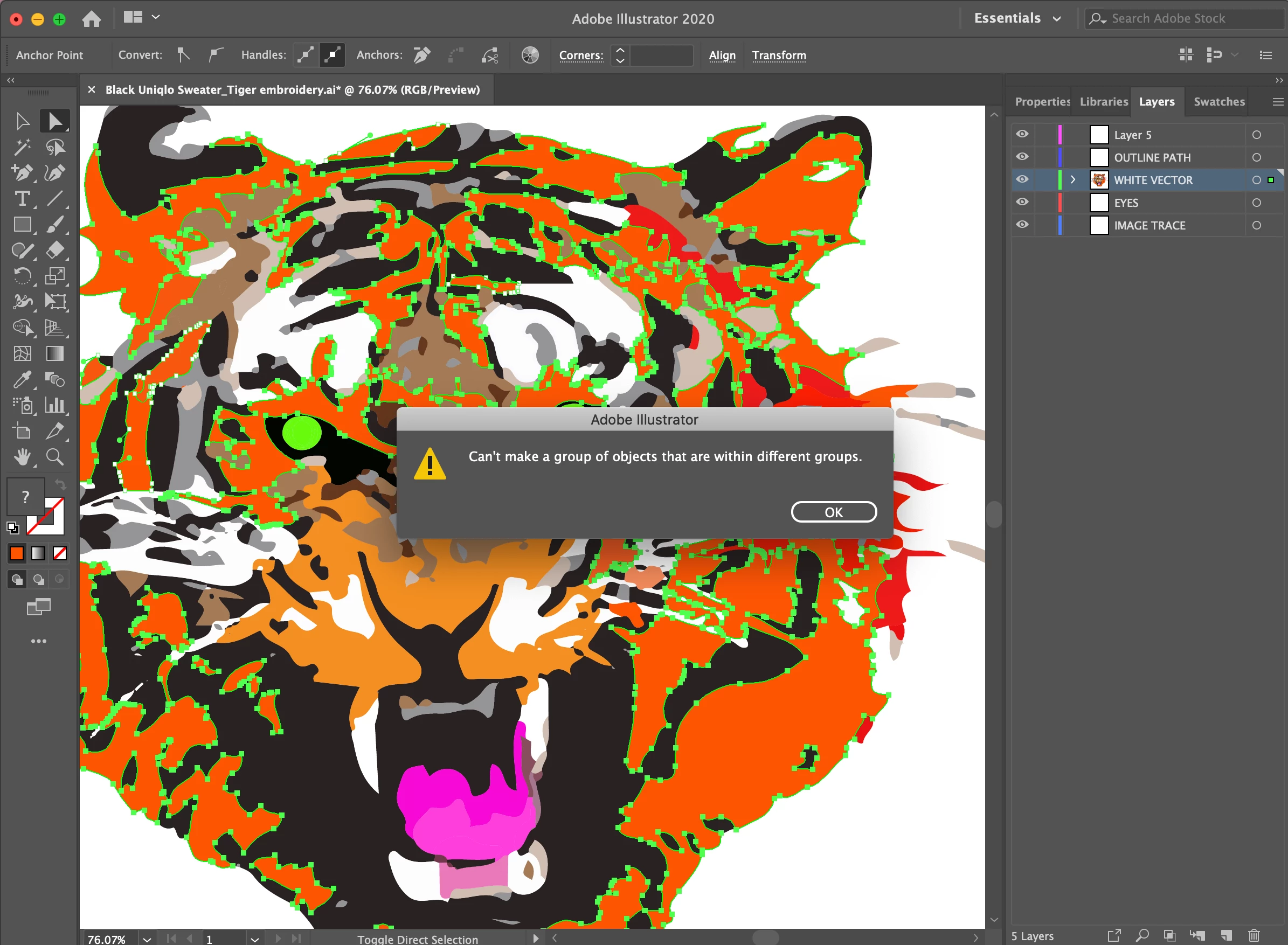
"Can't make a group of objects that are within different groups"

  • February 12, 2020
  • 5 replies
  • 11832 views

The error message when I try to group all the orange vector shapes together. WHAT DO I DO? 


When I try to group them all together.


I image traced the image 
 

Correct answer Disposition_Dev

be careful. Jacob's suggestion of ungrouping COULD be destructive and you might not even notice.. it would probably be fine in this specific instance, but in other situations this strategy could mess up the artwork.


I've gotten into the habit of just cutting and pasting the artwork in place, then grouping. 

cmd/ctrl + x

cmd/ctrl + shift + v

cmd/ctrl + g 

5 replies

Peter Villevoye
Community Expert
Community Expert
February 23, 2025

Next time, when you use the Image Trace feature, deselect the recently added "Group automatically" option. This will try to let parts cleverly belong to certain groups, i.e. have the mouth, ears, and nose, separately grouped, on top of a solid underlying black shape. So some red parts might belong to the one group, and others to another...


Participant
June 5, 2022

I hope I'm not too late to the party but.... here's a solution.

Make sure to unhide all the hidden layers first then you'll be able to group them. Hope this helps!

Participant
August 6, 2020

Hi! Did you solve this problem becuase I am having the exakt same issue? I have removed all groups and this message still shows up. I am a total beginner so I have no idea what to do.

Monika Gause
Community Expert
Community Expert
August 6, 2020

Open the layers panel and check the structure of your file.

Disposition_Dev
Community Expert
Disposition_DevCommunity ExpertCorrect answer
Community Expert
February 12, 2020

be careful. Jacob's suggestion of ungrouping COULD be destructive and you might not even notice.. it would probably be fine in this specific instance, but in other situations this strategy could mess up the artwork.


I've gotten into the habit of just cutting and pasting the artwork in place, then grouping. 

cmd/ctrl + x

cmd/ctrl + shift + v

cmd/ctrl + g 

Participant
September 15, 2020

Thank you for the tip

Jacob Bugge
Community Expert
Community Expert
February 12, 2020

devac,


How about selecting everything and then Shift+Ctrl/Cmd+G to Ungroup first, then (re)Group (the Groups you wish to have)?


Or if you wish, you can use Select>Save Selection (which also works across Layers).
