


Josiah Fickinger
New Participant
July 15, 2023
Question

Random White pixels in Photoshop Effects in Illustrator

  • July 15, 2023
  • 3 replies
  • 518 views

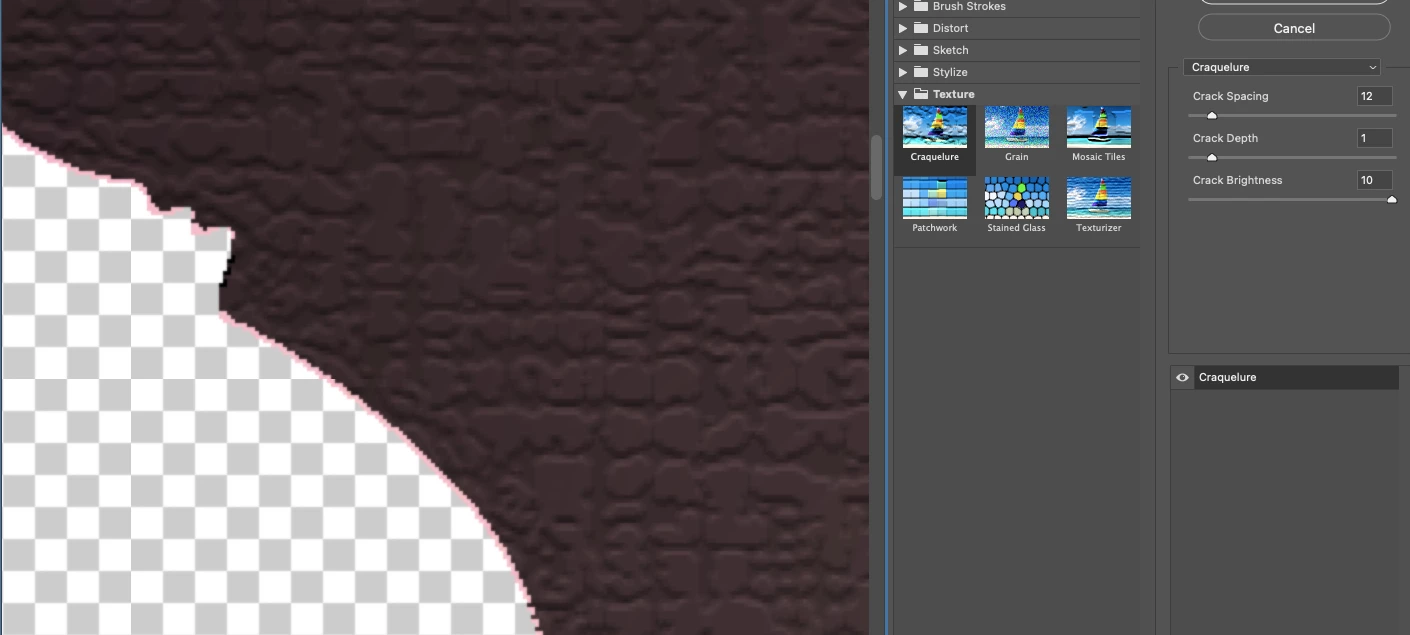
Everytime I try turning a vector shape into a textured rasture in Illustrator using the Photoshop Effects, I always get unwanted white pixels around the border that ruin the image, especially when I have several closed shapes coming together to form a mountain and all I can see are white pixels splotted between the closed shapes. There also seem to be absolutely no getting around the default white pixels while adjusting the effects. 
This topic has been closed for replies.

3 replies

Ton Frederiks
Community Expert
July 17, 2023

I am afraid you cannot avoid those artefacts. You could try to copy the path without the effects, use a small negative offset path and use it as a clipping mask. Edit: I see Monika already suggested that.

Ares Hovhannesyan
Community Expert
July 18, 2023

May be GPU preview switching on/off can help?

Ares Hovhannesyan
Community Expert
July 15, 2023

Are all effects have the same effect of white pixels? Which one you try?

Josiah Fickinger
New Participant
July 15, 2023

I have tried several textures including Craquelure and Grain. Mostly Craquelure because that is the most rocky-texture, But I've used Grain to create a grassy texture and I got the same problem.

Ares Hovhannesyan
Community Expert
July 17, 2023

for me it works fine. Not sure but try to reset preferences. 

Monika Gause
Community Expert
July 15, 2023

You could try and open Effects > Document Raster effects settings and turn on the Clipping mask option and see if that improves it.

Josiah Fickinger
New Participant
July 15, 2023

It does not, The problem is coming from inside the original Vector outline. I appreciate the help. 

Monika Gause
Community Expert
July 15, 2023

THen your only chance is to enlarge the object (use offset path for that) and then apply the original shape as a clipping mask