


February 28, 2023
Answered

Removing lines from a vector trace of a signature

  • February 28, 2023
  • 2 replies
  • 1617 views

Hi,


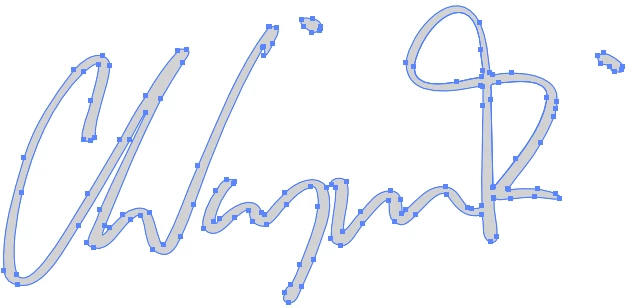
Im having an issue with a vector trace of a signature that i did.
I need to get rid of all the lines inside of the signature so it only consist of contour, but i don't know how to. 
It needs to get printed, and the company that im getting it printed at doesn't want these lines. 

I've listed a screenshot of the signature, and hoping for your help. 

Best Regards,

A fellow designer
This topic has been closed for replies.
Correct answer Kurt Gold

Thanks for the sample file.


You may get a pretty clean result by using the Shape Builder tool and Shift dragging across the signature, followed by Object menu > Path > Simplify.


But I guess you just used inappropriate settings while auto-tracing the raster image. With appropriate settings it should create much cleaner results right from the start.


For example, this is what I get when auto-tracing (raster image, 300 ppi) with the default Black and White setting, expanding the live trace object and simplifying the paths a bit:


By the way, if auto-tracing your template raster file creates a mess of countless unnecessary and useless fragments in all cases, though you may think you are using ideal trace settings and probably have tried various pathfinder actions to unite things without success, it often just helps to apply one unique fill colour to the fragments (black is a good choice), then re-rasterize the trace and finally auto-trace the re-rasterized object again.


2 replies

Kurt Gold
Community Expert
Kurt GoldCommunity ExpertCorrect answer
Community Expert
February 28, 2023

Thanks for the sample file.


You may get a pretty clean result by using the Shape Builder tool and Shift dragging across the signature, followed by Object menu > Path > Simplify.


But I guess you just used inappropriate settings while auto-tracing the raster image. With appropriate settings it should create much cleaner results right from the start.


For example, this is what I get when auto-tracing (raster image, 300 ppi) with the default Black and White setting, expanding the live trace object and simplifying the paths a bit:


By the way, if auto-tracing your template raster file creates a mess of countless unnecessary and useless fragments in all cases, though you may think you are using ideal trace settings and probably have tried various pathfinder actions to unite things without success, it often just helps to apply one unique fill colour to the fragments (black is a good choice), then re-rasterize the trace and finally auto-trace the re-rasterized object again.


Kurt Gold
Community Expert
Community Expert
February 28, 2023

Can you share this Illustrator file for inspection?


February 28, 2023

Here you go,

Thanks