



Tinman1028
Inspiring
February 17, 2023
Answered

Rounded lines with varying width produce sharp points, BUG?

  • February 17, 2023
  • 4 replies
  • 6811 views

Hello internet friends and professionals-


I am a design professional and illustrator who creates detailed line illustrations for a lot of my clients and packaging projects. I use the pen or pencil tool to create the line work, I often round me end and use the width tool to narrow my points. This creates an engraved/hatch look and style. 


Well, I began noticing that new and old files are no longer holding the rounded width value that they used to. Meaning, when I create a new illustration and specify the line wifth I want and round the edge, Illustrator seems to glitch and just say "nope" and gives my entire line a very pointy appearence. 
What's more is older files that used to have the corect line width with a rounded end now load as a sharp unppealing line. 

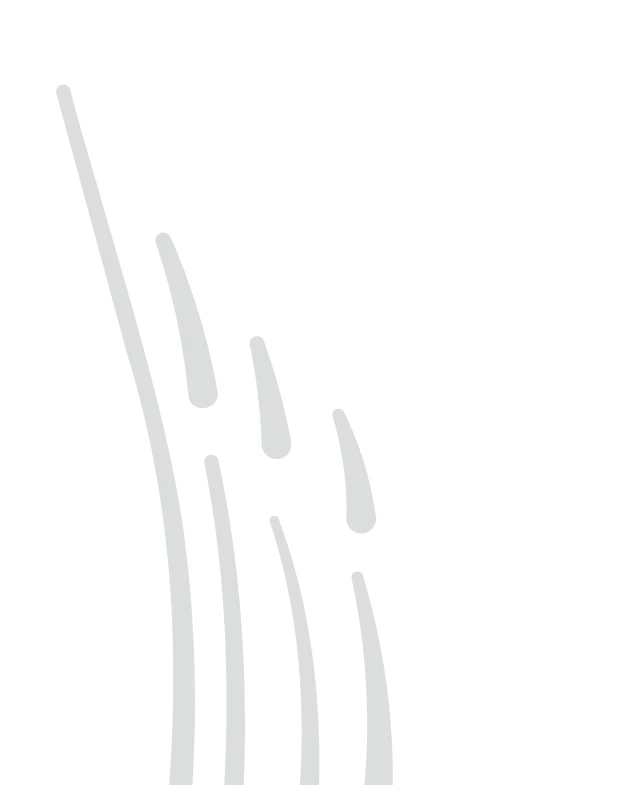
If you are having a hard time visualzing what I mean here is a preview:
This is what my lines usually look like when they terminate (these have not been refined but you get the idea):

This is what happens now. I cannot figure out why this happens or when becuase not all lines are affected:
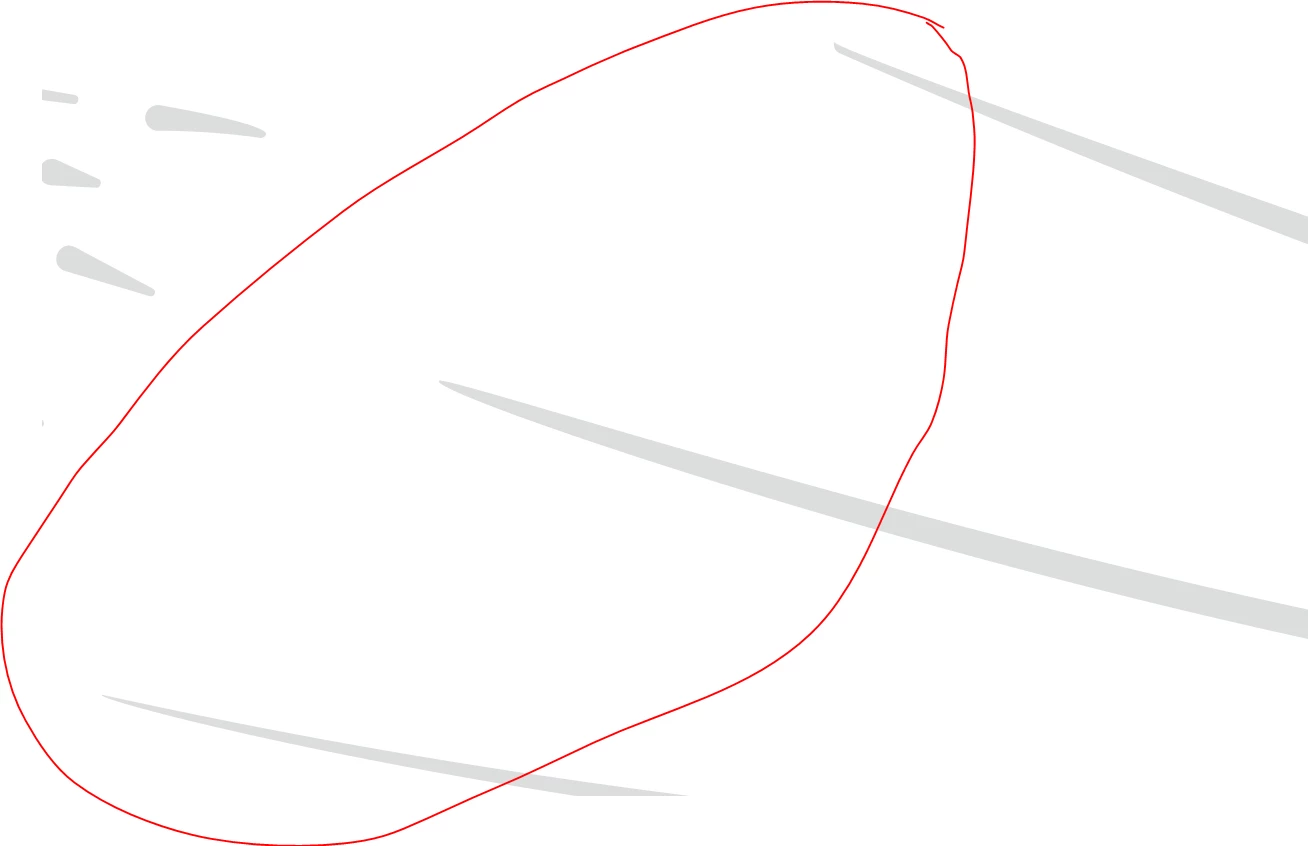

You can see that the lines on the right are odd and mishappen. Illustrator did this whout any input from me and it also not affects my old work. I open up old files that have 40+ hours of intrquet line work to now see some lines looking aweful! Really sad and rustrated about this. Any input woud be very helpful. 
Thanks-


v

This topic has been closed for replies.
Correct answer Anshul_Saini

I used Object > Path > Add anchor points to fix it.


Hi @Tinman1028,


Thanks, @Ton Frederiks, for delving deeper into this topic and providing more technical details about stroke rendering.


Based on my understanding and assumption, I believe that when you adjust the direction points in Adobe Illustrator, the stroke weight can appear either round or pointy, depending on the position of the direction point.


The reason why changing the direction points can make the stroke appear round or pointy in Illustrator is because of the way that the Ai calculates the shape of the stroke based on the direction and curvature of the path. When you adjust the direction points, you are essentially changing the path's curvature, which in turn affects how the stroke is rendered.


If the direction points are positioned in such a way that they create a sharp angle in the path, then the stroke will appear pointy. On the other hand, if the direction points are positioned in a way that creates a smooth curve in the path, then the stroke will appear round.


It's important to note that the behavior of the stroke will also depend on other factors, such as the stroke weight, the type of stroke (solid, dashed, etc.), and any effects or styles applied to the stroke. It's more evident when using a 1pt stroke because the stroke weight is very thin, making it easier to notice any changes in direction point positions.


I hope this helps clarify your question. Let me know if you have any further concerns or queries.


Best,

Anshul Saini

4 replies

Anshul_Saini
Community Manager
Community Manager
February 17, 2023

Hi @Tinman1028,


I'm sorry to hear that you are experiencing issues with your lines appearing pointy instead of rounded in Illustrator. I can understand how frustrating it must be for you to see this happening in your old files as well.


As Ton suggested, would you mind switching the GPU to CPU preview and seeing if there is any difference in the appearance of the lines? If not, then would you mind sharing the file with us and confirming the size of the strokes you are using?


This will help us understand the problem better and provide you with more specific advice.


Looking forward to your response.


Thanks,

Anshul Saini

Tinman1028
Inspiring
February 20, 2023

Thanks Anshul. GPU to CPU and vice versa produces no results. 

I will mention that I did notice this happening after an update. There was a line in the sand but I do not remember the update that did it. 

Here is the AI file where I isolated two strokes edited with the width tool that have been affected. If the circled areas are normal and rounded then te issue is only on my end. What you should see is the line terminates very oddly, it\'s not rounded, it's not pointy. It's just mutated. 
The point values vary since it tappers. 


Thank you

Monika Gause
Braniac
February 21, 2023

Ton, thanks for the response and for capturing the video! Yes, I noticed this too. Can any Adobe support tell us why this happens? I think if it went from round to point I would have let all this go. But the half round, half geometric result begs me to know why...


I used Object > Path > Add anchor points to fix it.


Monika Gause
Braniac
February 17, 2023

It would help if we could see the Outline view, the width profile, the stroke options and the Appearance panel. And/or the Illustrator files (old and new)

Tinman1028
Inspiring
February 20, 2023

See below, this is a good example. See how the selected line now ends in a half rounded point? When I saved this on Friday this line was jus tlike the others around it?! It's possessed. 

Here is also some elemetns from the file. I circled 2 elements that are rendering odd on my end. If they are normal on your end then it's something with my software or settings. 

Ton Frederiks
Braniac
February 17, 2023

Does it change when you switch preview from GPU TO CPU (Cmd/Ctrl E)?

Tinman1028
Inspiring
February 20, 2023

Thanks Tom-

I am actually not able to switch to CPU preview. Odd. It is greyed out for me. 

Larry G. Schneider
Inspiring
February 17, 2023

Does changing the Miter limits in the Stroke panel change anything?

Tinman1028
Inspiring
February 17, 2023

No

Larry G. Schneider
Inspiring
February 17, 2023

Which tool did you use to create the paths? Pen or brush?