Inspiring
August 18, 2024
Question

Scaling grain effect

  • August 18, 2024
  • 3 replies
  • 2235 views

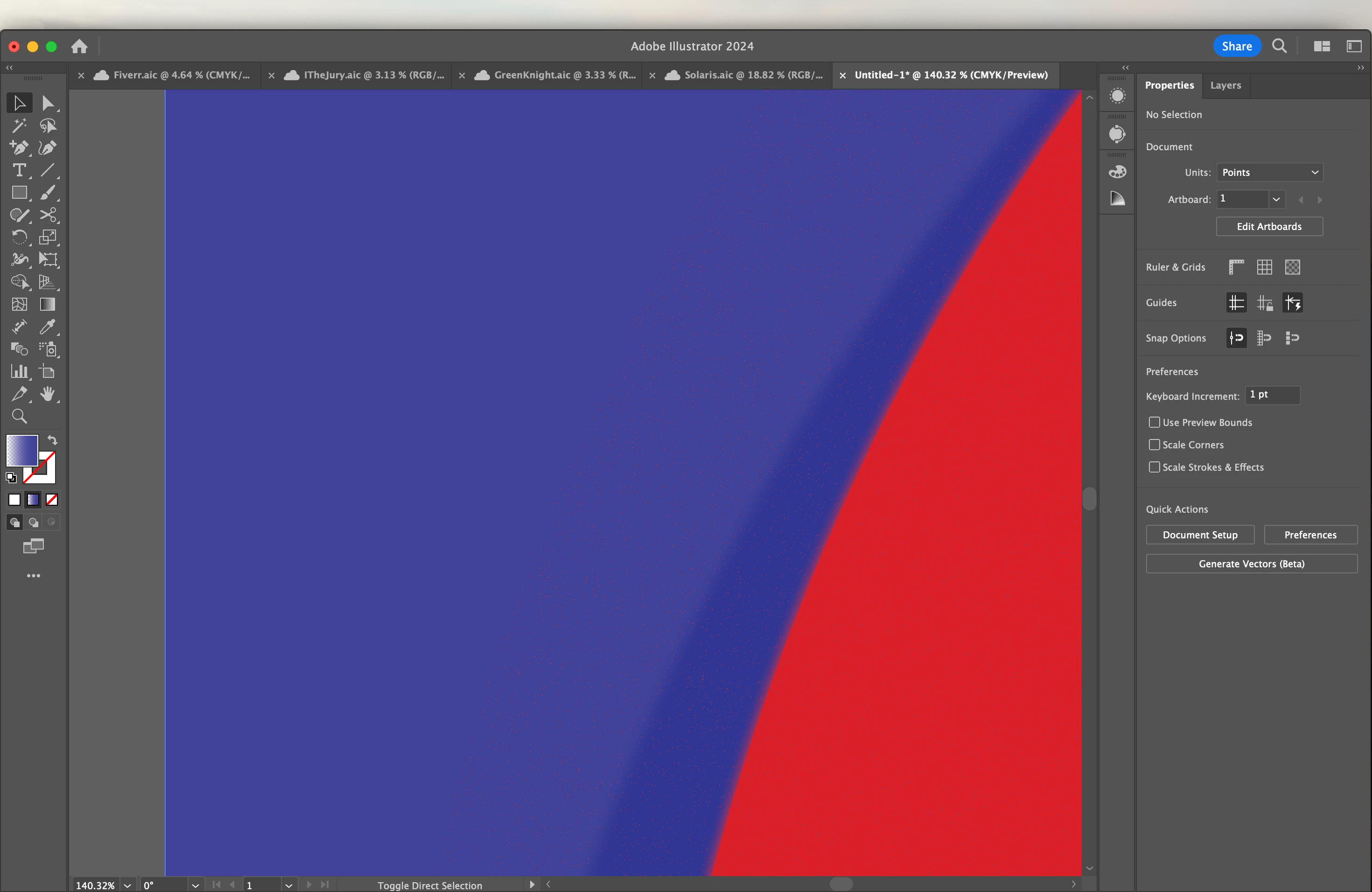
I have an imgae here with a stipple that won't "scale" when I try to enlarge the image:
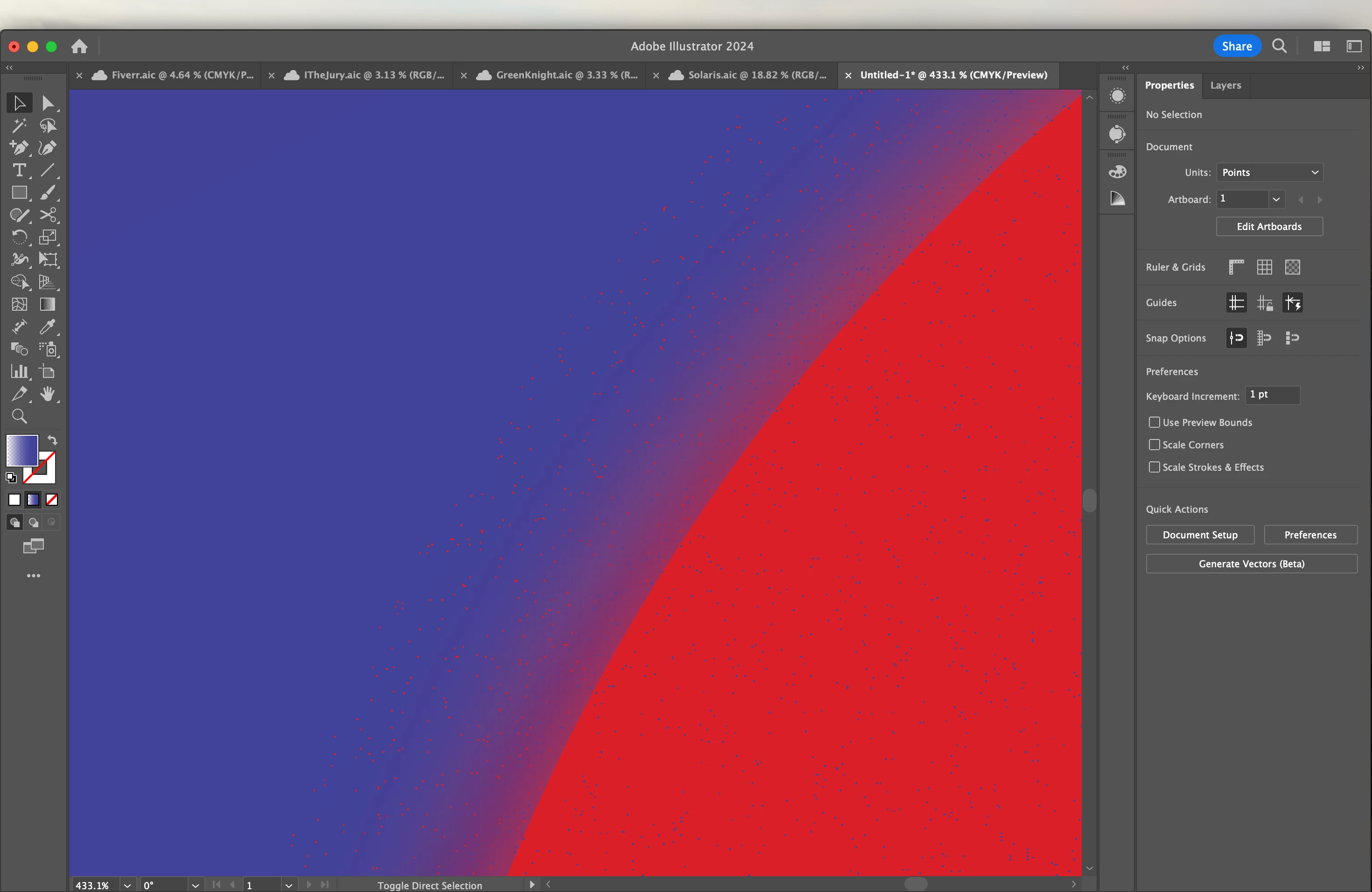
As you can see (or not see), the grains are too small in the enlarged version to be visible. I tried Object>Transform>Scale... and had "Scale Strokes and Effects" checked, but this didn't make a difference. Also, I wanted to edit the grain effect directly, but AI appears to be treating the layer with the effect as a simple object. Why this is I don't have a guess as I haven't worked on this project in months.

Any ieas?

3 replies

Participating Frequently
April 2, 2025

Struggling with the same here. It seems that any of the texture effects act as fills of an object, at a fixed resolution. This means that if you scale an object, the texture will not scale with it, just more fill will be produced. Changing the settings in Preferences regarding Scaling of Stroke and Effect does not change that behaviour.

You can rasterize an object that has a Texture Effect applied. You can then scale the object, and texture will scale with it. Confusingly, there are two way's to rasterize an object. The one that you should use for this purpuse is Menu > Object > Rasterize. This turns the object into an actual image (you will see that also indicated in your Layers)
There is also a rasterize option under Effects, but this only makes the object appear rasterized, while keeping it vector - which means the texture will not scale.

All in all, this an inconvenient workflow of course, especially when you have artwork that has to be printed at various sizes (flyers, posters, banners). Rasterizing is a workaround, but the scale version is rendered ineditable which in many case is really inconventient. Therefor you should always keep a copy of the original vector version somewhere (either in a separate file, or on separate artboard in the same file). And you should rasterize at the latest moment, in order to avoid having to repeat all the steps to often.

For work that remains digital all this is less of a problem. You can then make your artwork at a size at which you like the 'resolution' of the texture.  As you don't use (vector) pdf for digital purposes, you can scale you work to various sizes by exporting a larger bitmap (jpg, png, etc). The texture will scale with it.

I do think it's a shame Illustrator has never implemented a scaling option for texture effects, as it really makes them much less useable then otherwise would be the case.

Ton Frederiks
Community Expert
Community Expert
April 2, 2025

If you want to use the Rasterize Effect (which is the most felixible/editable option), you must use the Transform Effect to scale the Grain.

Participating Frequently
April 2, 2025

Thanks for your answer. I tested that (again), but at least in my version of Illustrator (not the newest) the texture resolution is nót scaled when scaling an object that has been rasturized via Effects. The Texture is applied on the newly sized object, but at the same resolution (so simply more of the same texture is generated). This means that if you use a texture on A5 and then scale to A3, the grain is much finer on A3 relative to the artwork then it is on A5. As there are no settings for grain scale in the grain panel, there is no way to change this resolution - except for the rasterizing (desctructive) workaround described above. Unless i'm mistaken and missing something, of course. 

Monika Gause
Community Expert
Community Expert
August 18, 2024

This is just a PDF and the effect has been rasterized in it.

I assume this is a Photoshop effect. In them most of the time the stipple dots have a small size and they can't get larger. 


WExport this as pixels and then try and get in larger in Photoshop might be your only option.

Inspiring
August 18, 2024

I attached the PDF because I thought I remembered that being the recommended way to share Illustrator projects on the forum.

No, this was all done in Illustrator. I don't have Photoshop.

This seems like one of those things that Illustrator should really be able to do but can't. Resizing an artboard and its content simulataneoously is another I've been dealing with lately.

The only other method I can imagine working would be some way of "freezing" the grains as a vector in some sense and then enlarging. Maybe by exporting and reimporting the grain layer by itself and then image tracing it?

Inspiring
August 18, 2024

@Connor24501606tet8  schrieb:

I attached the PDF because I thought I remembered that being the recommended way to share Illustrator projects on the forum.


That is true. But your file does not contain an AI file part.


Maybe I forgot to check "Preserve Illustrator Editing Capabilities". Could that be the reason?

Inspiring
August 18, 2024

It's also worth mentioning that my reason for doing this is I'd like to put this image in a pdf at the best possible resolution and the only way I've found to do this is to make the image pretty large before exporting it. If there's a better way, I'd love to know what it is.

Inspiring
August 18, 2024

Correction: I'm trying to move it into another project file with some other images and export them all in a pdf, but when I export the original to png at its original size and drop it into the new project file, it's pixelated. The only thing I've found to do is to enlarge the image before exporting to png.