
Inspiring
August 20, 2019
Question

Shapes become jagged when Divided

  • August 20, 2019
  • 4 replies
  • 2030 views

I have a variety of objects I've created and overlaid to create an image.

I am now ready to expand and combine these items.

I have Expanded, Expanded Appearance, Flattened etc.

but whenever I choose "Divide" from the pathfinder palette, the smooth corners become jagged.

I've checked view options such as - snap to grid, snap to point, etc. and they are all off. So now 'snapping' is on.

Why are my smooth objects becoming jagged?

Example:

pre- Divide:
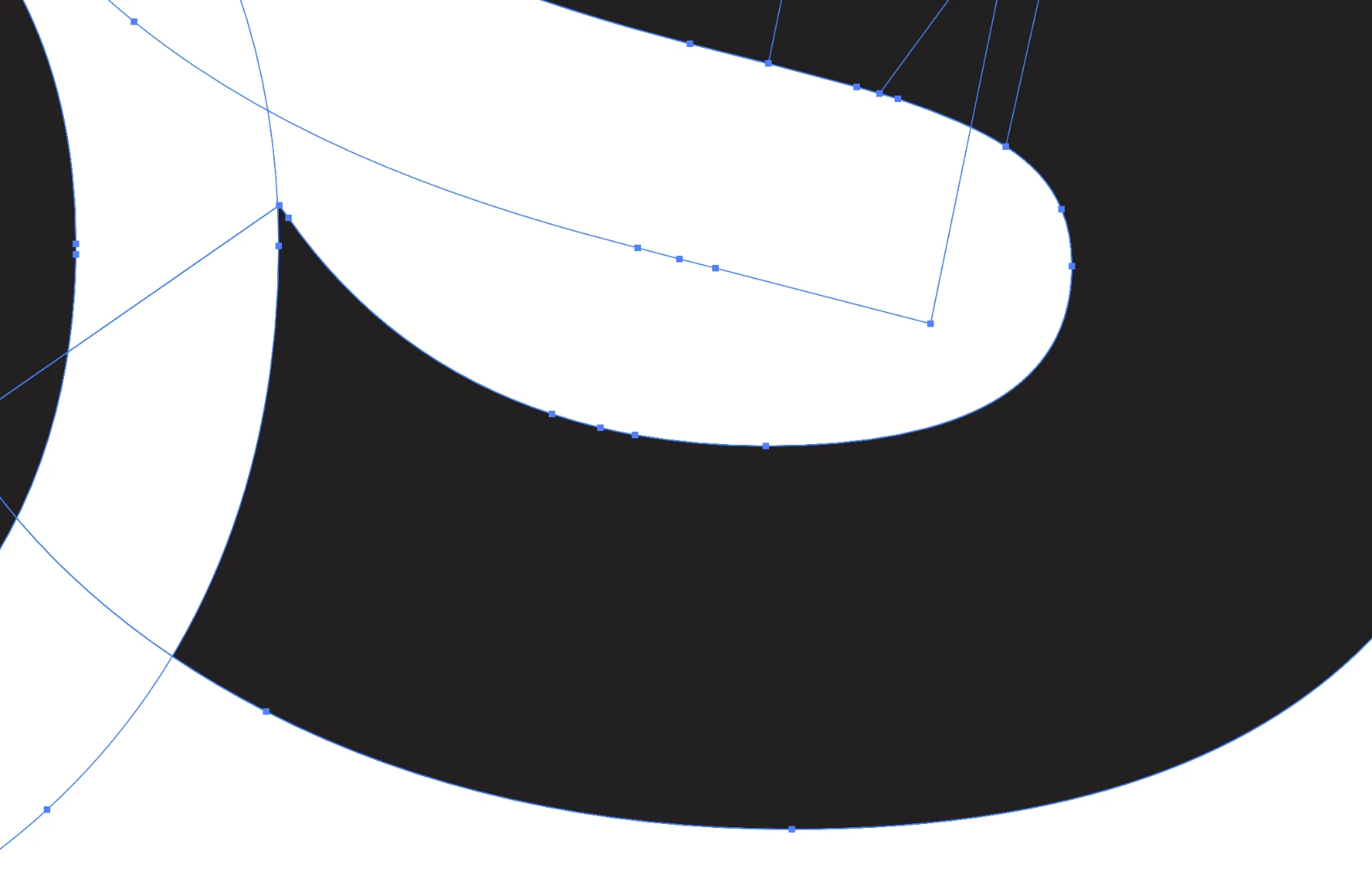
after Divide option is clicked:
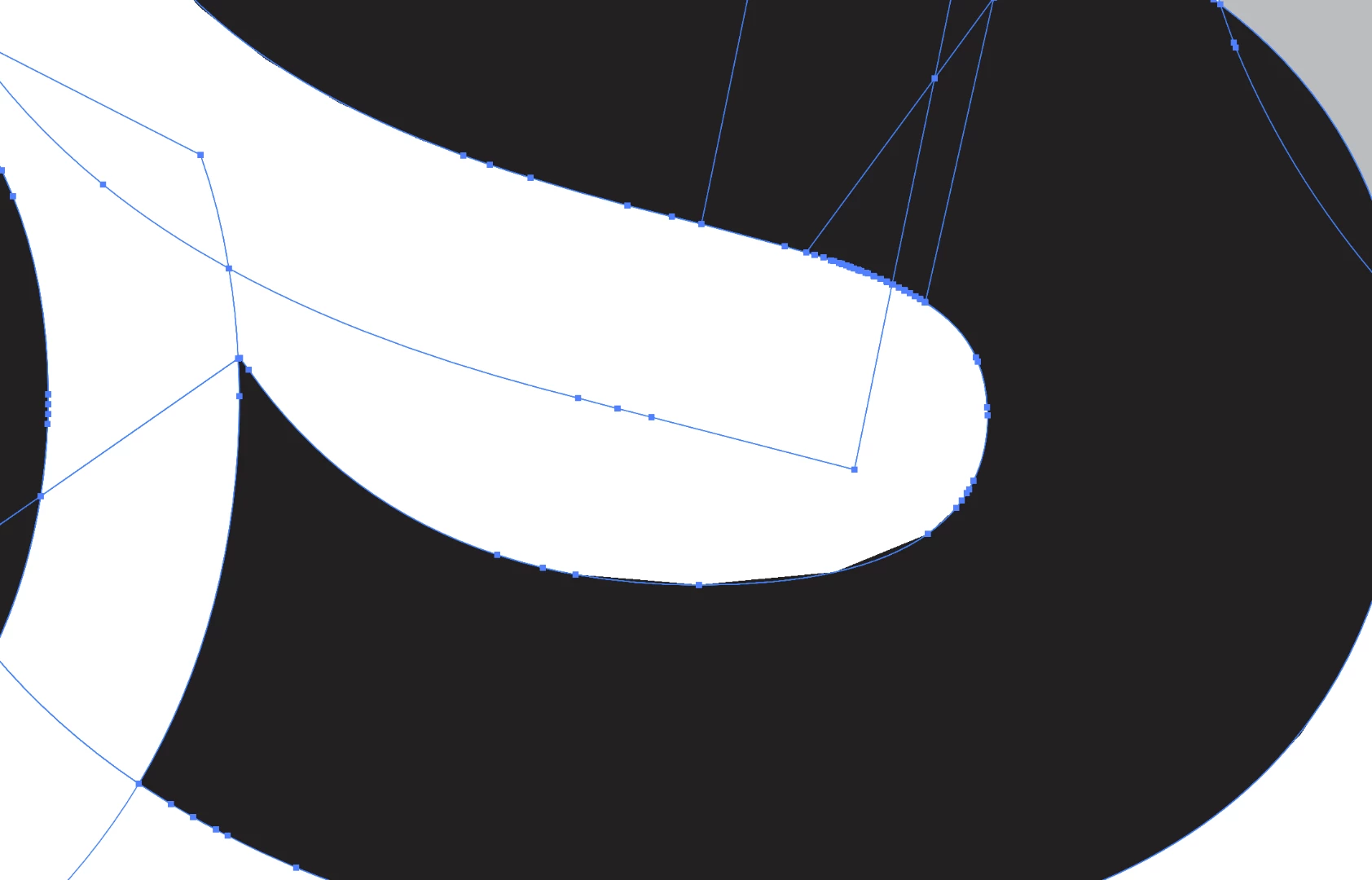
(notice the inner bottom curve inside the S is now jagged)

This topic has been closed for replies.

4 replies

barbara_a7746676
Community Expert
Community Expert
August 20, 2019

It is a long standing bug. Some GPU and OS are not compatible.

Inspiring
August 20, 2019

oh OK, and just to clarify - is the jagged appearance the "actual reality" of what my object has become, or is that a flaw, and it is actually still smooth?

barbara_a7746676
Community Expert
Community Expert
August 20, 2019

It is actually still smooth. If you print it, you will see that it is smooth.

Ares Hovhannesyan
Community Expert
Community Expert
August 20, 2019

You can try Shape Tool instead using Pathfinder. May that can help.

Inspiring
August 20, 2019

I tried selecting everything and Going to: Object / Shape / Convert to Shape,

and then Dividing them, but the same jagged outcome occurs.

NOTE: I need to select multiple items and Divide them like this as some objects are intentionally overlapping/hiding other sections of other objects (It's a logo icon that needs to interact like this, but I now need to flatten and remove the spare bits)

lambiloon
Community Expert
Community Expert
August 20, 2019

Hi you to use smooth tool where it is judged because of cutting it happens .... thank you

Ali Sajjad / Graphic Design Trainer / Freelancer / Adobe Certified Professional
tromboniator
Community Expert
Community Expert
August 20, 2019

I think Barbara is right: this is not normal fill along a path and between anchor points.

Peter

Inspiring
August 20, 2019

What do you mean by this is not normal?

I realise it doesn't look right. which is the problem. But are you saying there is something else causing this. Or are you just commenting that it doesn't look right?

barbara_a7746676
Community Expert
Community Expert
August 20, 2019

It may be the GPU. You can turn it on/off in Preferences under the Performance section.

Inspiring
August 20, 2019

OK this is weird. If I turn GPU off. the edges show smooth. If I turn it back on, it goes all jagged again.

Which is the REAL representation and what is GPU and why is it harming(or helping depending on what the case is here...) the accuracy of my displays?