


Participant
May 28, 2021
Answered

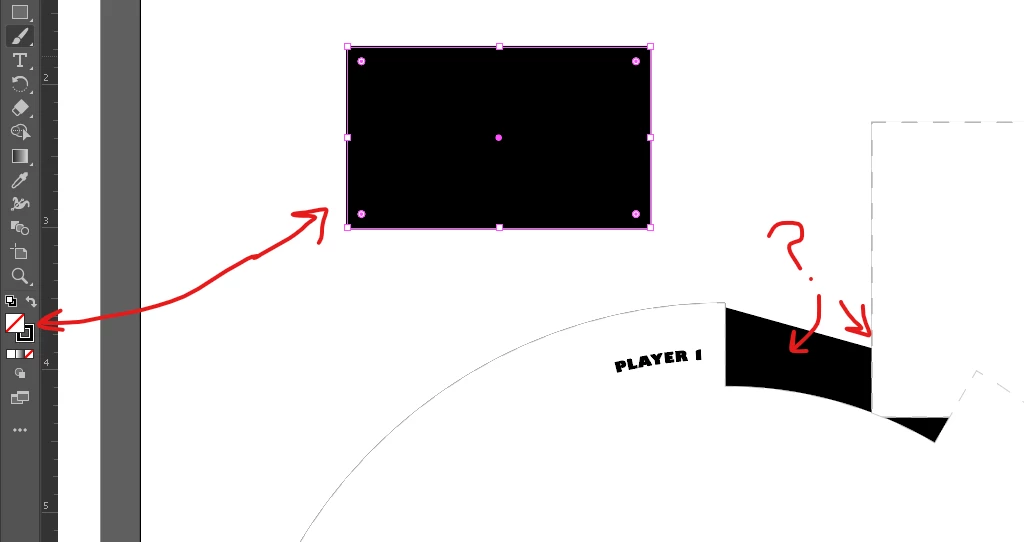
Shapes with no fill color are appearing as black and not blank, how do I remove the black?

  • May 28, 2021
  • 1 reply
  • 10415 views

I have not been able to find any help on this confusing problem. I've been working on this file for a while and suddenly parts of my shapes that have no fill color a registering as filled with black, even though it shows that it has no fill, just the outline I have it set to. When I create a new object like a rectangle it is doing the same thing, outline black, no fill color, but the whole shape is black. What is going on and how can I fix this? I need to print off this shapes but the preview is showing black.


Something else I noticed that was strange, was when I put a different object behind the object appearing as black it now looks white instead. 
Correct answer Doug A Roberts

Select one of the objects and look at the appearance panel.

Is there an entry for 'Layer' in it? If so, double-click it and remove whatever appearance is there.

If not, please show a screenshot including the panel.

1 reply

Doug A Roberts
Community Expert
Doug A RobertsCommunity ExpertCorrect answer
Community Expert
May 29, 2021

Select one of the objects and look at the appearance panel.

Is there an entry for 'Layer' in it? If so, double-click it and remove whatever appearance is there.

If not, please show a screenshot including the panel.

Participant
May 13, 2024

I am experiencing the same problem, but when I double click on the Layer on the appearance, nothing happens.

Participant
July 25, 2024

Please show your appearance panel.


Hi I am having the same problem in Adobe Illustrator. Brush line should be green. It appears in the appearnce panel as green but appears on the page as black. Any help much apprectiated.