New Participant
September 19, 2018
Answered

Small space between objects when trying to put them next to each other

  • September 19, 2018
  • 5 replies
  • 3611 views

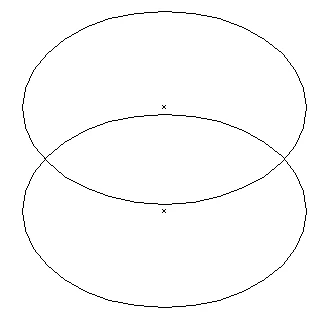
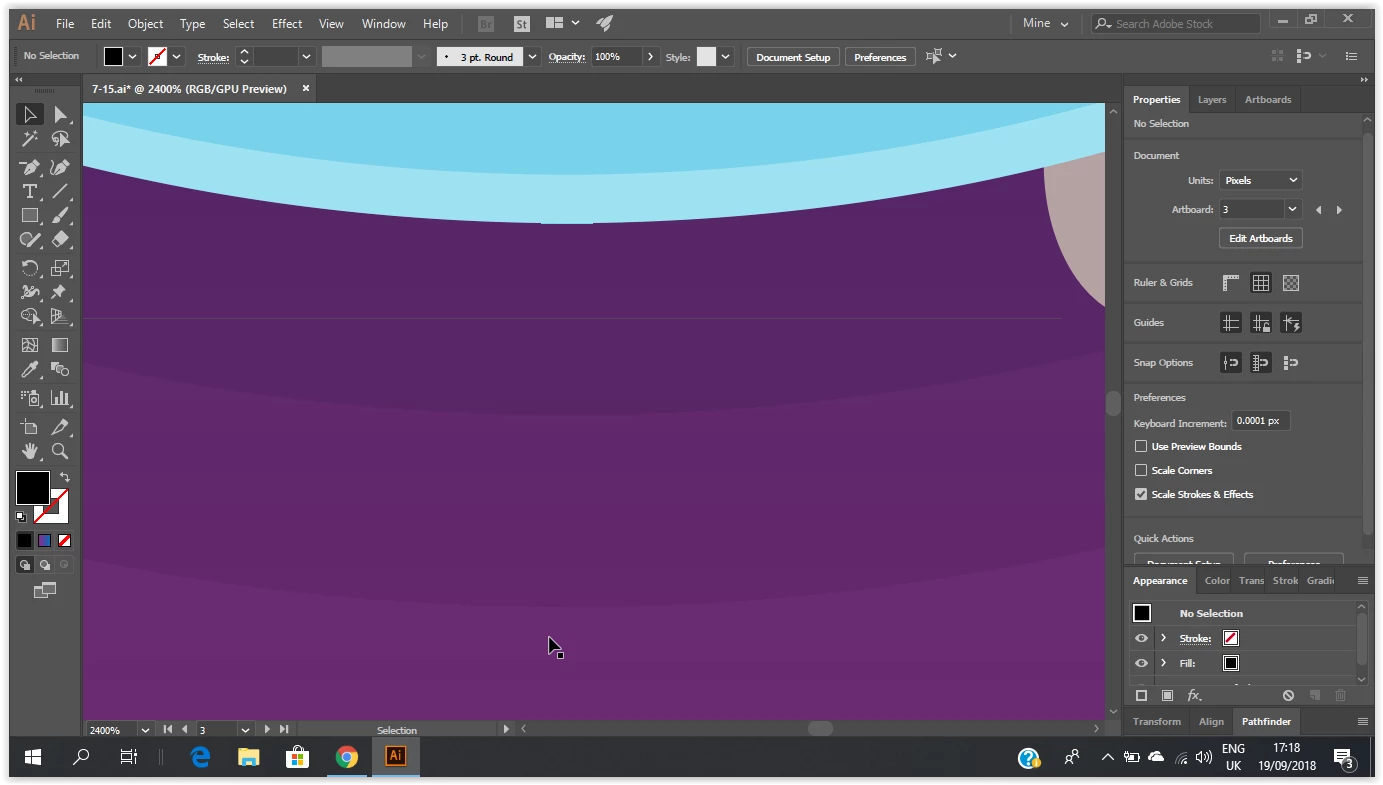
Hi! I am new to Illustrator and I am trying to create an put two shapes underneath one another to create a bigger object. However, a very thin white line remains between them, as shown in the image attached. I have tried selecting the two objects and using the Distribute Spacing, with the Space set to 0px and the Align to setting set to "Align to Key Object". However, this didn't change anything. Any idea on what could be causing this problem and how to solve it? Thank you!

Correct answer barbara_a7746676

It's probably a screen display issue.

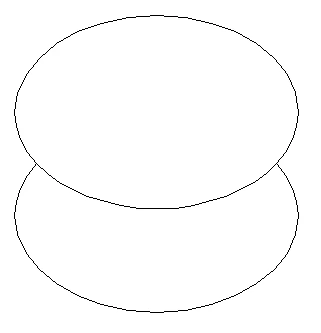
Choose View > Outline. You should see a single line between the two objects, similar to this (preview view on left; outline view on right):

If you're still not sure, you could overlap the two objects. That way there would definitely not be a gap.

5 replies

New Participant
November 11, 2025

I encounter the same problem, and it's driving me crazy! I use the shape builder tool frequently, but when I cut pieces, it often looks like there is a gap or a stroke where two pieces are touching but not overlapping.


Here, I'm working on a logo, so I need it to be perfect. You can see how there seem to be gaps.


Abhishek Rao
Community Manager
Community Manager
November 11, 2025

Hi @CrystalPreyer,


Thanks for sharing the details and screenshots. The thin white gaps you're seeing are likely a display or anti-aliasing issue in Illustrator, not actual gaps in the artwork. Try switching to Outline View from the View menu and the lines should disappear. You can also export your file as a PNG or PDF to check if the gaps still appear.

If they do, please create a new post on the community with the details, and we'll work to help you sort it out.


Let me know how it goes!

Abhishek

lambiloon
Community Expert
September 20, 2018

Hi i think this is due to shape break try to combine the shape which are same in colors using path finder options.

Ali Sajjad / Graphic Design Trainer / Freelancer / Adobe Certified Professional
chanaart
Community Expert
September 20, 2018

I tried it. When you zoom in you start seeing that there is no line. I exported it as a PNG to check and zoomed in.

chanaart
Community Expert
September 20, 2018

If this does not work we can take it to the product managers with a sample file from you!

barbara_a7746676
barbara_a7746676Correct answer
Community Expert
September 19, 2018

It's probably a screen display issue.

Choose View > Outline. You should see a single line between the two objects, similar to this (preview view on left; outline view on right):

If you're still not sure, you could overlap the two objects. That way there would definitely not be a gap.

New Participant
September 19, 2018

Yes, I think it was a screen display issue, because if I try to save it as a png and then open it on another computer the line isn't there. Thank you!

Monika Gause
Community Expert
September 19, 2018

This could just be a screen rendering issue.

Go to Preferences > General and turn off the Anti-aliasing. Is the white line still there?

New Participant
September 19, 2018

Hi, yes, it is still there. However, it becomes more/less clear depending on how far i zoom in and sometimes it seems to not even be visible at all.

Monika Gause
Community Expert
September 19, 2018

Then try and unite the neighbouring shapes.

Also try and turn on View > Preview on CPU. Still there?

chanaart
Community Expert
September 19, 2018

I am trying to understand the issue based on the screen shot.

Are the objects same size? where is the thin line?

Please explain!

New Participant
September 19, 2018

Hi, the objects are the same size and the line is right where they meet, near the end of the planet. I am attaching another screenshot, hope it makes it clearer.